
After-hours call routing in Voxbi
Set up time-based call routing in the Voxbi Cockpit so your phone system automatically handles open and closed hours on every incoming call.
After-hours call routing means your phone system knows the difference between "we are open" and "we are closed" and treats each caller accordingly. During business hours, calls ring your team or land in a queue. Outside business hours, callers hear a friendly out-of-office message and can leave a voicemail instead of ringing an empty office. You set this up once with a time-based schedule in Voxbi call flows, and Voxbi handles the switching automatically every day, weekend, and public holiday.
This guide walks through the full setup in the Voxbi Cockpit: creating a business-hours schedule, recording your out-of-hours message, and wiring both into a call flow so the right thing happens at the right time of day.
What you need before you start
A few things should already be in place so the routing has somewhere to send each call:
Administrator access to the Voxbi Cockpit.
A queue or an extension for calls to reach during business hours.
A voicemail box or a recorded announcement for out-of-hours callers.
If you have not built a queue or an extension yet, do that first. The schedule only decides when to route; the call flow decides where.
Step 1: create a business-hours schedule
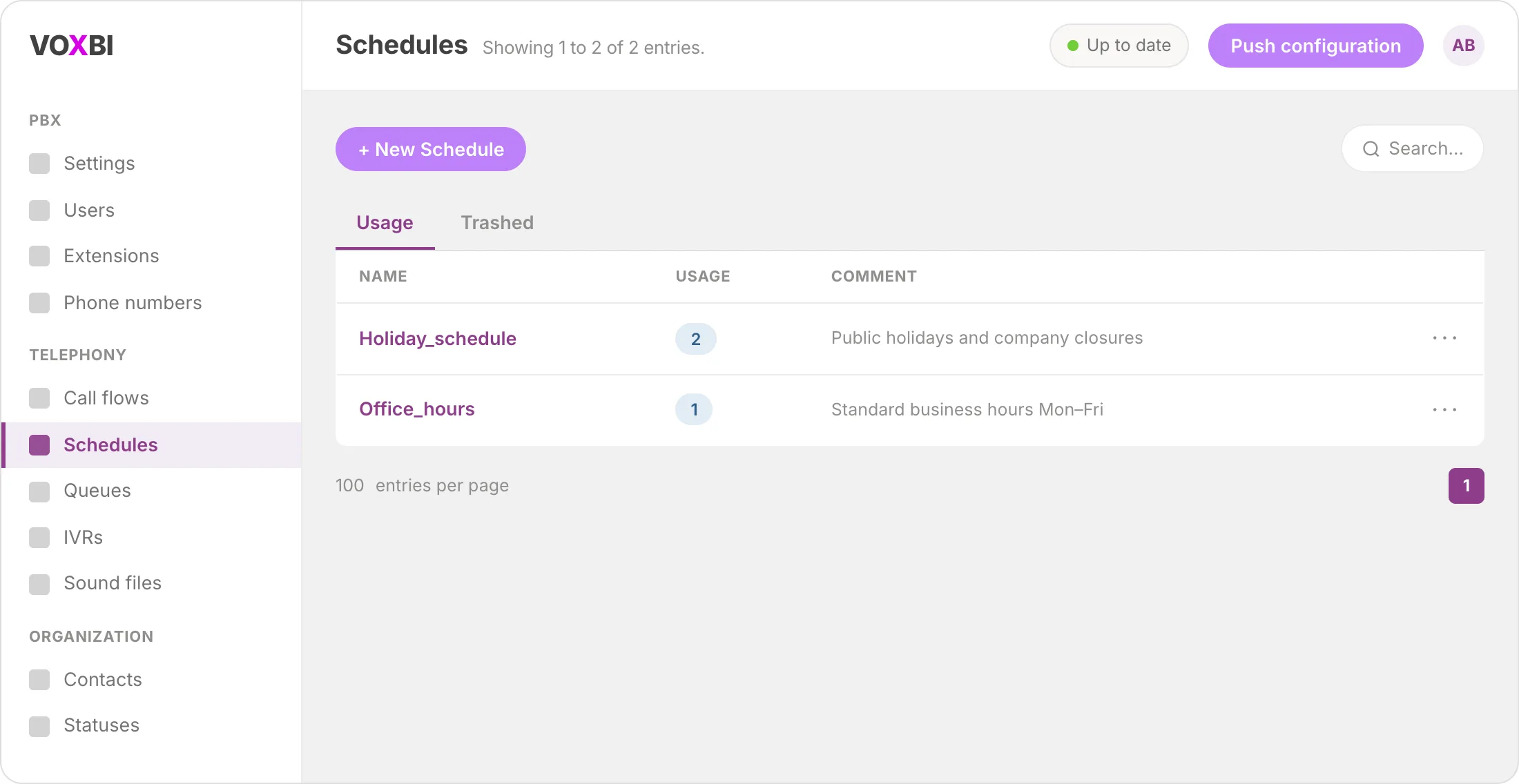
In the Cockpit, open Schedules and click New Schedule. Give it a clear name such as "Office_hours" so you recognise it later in the call flow.
Add your open times as time slots. For a standard week you might set Monday to Friday, with the weekend days left off. Voxbi lets you split the day into several slots, which is handy if you close over lunch: add one slot for the morning and another for the afternoon.
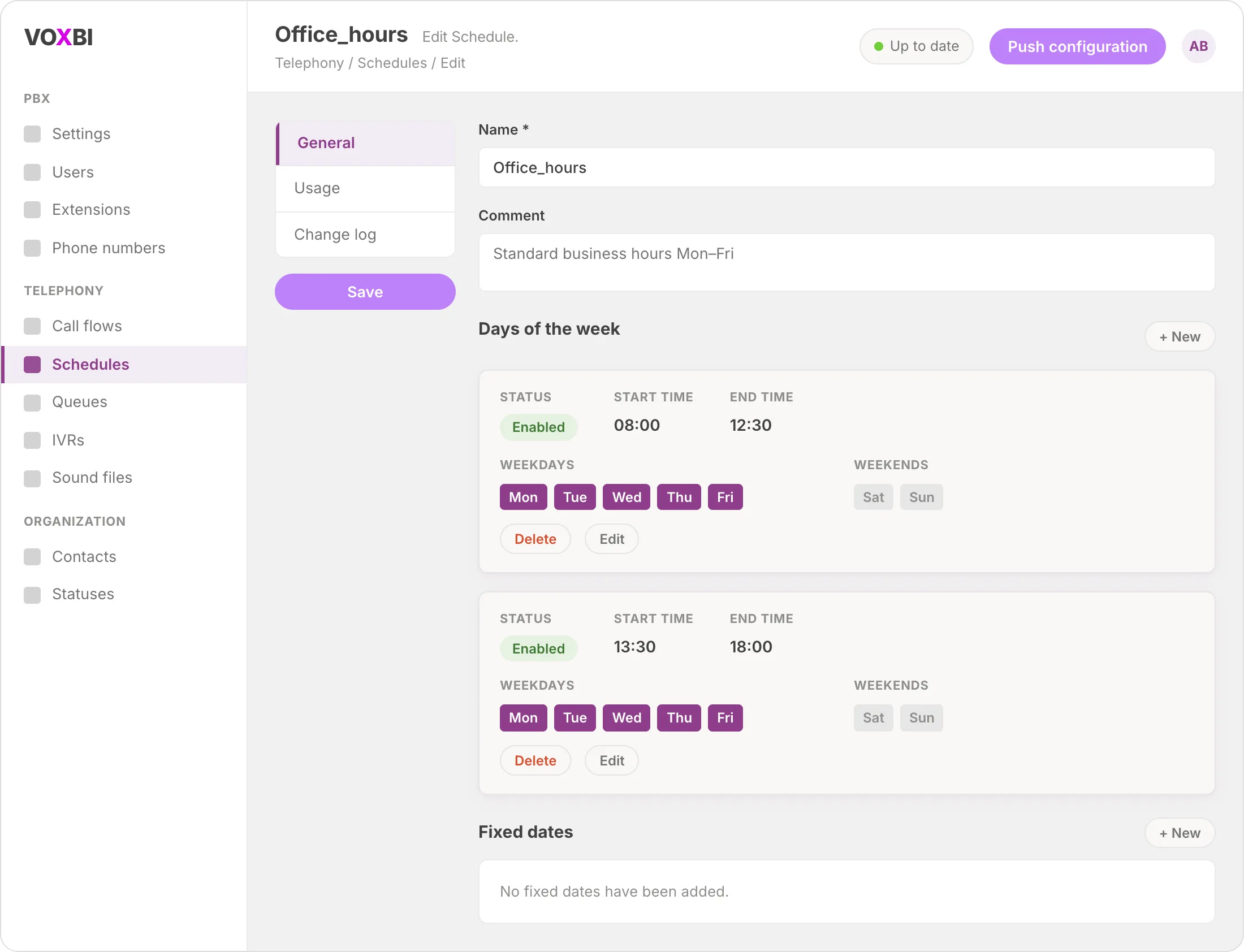
Save the schedule. Any time a call arrives, Voxbi checks the current time against these slots: inside a slot counts as "open", anything else counts as "closed".
Step 2: upload your out-of-hours announcement
Go to Sound files and upload the message callers should hear when you are closed. Something simple works best, for example: "Thanks for calling. You have reached us outside our business hours. Please leave a message and we will get back to you." Keep it short and warm.
If you would rather send out-of-hours calls straight to voicemail without a spoken intro, you can skip this and let the voicemail greeting do the talking. Most teams prefer the dedicated announcement because it sets expectations before the beep.
Step 3: open the call flow for your main number
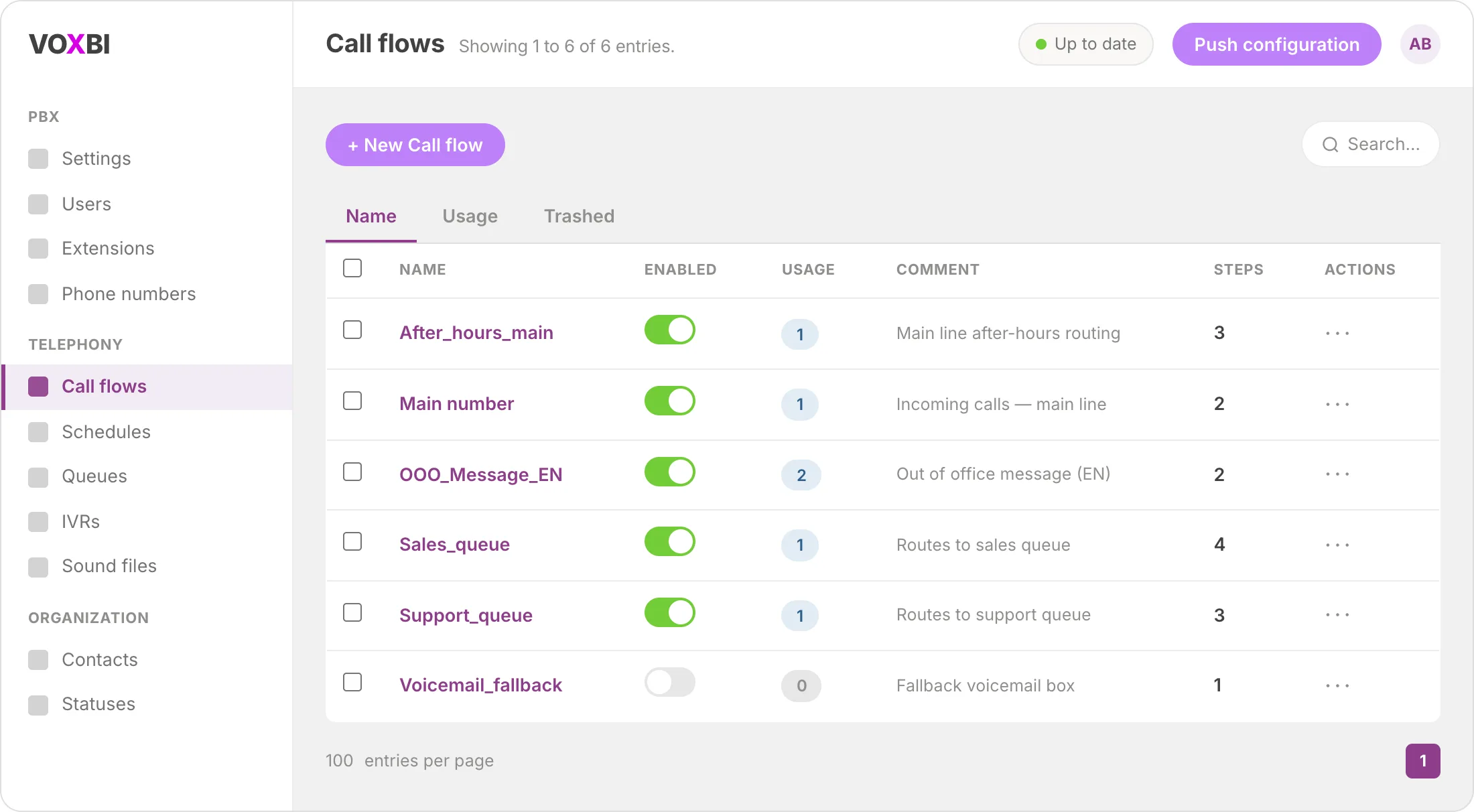
Go to Call flows and open the flow that serves your main phone number (or create a new one if you are starting fresh). This is where you decide what happens to each incoming call, step by step.
Step 4: add a Check schedule step
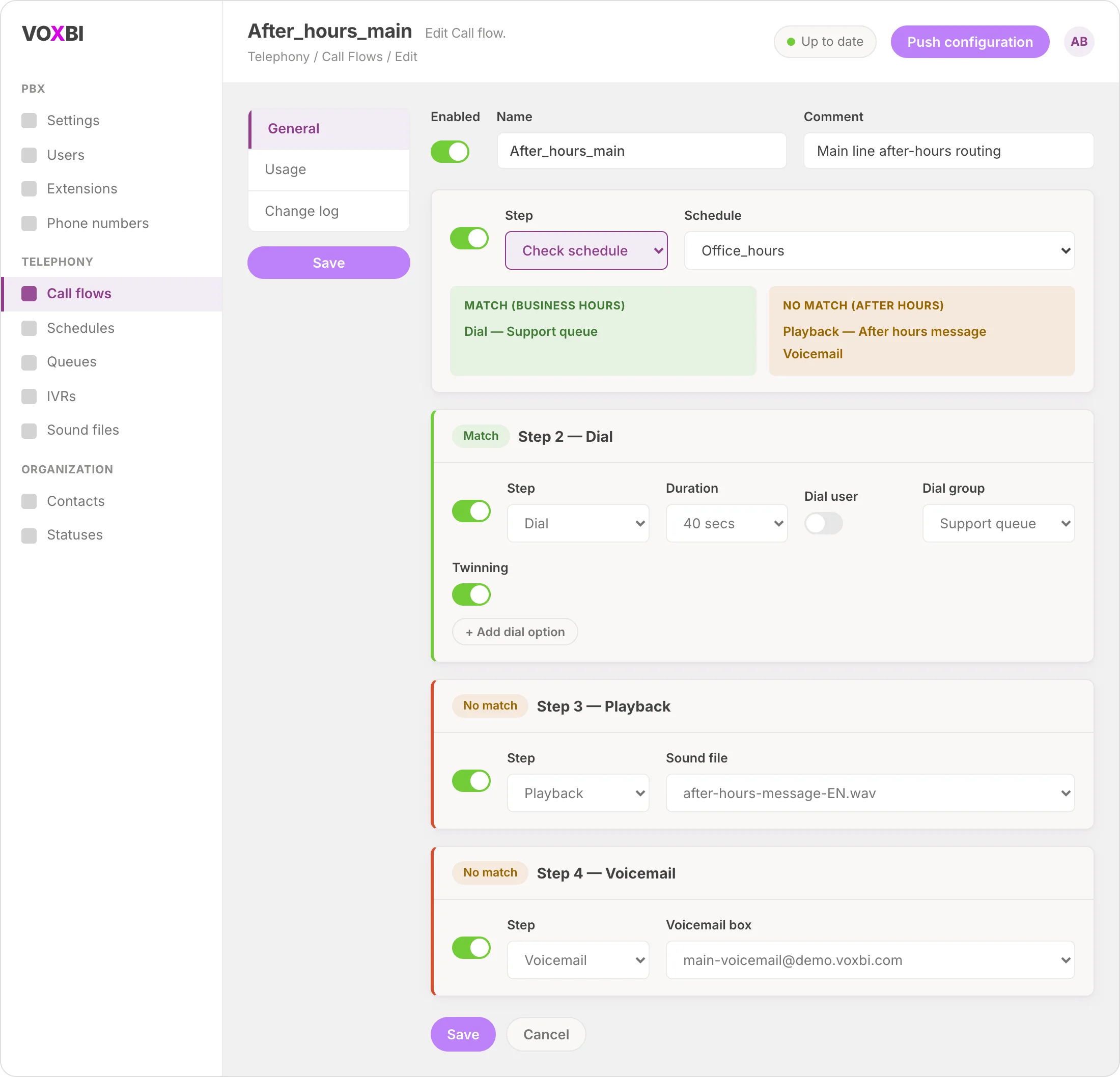
Add a Check schedule step as the very first step in the flow, and select your "Office_hours" schedule. This step splits the flow into two branches:
Match: the call arrived during your business hours.
No match: the call arrived outside your business hours.
Every call now takes one path or the other, automatically, based on the clock.
Step 5: configure the business-hours path
In the Match branch, add a Dial step that forwards the call to your queue or extension. This is the normal daytime experience: the caller reaches a real person or waits in your queue.
You can chain more steps here if you like, the same way you would in any call flow: try one group, then another, then fall back to voicemail if nobody answers.
Step 6: configure the out-of-hours path
In the No match branch, add a Playback step that plays the out-of-office announcement you uploaded. Follow it with either a Voicemail step (so callers can leave a message) or a Hangup step (if you simply want to close the line politely).
That is the whole switch: open hours ring your team, closed hours play the message and take a voicemail.
Step 7: save and test
Save the call flow and remember to push the configuration if the Cockpit prompts you. Then test it by calling your number. If you can, test once during your open hours and once outside them so you see both branches behave.
Troubleshooting
Calls always take the closed path, even during open hours. Check the time slots on your schedule. A common cause is a slot that does not actually cover the current time, or the wrong days being toggled on. Also confirm the call flow is pointing at the right schedule.
Calls always take the open path, even at night. Usually this means the Check schedule step is not the first step, or a Dial step earlier in the flow is answering the call before the schedule is checked. Move Check schedule to the top.
Callers hear nothing on the closed path. Confirm the Playback step points at the sound file you uploaded, and that the file uploaded successfully under Sound files.
Changes are not taking effect. If the Cockpit shows a pending configuration, push it. Routing changes go live once the configuration is pushed.
Frequently asked questions
What is after-hours call routing?
It is a rule in your phone system that treats calls differently depending on the time of day. During business hours, calls reach your team; outside business hours, callers get an announcement and voicemail instead of ringing an unattended office. In Voxbi this is built with a time-based schedule inside a call flow.
Can I route calls differently for public holidays?
Yes. The cleanest approach is a separate schedule for holidays and company closures, then a second Check schedule step in your call flow. Check the holiday schedule first, so holiday routing takes priority over the normal weekly hours.
Do I need a separate phone number for out-of-hours calls?
No. The whole point of time-based routing is that one number behaves differently depending on when someone calls. A single Check schedule step handles both the open and closed experience on the same number.
Can I split my open hours across the day?
Yes. Add more than one time slot to the same schedule, for example a morning slot and an afternoon slot, to cover a lunch break when the office is closed. Any time that falls outside every slot counts as closed.
What happens to a call that comes in exactly as we close?
Voxbi checks the time the moment the call arrives against your schedule slots. A call that connects one minute after your last slot ends takes the closed path; a call that connects while a slot is still active takes the open path.
Can I use after-hours call routing on multiple phone numbers?
Yes. You can apply the same schedule to multiple call flows, or build separate flows for each number with their own schedule. If your main line and a direct number should behave differently outside hours, give each its own flow.
Route every call to the right place, around the clock
A time-based schedule is one of the quickest wins in your phone setup: no more missed after-hours calls, no more ringing an empty office, and callers always know what to expect. Once it is in place it runs itself.
Want to go further with how calls move through your system? See how everything fits together on the call flows hub, or add a menu so daytime callers can pick the right team with our guide to creating an IVR menu.