
How to set up an IVR menu in Voxbi
Set up a phone menu that routes every caller to the right team automatically, no receptionist needed.
Set up a phone menu that routes every caller to the right team automatically, no receptionist needed.
An IVR menu greets every caller with a short recording ("For sales, press 1, for support, press 2") and routes each key press to the right team without a receptionist picking up first. This guide shows you how to set up an IVR menu in Voxbi from scratch: creating the menu, mapping each digit to a queue or call flow, and connecting it to the phone number your customers actually dial.
Interactive voice response (IVR) is the automated phone menu callers hear before they reach a person. Configured once in the Voxbi Cockpit, it sorts every inbound call automatically, day and night.
What you need before you start
Administrator access to the Voxbi Cockpit.
A recorded greeting uploaded under Sound files (WAV or MP3). This is the announcement callers hear when the menu picks up.
The destinations you want each key to reach already set up: a call flow, a queue, or another IVR for a submenu. If those do not exist yet, create them first so you can select them while building the menu.
Plan your menu structure first
A minute of planning saves a lot of re-recording. Decide which key maps to which destination before you open the Cockpit. A typical main menu looks like this:
| Key | Action |
| 1 | Route to the Sales call flow |
| 2 | Route to the Support call flow |
| 3 | Route to a submenu IVR (for example, accounting) |
| 0 | Route to reception |
| Default | Repeat the announcement or hang up |
Keep it short. Most callers stop listening after four or five options, so lead with the choices people pick most.
How to set up an IVR menu: step by step
Step 1: open the IVRs list
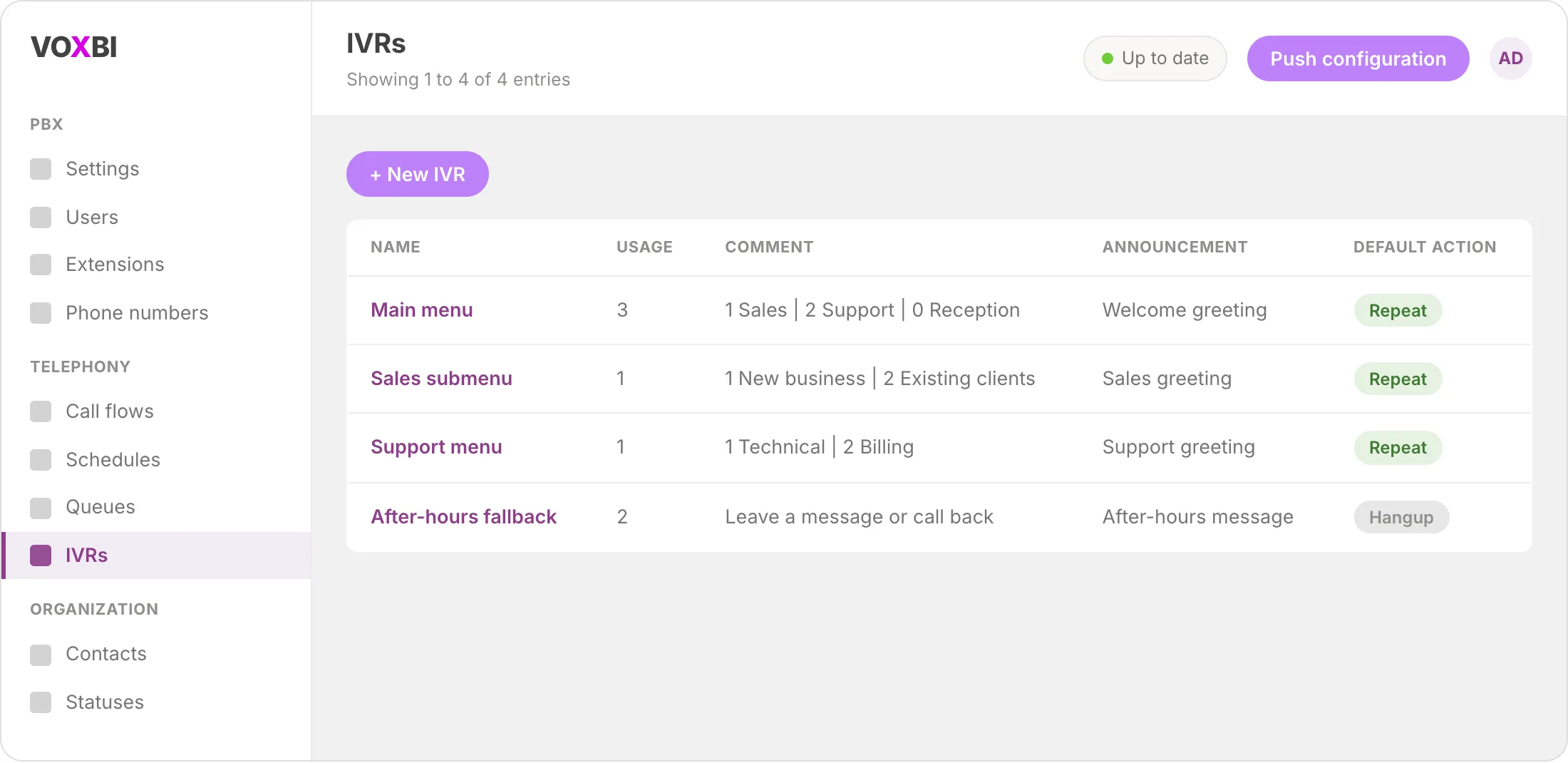
In the Voxbi Cockpit, go to Telephony and select IVRs in the left menu. You will see every IVR you already have, with its name, how many places it is used, a comment, the announcement it plays, and its default action.
Step 2: create a new IVR
Click New IVR at the top of the list. Give it a clear name such as "Main number" or "Support menu" so you can recognise it later when you wire up your call flows.
Step 3: set the general options
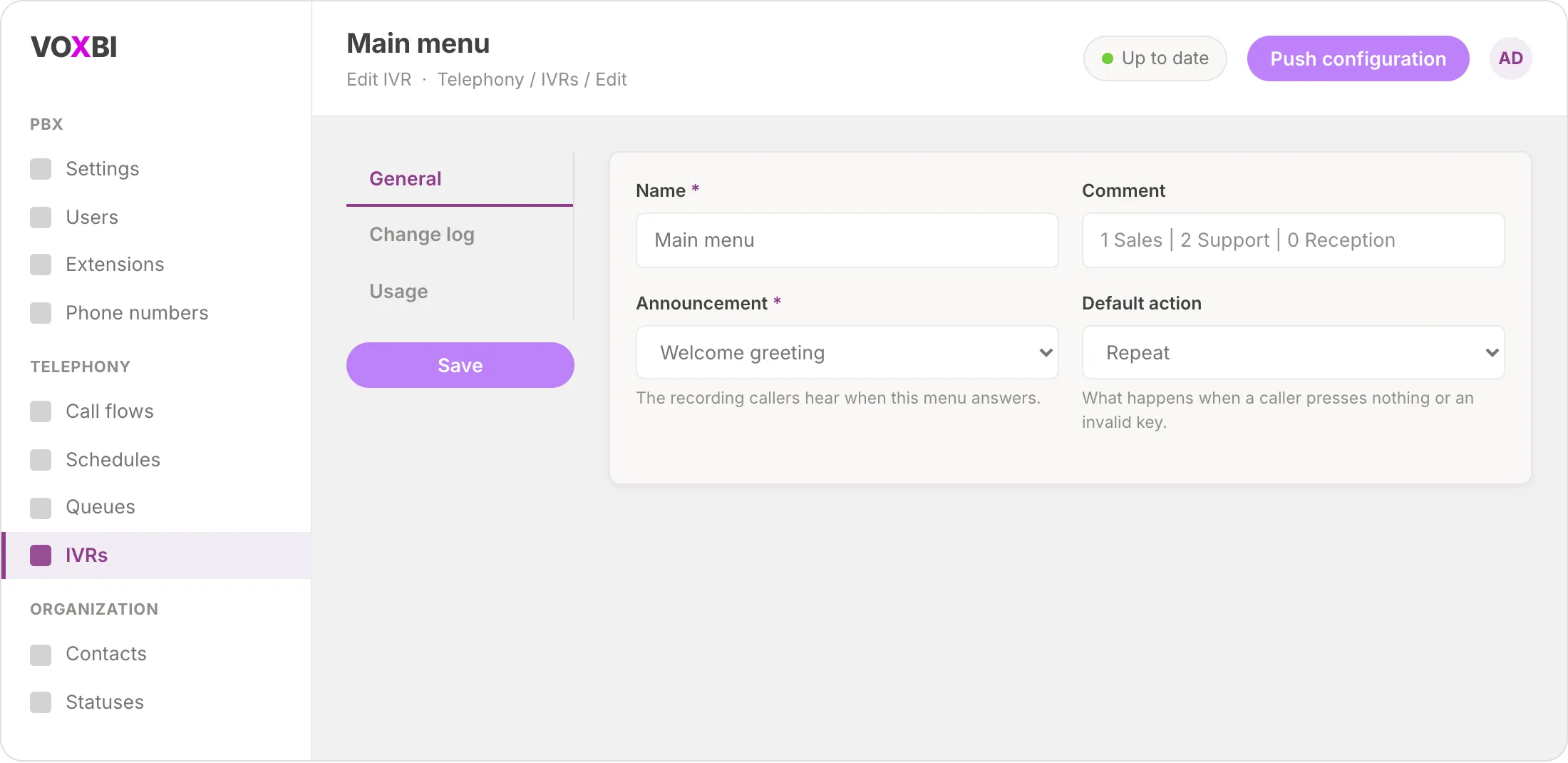
On the General tab, fill in the core settings for the menu:
Name: the internal label for this IVR.
Comment (optional): a note to remind yourself what each key does, for example "1 Sales | 2 Support | 0 Reception".
Announcement: pick the greeting you uploaded under Sound files. This is what callers hear when the menu answers.
Default action: what happens when a caller presses nothing, or an invalid key. Repeat replays the announcement; Hangup ends the call. Repeat is the friendlier choice for most menus.
Step 4: map each key to a destination
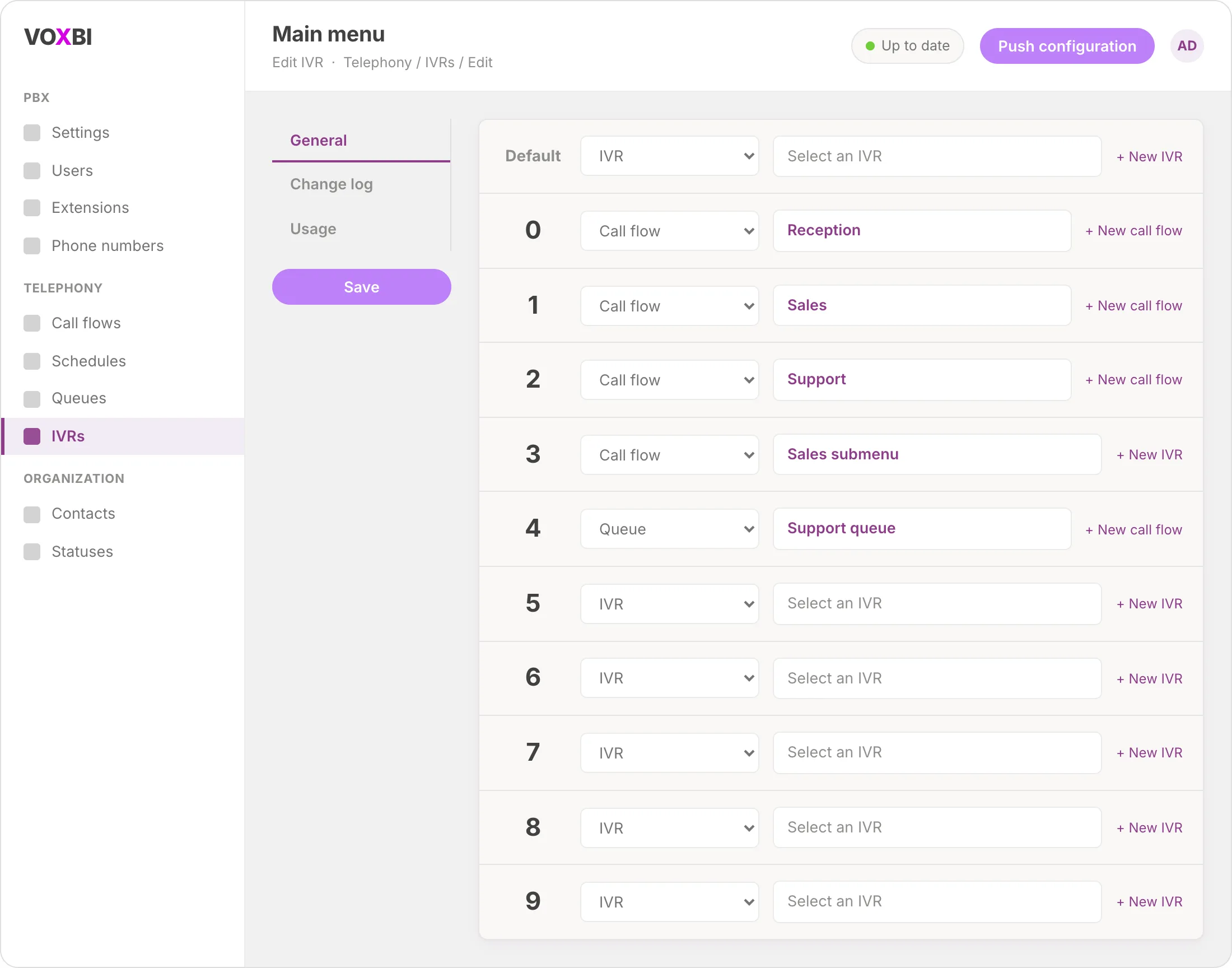
Below the general settings you will find a row for each key, numbered 0 to 9, plus a Default row. For every key you want to use:
Choose the destination type from the dropdown: Call flow, IVR (for a submenu), or the other options available.
Select the specific target in the next field, for example the "Sales" call flow for key 1.
Leave unused keys empty. Callers who press them fall through to your default action.
You can also point a key at a brand-new destination using the New call flow or New IVR shortcut next to each row, which saves jumping between screens.
Step 5: save the IVR
Click Save. Your menu now exists, but callers cannot reach it yet because it is not connected to a phone number. That happens in the next step.
Step 6: connect the menu to your call flow
An IVR only answers calls once a call flow sends callers into it. Open the call flow for your main phone number (under Telephony, then Call flows) and add a step that dials this IVR. When a call comes in, the flow hands it straight to your menu.
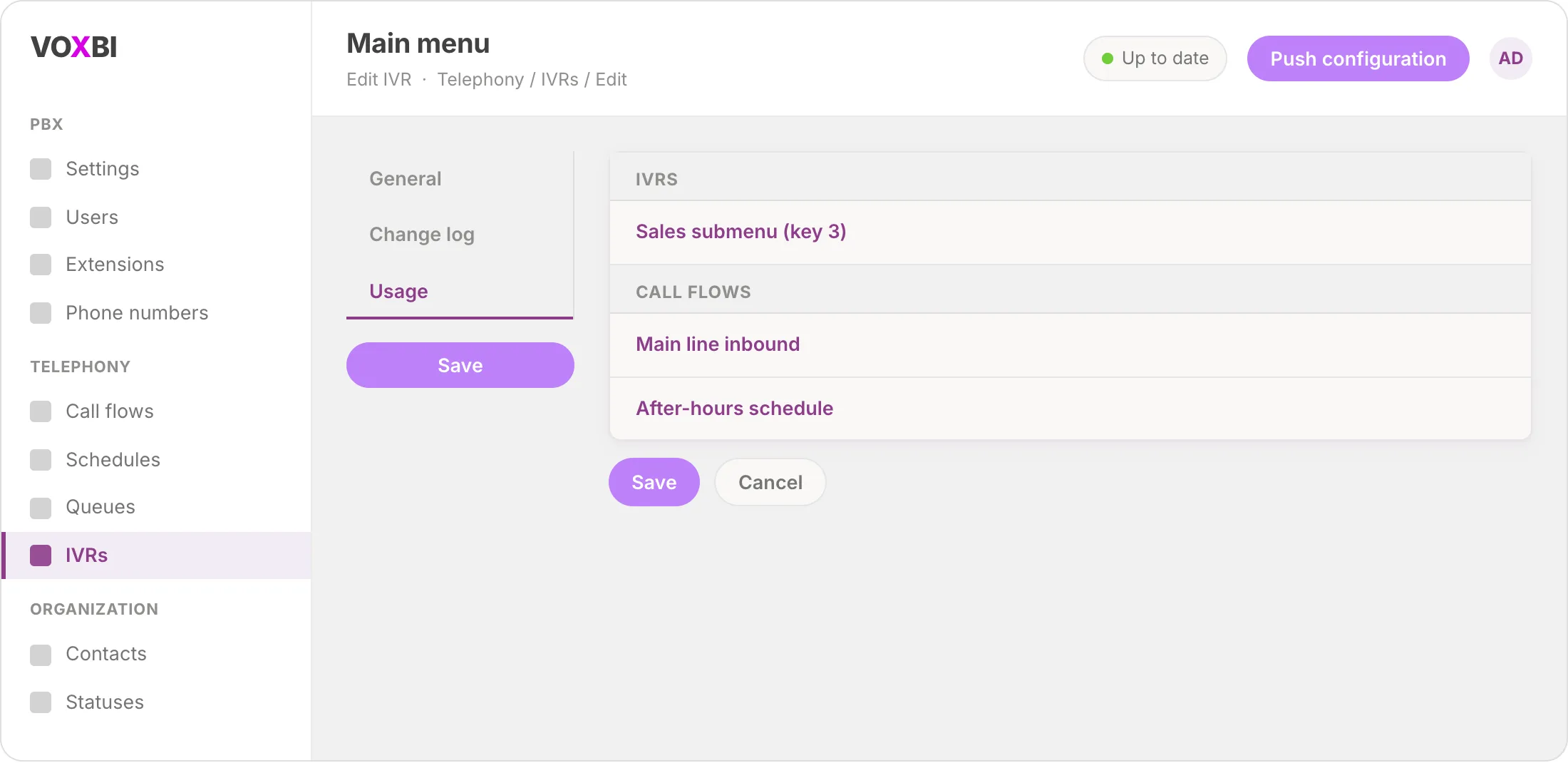
You can confirm where a menu is already used from its Usage tab, which lists every call flow and IVR that points at it. This is handy before you edit or delete a menu, so you do not break a route by accident.
For the full picture of how menus, queues, and schedules fit together, see the call flows hub.
Troubleshooting
Callers hear nothing when the menu answers. Check that an announcement is selected on the General tab and that the sound file actually uploaded under Sound files. An empty announcement field means silence.
A key press does nothing. Confirm that key has both a destination type and a target selected. A type with no target, or a target with no type, will not route.
The menu never picks up. The IVR is probably not wired into a call flow yet. Open the call flow for your number and make sure it dials this IVR.
Changes are not live. After saving, push your configuration so the change reaches the phone system. Look for the Push configuration control at the top of the Cockpit.
Callers get stuck when they press the wrong key. Set the default action to Repeat so the greeting plays again, and consider reserving key 0 for reception as a human fallback.
Frequently asked questions
What is an IVR menu?
An IVR (interactive voice response) menu is the automated phone menu callers hear before reaching a person. It plays a short greeting and lets callers press a key to reach the department or service they need, so calls are routed without a receptionist answering first.
How many options should an IVR menu have?
Keep it to four or five choices. Most callers stop listening after that, so put the most common destinations first and reserve a single key (often 0) to reach a human. You can always add depth later with a submenu.
Can I build a multi-level IVR menu?
Yes. Point one of the keys at another IVR instead of a call flow, and that key opens a submenu. For example, key 3 could open an "accounting" IVR with its own options. Build each submenu as a separate IVR, then link them.
What happens if a caller presses nothing or an invalid key?
That is controlled by the default action on the General tab. Repeat replays the announcement so the caller can try again, and Hangup ends the call. Repeat is usually the better experience.
How do I route calls differently outside business hours?
Combine your IVR with a schedule in the call flow so callers reach a different destination after hours. See our guide on after-hours call routing for the full setup.
Do I need to re-record my greeting every time I change the menu?
Only if you want the spoken options to reflect what you have changed. The recording and the key mappings are independent in Voxbi: you can remap keys without uploading a new audio file, but callers will hear options that no longer match until you do.
Ready to route every caller to the right team?
Set up your IVR menu once and inbound calls sort themselves from then on. Explore the call flows hub to connect menus, queues, and schedules into a complete inbound experience. If you also want to handle callers outside business hours, our guide on after-hours call routing walks through the schedule setup in full. For multilingual teams, see our guide on setting up a multilingual call center.