
Set your phone status from your calendar
Connect your Microsoft 365 calendar to Voxbi and your phone status updates itself every time a meeting starts or ends. No manual toggling, always accurate.
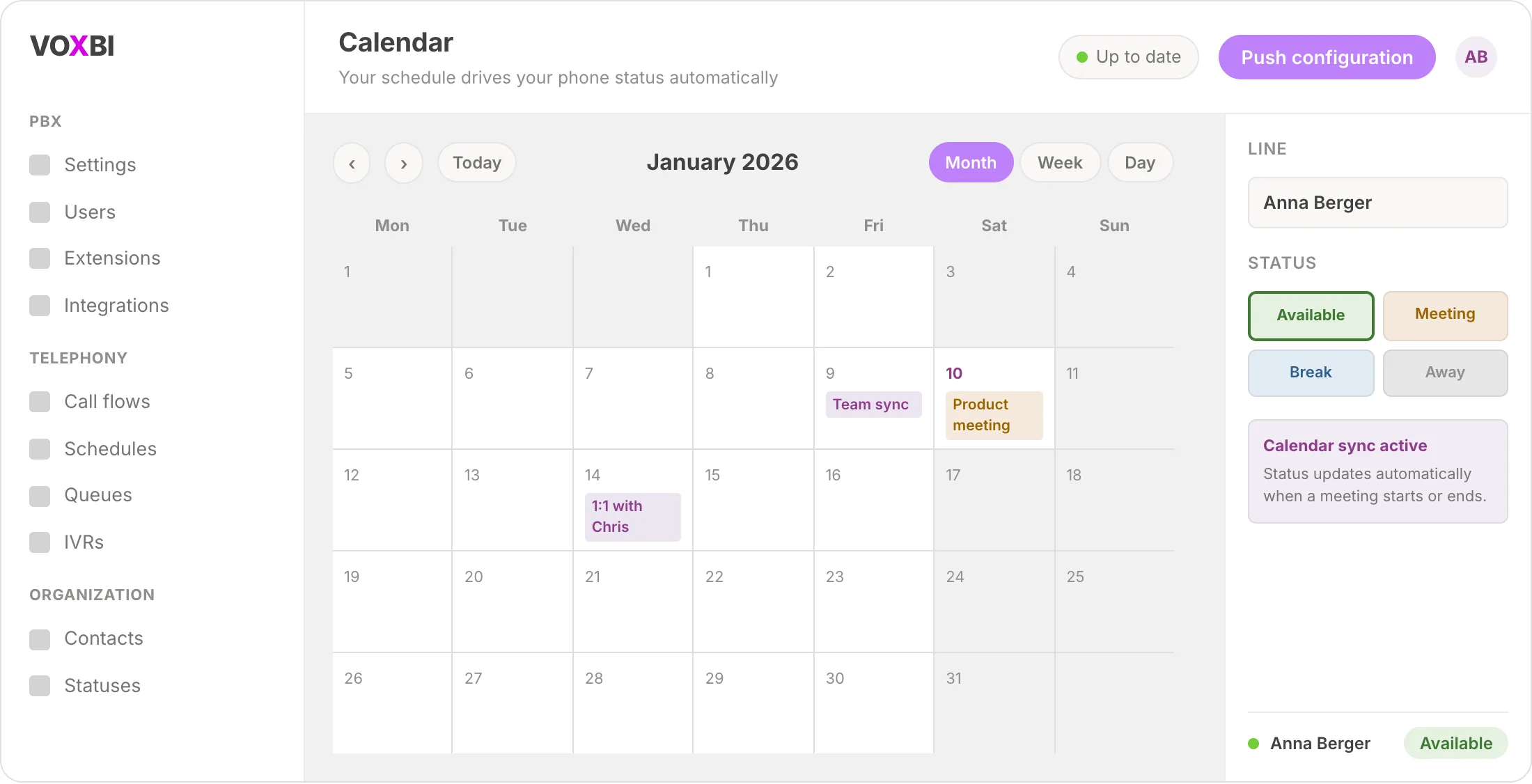
Imagine your phone always tells the truth. You walk into a meeting and, without touching a single button, your line switches to "In a Meeting", calls stop ringing at your desk, and callers hear the right message. That is what happens when you set your phone status from your calendar in Voxbi: your Microsoft 365 calendar becomes the one source of truth for your availability.
Instead of remembering to flip a status every time your day changes, you let your calendar do it for you. A meeting starts, your status updates. The meeting ends, you are back to "Available". Colleagues see accurate presence, callers get routed sensibly, and nobody has to think about it. This guide walks you through connecting your calendar, mapping events to statuses, and controlling how each status handles incoming calls. Start with the Microsoft 365 integration hub if your organization has not connected that yet.
What you need before you start
Calendar-driven status is an admin setup first, then a per-user connection. Before you begin, make sure you have:
Administrator access to the Voxbi Cockpit
The Microsoft 365 calendar integration configured for your organization
At least one user account ready to link a personal calendar
Your statuses defined in the system (for example "In a Meeting", "Away", and "Available")
If your Microsoft 365 connection is not set up yet, go to the Microsoft 365 integration hub and come back here once it is live.
Step 1: Connect your calendar to set your phone status
First, connect Voxbi to your calendar provider at the organization level.
In the Cockpit, go to PBX and open Integrations.
Select Microsoft 365 as your calendar provider.
Click Connect and authorize access when prompted.
Confirm the connection, then run a quick test to make sure Voxbi can read calendar data.
Once the integration reports as connected, your organization is ready to map calendar events to statuses.
Step 2: Set which statuses respond to calendar events
Now decide which of your statuses should be driven by the calendar. This is where you tell Voxbi, for example, that a meeting event should switch someone to "In a Meeting".
In the Cockpit, open Organization and go to Statuses.
Edit an existing status or create a new one.
Enable the calendar sync option for that status.
Choose the event types that should trigger this status.
Save your changes.
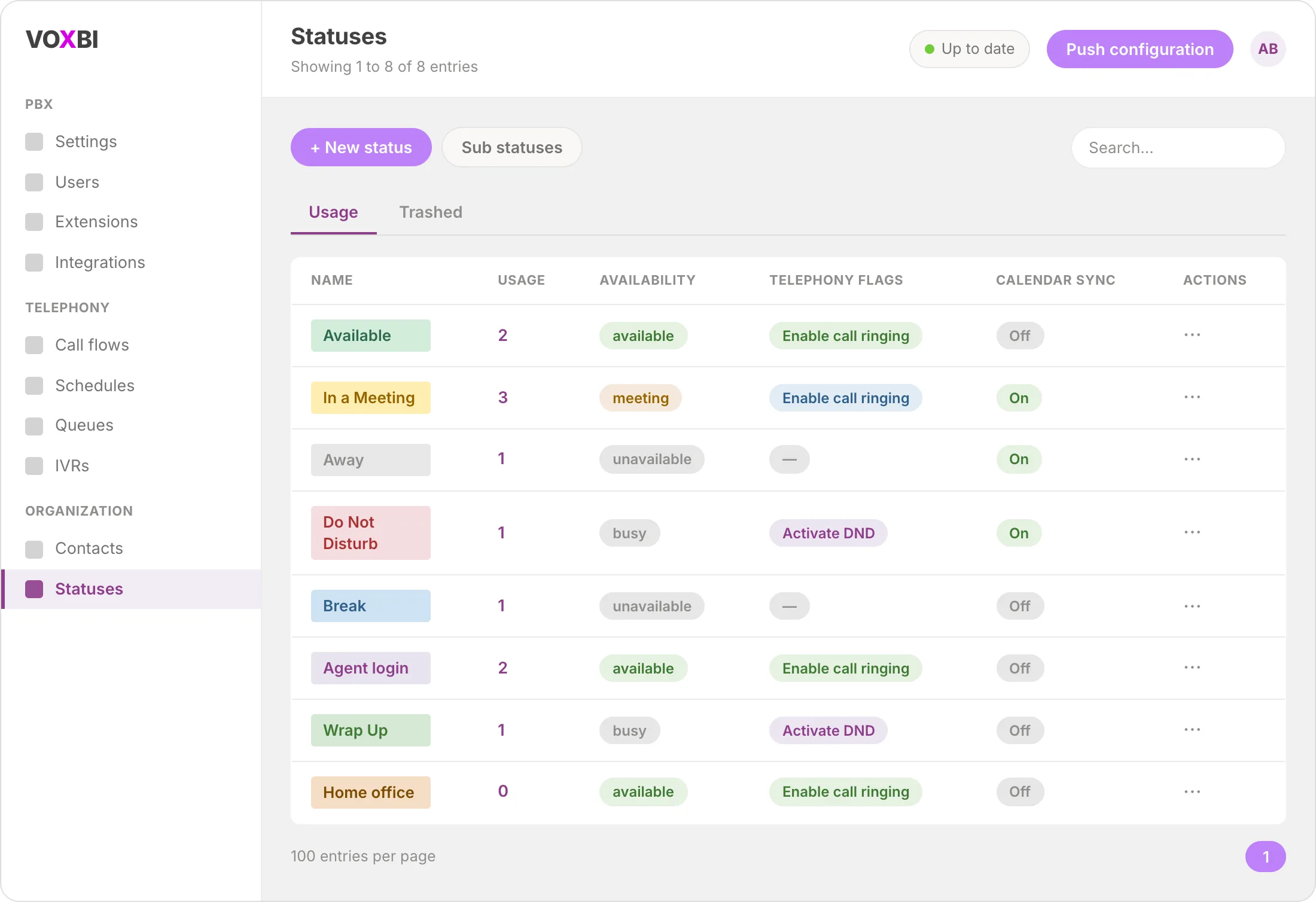
The Statuses list gives you the full picture: each status shows its availability level (available, busy, meeting, unavailable) and any telephony behavior attached to it. This is the map every calendar-driven change follows.
Step 3: Link each user's calendar
The organization setup is shared, but each person still connects their own calendar once.
The user opens their Voxbi client settings.
They go to Integrations (or Calendar).
They click Connect Calendar and select Microsoft 365.
They authorize access to their calendar.
They pick the calendar that should drive status synchronization.
From that point on, that user's meetings and appointments start steering their phone status automatically.
Step 4: Map calendar events to statuses
This is the heart of the setup: deciding which kind of calendar entry produces which status. Voxbi reads the event and applies the matching status without any manual input.
| Calendar event | Status | When it applies |
| Meeting or appointment | In a Meeting | Appointments with "Meeting" in the title |
| Away or out of office | Away | All-day absences or out-of-office entries |
| Focus time | Do Not Disturb | Focus blocks that should hold calls |
| Lunch break | Away | Lunch entries in the calendar |
| No event | Available | The default when nothing is scheduled |
Keep your event titles consistent (always "Meeting" rather than a dozen variations) so the mapping stays predictable.
Step 5: Choose how often Voxbi checks the calendar
Finally, decide how quickly a calendar change should reach the phone system.
Real-time (recommended): status updates the moment the calendar changes.
Every 5 minutes: a light poll for new events.
Every 15 minutes: the lowest server load, with a longer lag.
For most teams, real-time is the right choice. It is the difference between your status being correct the second a meeting starts and being correct a quarter of an hour later.
Control how each status handles calls
Setting a status is only half the value. The other half is what the phone does while that status is active. In the status editor, each status carries its own telephony behavior. You can also pair this with call flows to build more advanced routing logic around each status.
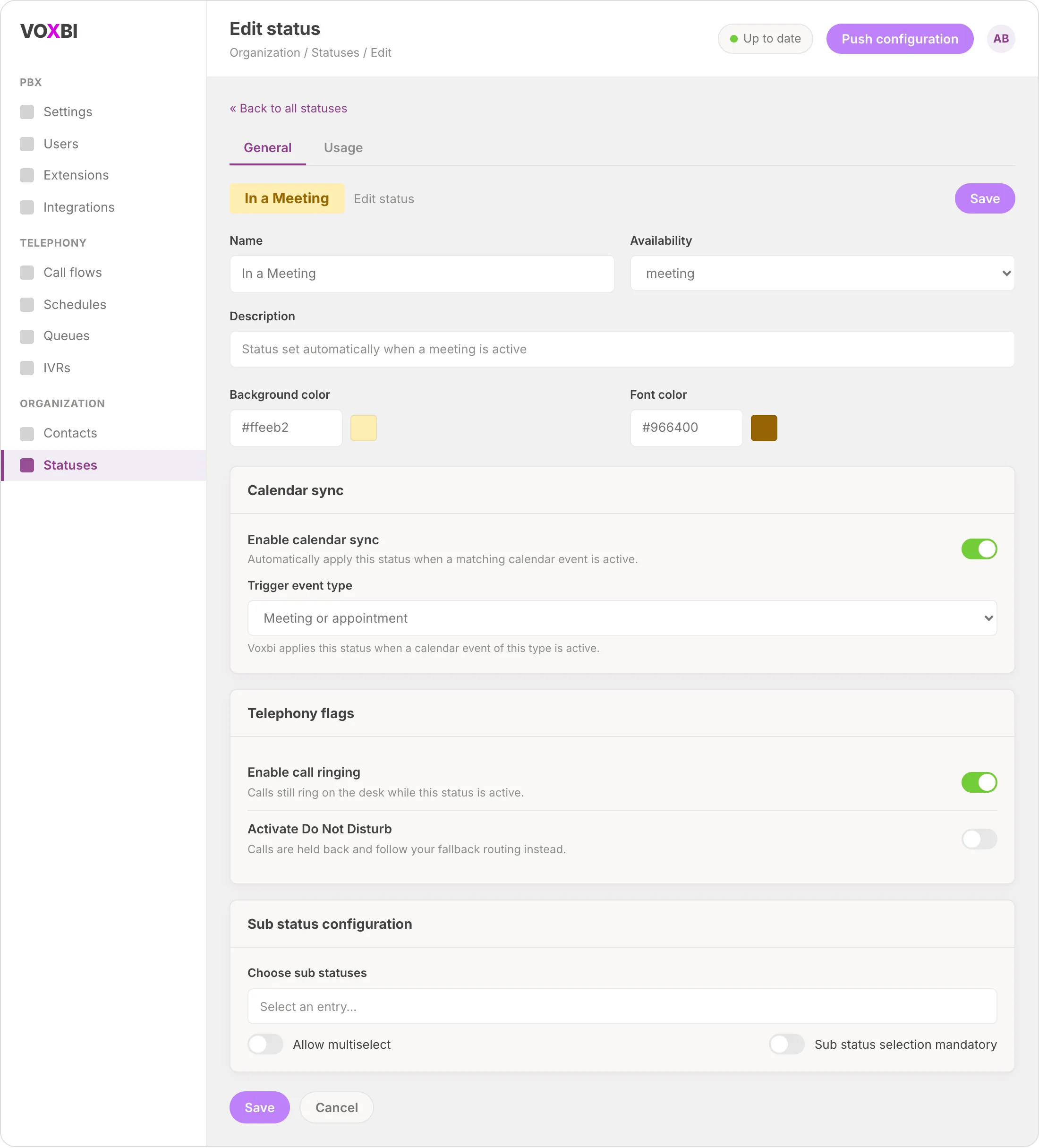
The two telephony flags you will use most are:
Enable call ringing: calls still ring on the desk even while the status is active, useful for statuses where you want to stay reachable for important calls.
Activate Do Not Disturb: calls are held back so they can follow your fallback routing instead of ringing through.
Pair this with your after-hours setup and the picture gets even cleaner: your calendar handles what happens during the day, and time-based rules handle the rest. See after-hours call routing for the schedule side of the same coin.
Troubleshooting
Status is not changing automatically. Check that the calendar integration is still connected and that the user has linked their own calendar. Then confirm the event-to-status mapping actually covers the event in question.
The wrong status keeps getting set. Review your event-to-status mapping. Voxbi may be matching a different event type than you expect, often because of an inconsistent event title.
Status does not reset after a meeting. Confirm that a default status ("Available") is configured, so there is something to fall back to when no event is active.
There is a noticeable delay. Switch the synchronization interval to real-time, or shorten the polling interval if you are on a longer one.
Frequently asked questions
Can I still change my status manually?
Yes. A calendar-driven status is a helpful default, not a lock. You can override it at any time from your Voxbi client, and your manual choice stands until your next calendar change.
Do calls still come through when I am "In a Meeting"?
That depends on the status. Each status carries its own telephony behavior: if Enable call ringing is on, calls still reach your desk; if Activate Do Not Disturb is on, calls are held back to follow your fallback routing.
Which calendar does Voxbi work with?
This guide covers Microsoft 365, connected through the Voxbi Cockpit at the organization level and then linked per user in each person's client settings.
How fast does my status update after a meeting starts?
With the real-time synchronization interval, your status updates the moment the calendar changes. On a polling interval it updates at the next check (every 5 or 15 minutes), so real-time is the best choice when timing matters.
Does every user have to connect their own calendar?
Yes. An administrator sets up the integration and the status mapping once for the organization, but each user links their personal calendar once from their own client settings.
Ready to let your calendar run your phone?
Calendar-driven status turns your schedule into accurate presence and smart call handling, with no manual toggling. Set it up once in the Cockpit, link your calendar, and let your meetings do the rest. Explore the full Microsoft 365 integration to see everything you can connect.