
Answer office calls on your mobile with mobile twinning
Link your mobile to your Voxbi extension and pick up office calls from anywhere, with no app required and your company caller ID always showing.
Want to answer office calls on your mobile without giving out your personal number or being glued to a desk phone? Mobile twinning links your mobile to your Voxbi extension, so when someone dials your office line, your mobile rings too. You pick up wherever you are, and the caller never knows the difference.
This is Voxbi's Fixed Mobile Convergence (FMC) feature. It keeps every business call flowing through your Voxbi PBX, which means the mobile behaves like a proper office phone: your company caller ID, your extension, your call rules. No app to install, and it works with any phone brand or operating system. You can explore the full set of Voxbi apps and mobile features to see everything you can run from your handset.
In this guide you will set up mobile twinning for a user in Voxbi Cockpit in a few minutes.
What you need before you start
A short checklist so the setup goes smoothly:
A Voxbi Cockpit login with admin rights, so you can edit users.
An FMC SIM card for the mobile that should ring. This is a special SIM built for FMC integration, and you order it through your Voxbi contact. The SIM is what guarantees calls route through the PBX rather than the mobile network alone.
The FMC number tied to that SIM. You will enter this as the twinning number.
The user you want to set up already created in Cockpit.
A quick note on hardware: we recommend a dual-SIM handset. Keep the FMC SIM for business calls with all your Voxbi features, and a separate private SIM for personal calls, data, and text messages. That gives you a clean split between work and personal life, and most phones let you pick a default SIM for outgoing calls.
How to answer office calls on your mobile
Before the steps, here is the idea in one line: the FMC number cannot be dialled directly. Every call arrives at your Voxbi PBX first, then the PBX rings your twinned mobile.
That single detail is what makes this a business solution rather than a personal workaround:
Incoming and outgoing calls are guaranteed to run through the Voxbi PBX.
You get one call record for fixed and mobile in one place.
Your existing call rules still apply: voicemail, call forwarding, time-based routing, and extension dialling all keep working.
It supports your right to disconnect. If you set yourself to away or on holiday in Cockpit, office calls stop reaching you (unless someone dials your private SIM directly).
Step 1: Open the user in Cockpit
Log in to Voxbi Cockpit and open Users from the left menu. You will see the list of everyone on your account, with their extension, email, and twinning status.
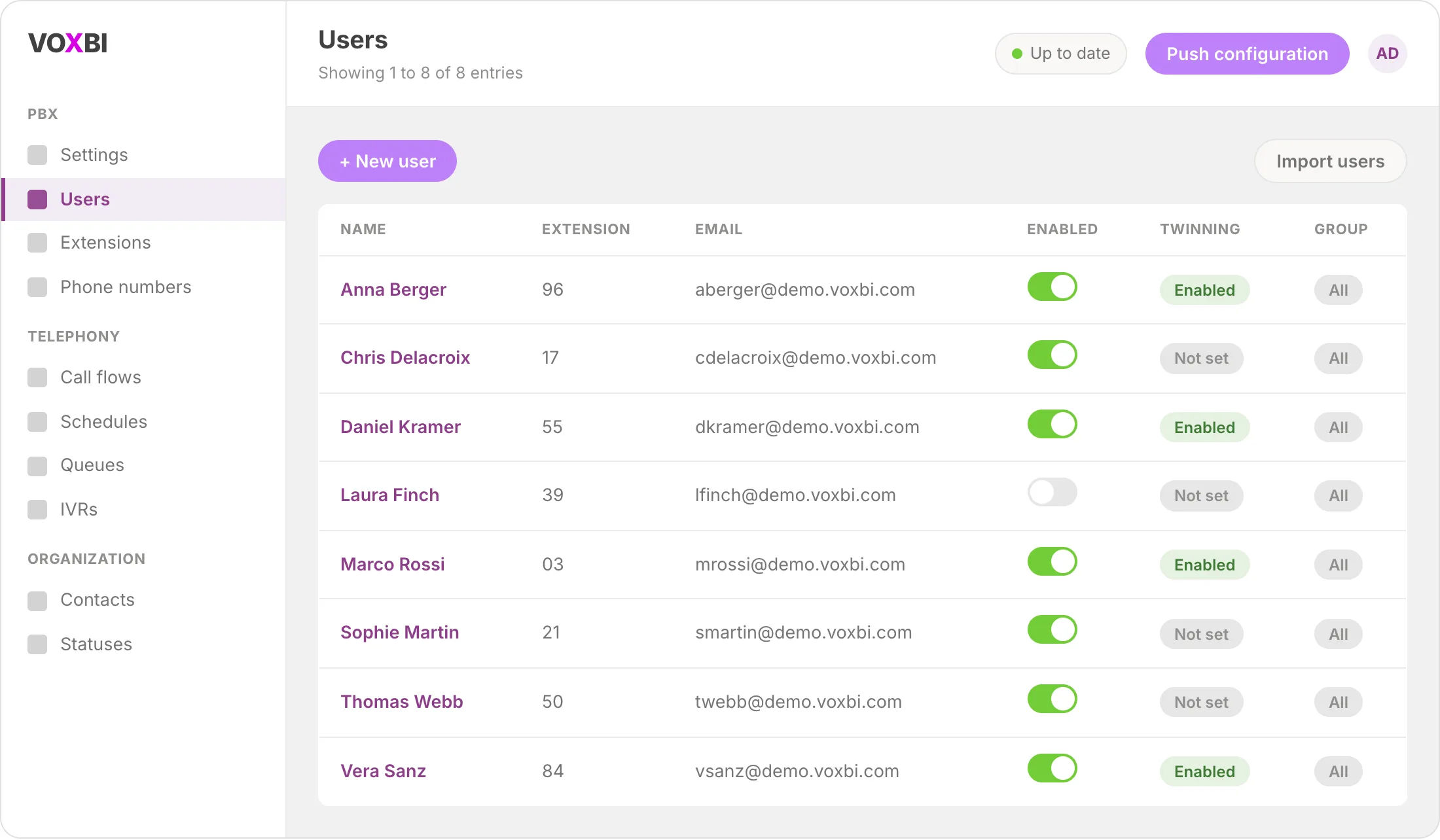
Find the person whose mobile should ring for office calls, then open their profile to edit it.
Step 2: Go to Call preferences
Inside the user's profile, select the Call preferences tab. This is where twinnings, forwards, do-not-disturb rules, and voicemail all live for that person.
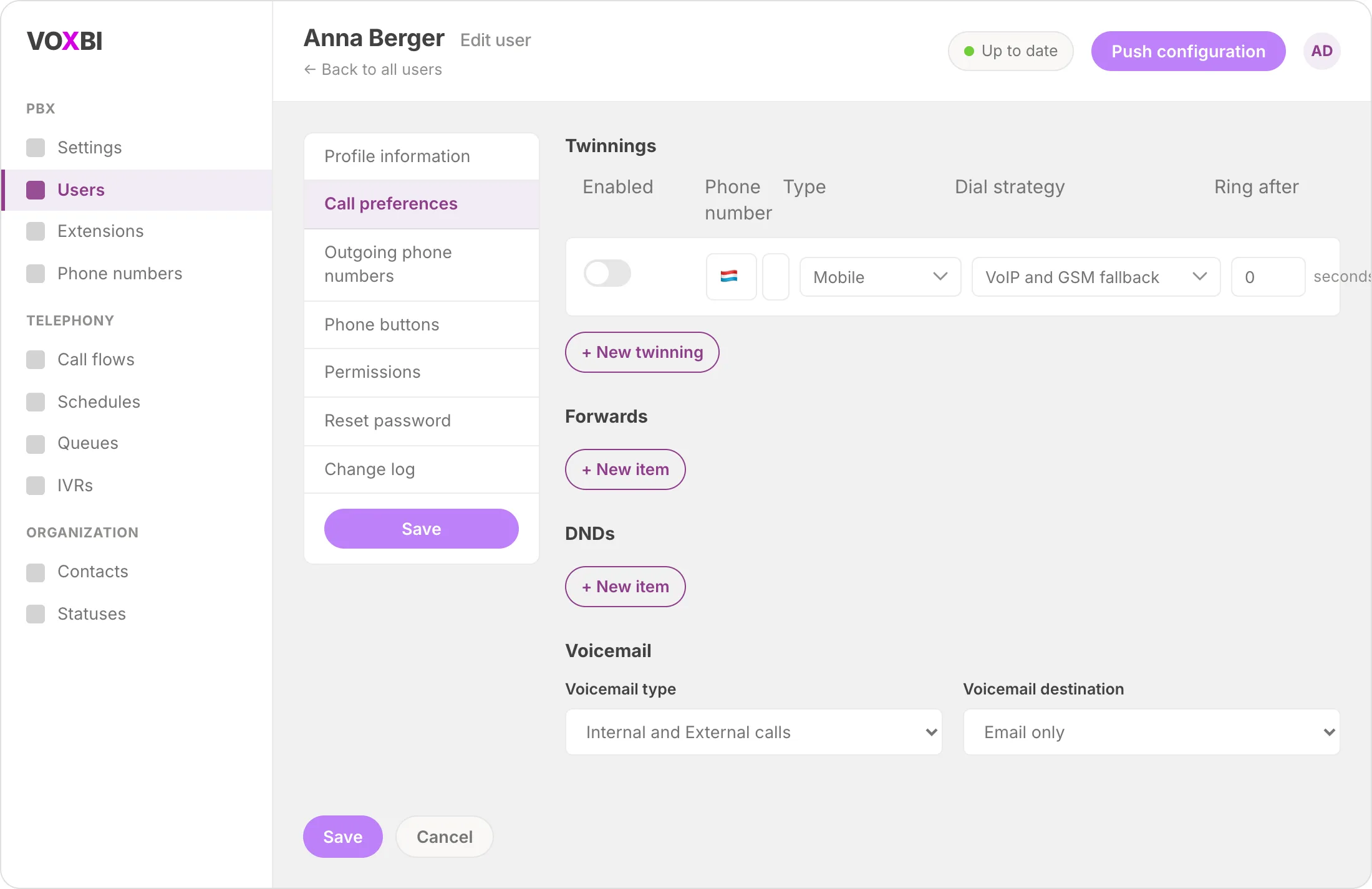
You are looking for the Twinnings section at the top.
Step 3: Add the FMC twinning number
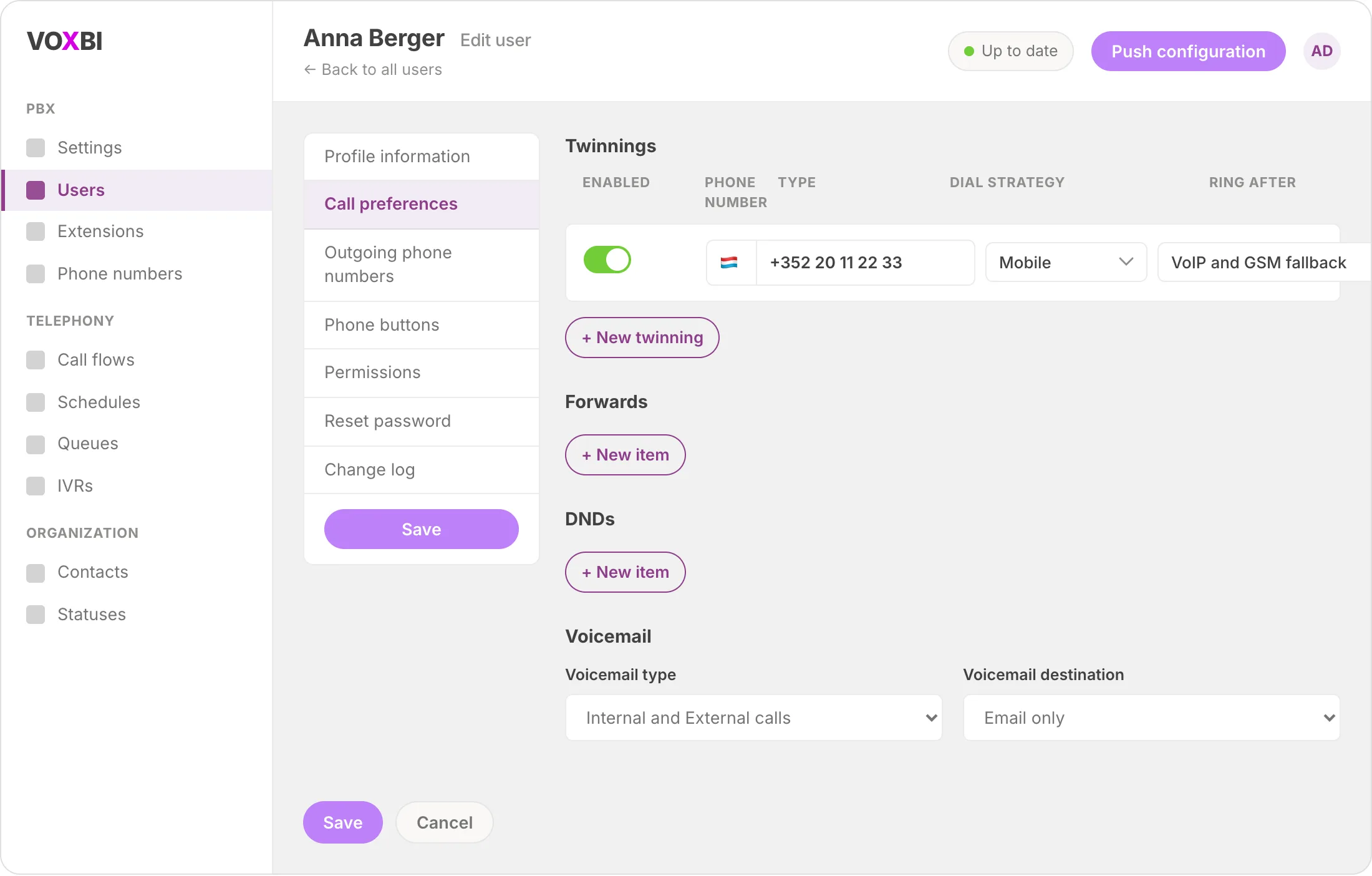
In the Twinnings section, add a new twinning and enter the FMC number:
Click New twinning to add a row.
Toggle Enabled on.
Enter the FMC number in the phone number field.
Set Type to Mobile.
Set Dial strategy to VoIP and GSM fallback. This tries the data connection first and falls back to the mobile network so the call always lands.
Leave Ring after at 0 seconds if you want the mobile to ring straight away, or set a delay if the desk phone should ring first.
Step 4: Save and push
Click Save on the user profile. Then push the change live using Push configuration at the top of Cockpit, so the new routing takes effect on the PBX.
That is it. The next time someone calls the office line, the twinned mobile rings alongside it, and the person can answer on either device with the full set of Voxbi features behind them.
Troubleshooting
The mobile is not ringing. Check that the twinning row is Enabled and that you clicked Push configuration after saving. A change that is saved but not pushed will not route calls yet.
Calls go straight to voicemail. Confirm the FMC number is correct and that the SIM is active. Also check the Ring after value: a long delay means the desk phone or voicemail may pick up before the mobile rings.
Outgoing calls show the wrong number. Caller ID is configurable per user under outgoing phone numbers. You can present a main number, an extension, or a group number, so review that setting if the displayed number is not what you expect.
The user is on holiday but still getting office calls. Office calls only stop if the user sets themselves away or on holiday in Cockpit. If someone dials the private SIM directly, that call bypasses the PBX and still comes through.
Frequently asked questions
Do I need to install an app to answer office calls on my mobile?
No. Mobile twinning works at the network level through the FMC SIM, so it runs on any phone brand and operating system with no app required. You simply answer calls the way you normally would.
Can people call my FMC mobile number directly?
No. The FMC number cannot be dialled directly. Every call is routed through your Voxbi PBX first, which is what keeps it a pure business line and protects your personal time.
Will my personal number show when I make business calls?
No. Because calls run through the PBX, you present your company caller ID. You can choose which number to show per user, with or without an extension or group number.
Does mobile twinning keep my other call features?
Yes. Voicemail, call forwarding, time-based routing, and extension dialling all continue to work, and you get a single call record for both fixed and mobile calls.
Should I use a dual-SIM phone?
We recommend it. Keep the FMC SIM for business and a private SIM for personal calls, data, and text messages. This gives you a clean separation between work and personal life, and most phones let you set a default SIM for outgoing calls.
How does mobile twinning affect call routing rules like call flows?
Twinning works alongside your existing call flows. The call first follows whatever routing you have set up (time-based rules, hunt groups, or a menu you have built using an IVR menu), and the twinned mobile rings as part of the destination extension. Your routing logic stays intact.
Ready to go mobile?
Mobile twinning is one of the ways Voxbi lets your team work from anywhere while every call stays on the business system. Explore the full set of Voxbi apps and mobile features to see what else you can run from your phone, and if you are shaping how inbound calls reach your team, learn how to build an IVR menu to route callers to the right person automatically.