
How to connect Google Workspace to Voxbi
Connect a Google Workspace to Voxbi so calendars set a meeting status, approved absences land on the right calendar, and contacts sync between the two systems.

One Google Workspace connection gives Voxbi two independent services: your users' calendars, and their contacts. Switch on either one, or both. Each service asks Google for its own permissions, and a Google Workspace super administrator authorizes the whole thing once, for everybody. Your users are never prompted and never see a consent screen.
Setup takes about 20 minutes and crosses two products, so read the "who does what" table before you start.
What the integration does
Calendars. While a user has a meeting in their calendar, Voxbi puts them on the meeting status, and takes them off it when the meeting ends. An approved absence is written to their calendar, and removed again if the absence is cancelled. Both features belong to the Tempus time-tracking module and need it active. Tempus also writes a published shift to the same calendar, which has no switch of its own on this form. If you only want the status, the call flows and presence page explains what it changes for callers.
Contacts. Voxbi contacts appear in each connected user's Google account, filed under a label you choose, which is also how they reach their phone for caller identification. In the other direction, each user's own Google contacts are available in Voxbi as private contacts, visible only to them. Contacts work with or without Tempus.
Who does what
| Role | Does this |
|---|---|
| Voxbi administrator | Creates the integration, chooses the services, lists the Workspace domains, runs the connection test, and connects users to their Google accounts. |
| Google Workspace super administrator | Authorizes Voxbi once for the whole Workspace, in the Google Admin console. Voxbi opens that dialog with the grant already filled in, so this is a check and an Authorize. |
| Users | Nothing. There is no consent screen and no sign-in prompt. |
A delegated or partial Google administrator cannot grant this. It has to be a super administrator.
Before you start
You can sign in to Voxbi as an administrator.
A Google Workspace super administrator is available.
You know every domain your users' email addresses use, including secondary ones.
For the calendar features, the Tempus module is active for this PBX.
You have a real Workspace mailbox to test with.
Words you will see on the form
| Word | Means |
|---|---|
| Connected | Google has authorized Voxbi for the Workspace and the integration is switched on. |
| On / Off | A service or a setting an administrator has switched on or off. |
| Available | A feature whose prerequisites are met. It works for every connected user who has it switched on. |
| Not configured, or Reauthorization required | Something still needs attention. The form says what, and where. |
| Connected user | A Voxbi user whose Google account is linked, so the services can act for them. |
Step 1: create the integration
Go to Configuration, then Integrations, and choose Add integration. Set Type to Google Workspace. The form changes to the Google setup as soon as you do. Each PBX has at most one Google Workspace connection.
The status card at the top explains what the connection covers and says where things stand. Fill in the two fields the create form asks for, then save.
| Field | What to put in it |
|---|---|
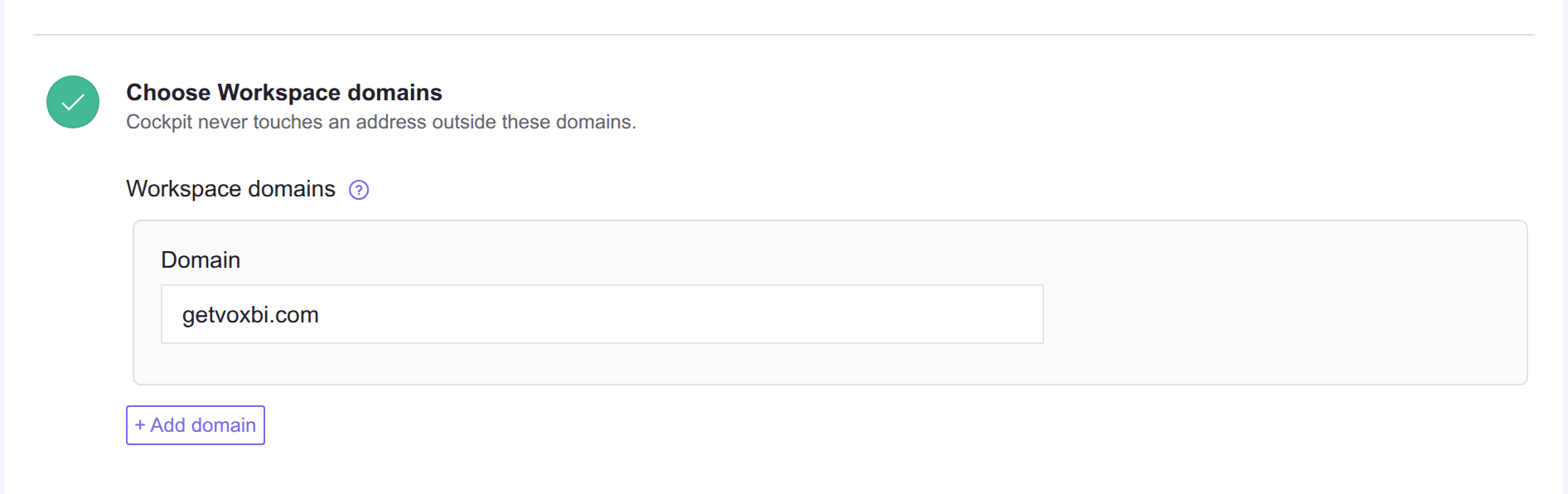
| Workspace domains | One row per domain, without the at sign and without `https://`. Add domain adds a row, up to 50. Include secondary domains: a user at `name@subsidiary.com` is not touched unless `subsidiary.com` is listed. |
| Test user | Any real Workspace mailbox in one of those domains. Voxbi reads this account's own calendar once, to prove the authorization works. It does not have to be an administrator, and nothing is ever written to it. |
The domain list matters more than it looks. Every customer authorizes the same Voxbi client identifier, and Google's delegation has no concept of one customer versus another. This list is what keeps one customer's grant from reaching another's mailboxes. Removing a domain later switches off the connections of everyone in it, in the same save.
Save the integration. The rest of the setup happens on the form that opens next, which has three tabs: General, Calendar and Contacts. The General tab presents the authorization as its own numbered checklist, and a number turns into a check mark once that step is done, so you can see at a glance what is left.
Step 2: choose which services you want
Do this before authorizing anything. The permission list Voxbi hands to Google in step 3 covers exactly the services that are switched on, so deciding now means the super administrator authorizes one list, once.
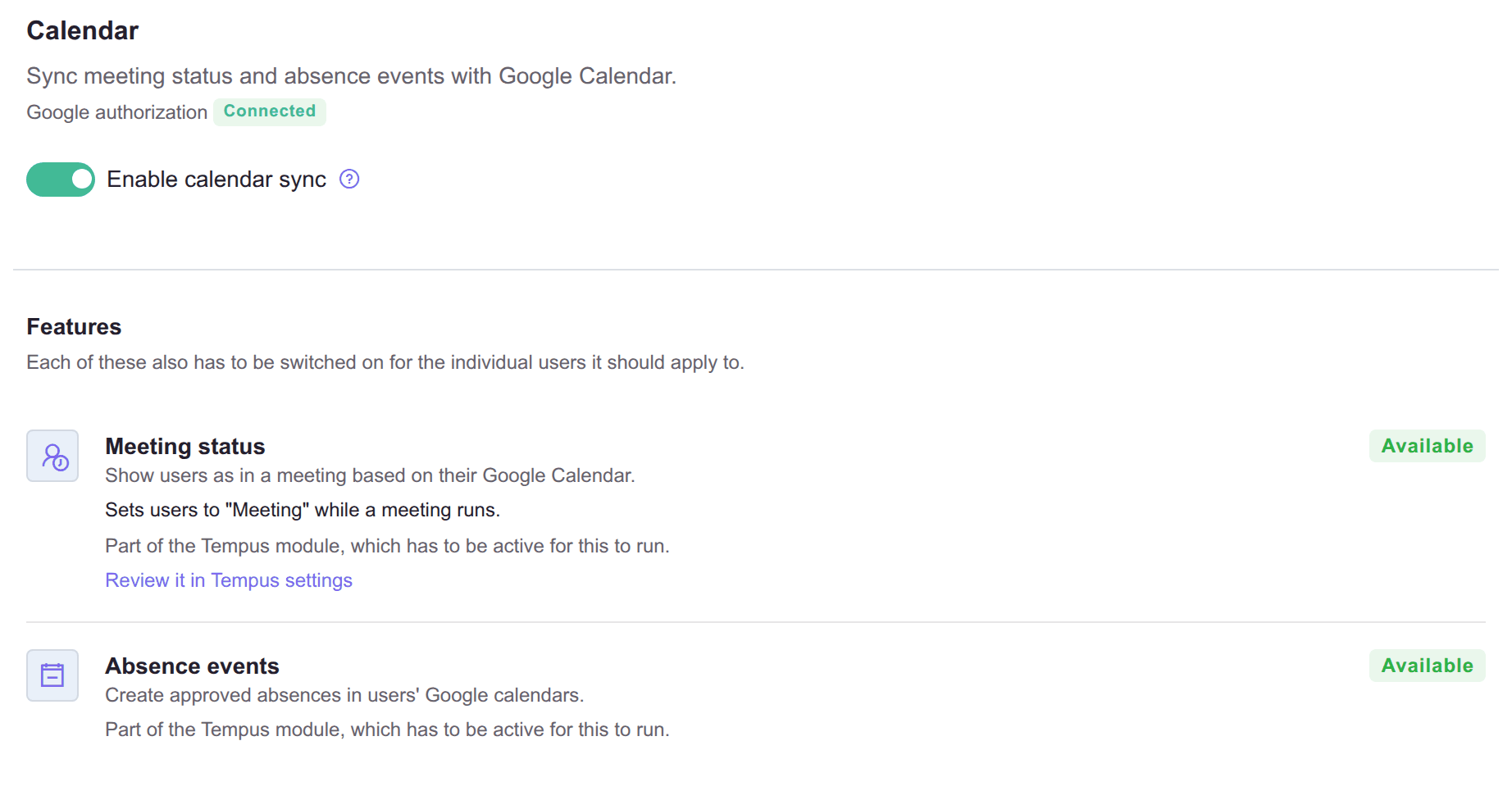
On the Calendar tab, Enable calendar sync is the switch for the meeting status and absence events. It is on by default. Each feature reports its own state: Available, or Not configured with the reason and a link to the screen that fixes it.
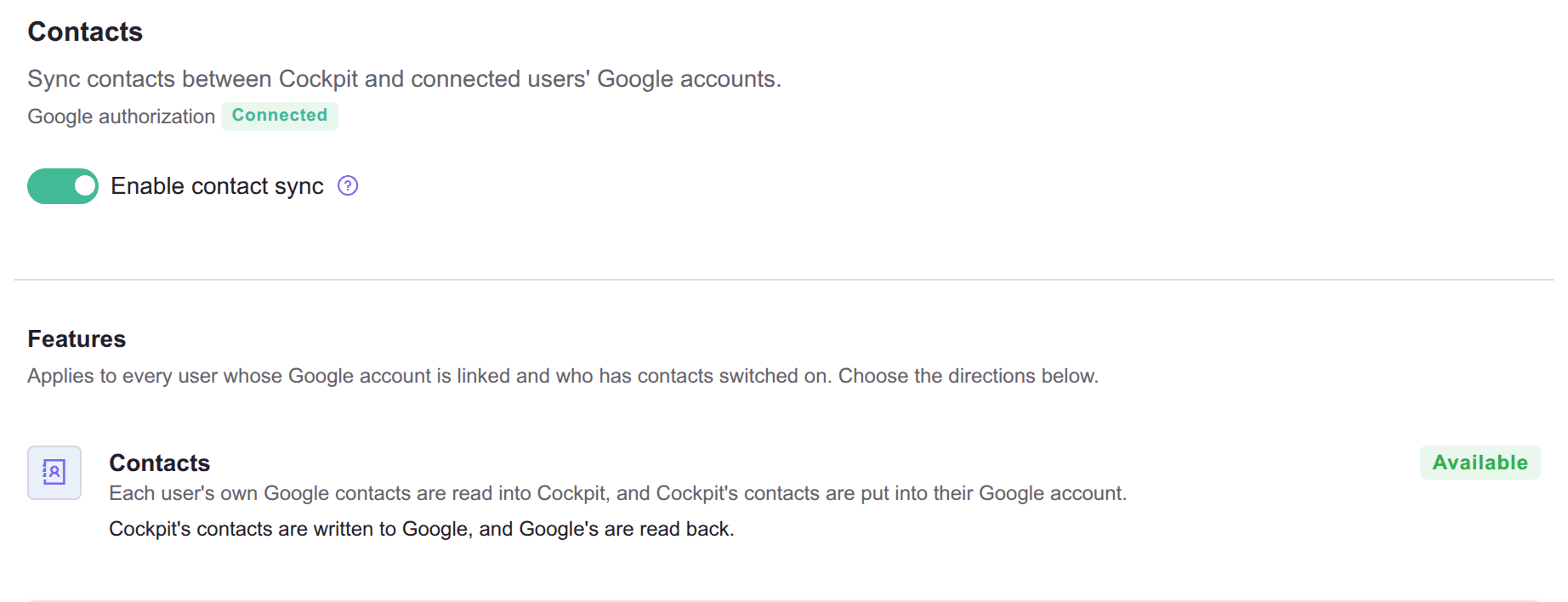
On the Contacts tab, Enable contact sync is off by default, because contact sync reads users' personal address books and nobody should be opted into that by accident. Switch it on if you want it, and choose at least one direction. Contacts is a separate grant, so switching it on adds its permissions to the list the button carries in step 3.
Two things the form will not save:
Contacts on with neither direction chosen. It would ask your administrator for contact permissions and then sync nothing.
Both services off. An integration with neither does nothing. Switch the whole integration off in step 6 instead.
Step 3: open the authorization form
Back on the General tab, one step covers the whole grant. Open Google Admin console opens Google's domain-wide delegation dialog with the client identifier and the permission list already in it, so the only thing left to do there is authorize it.
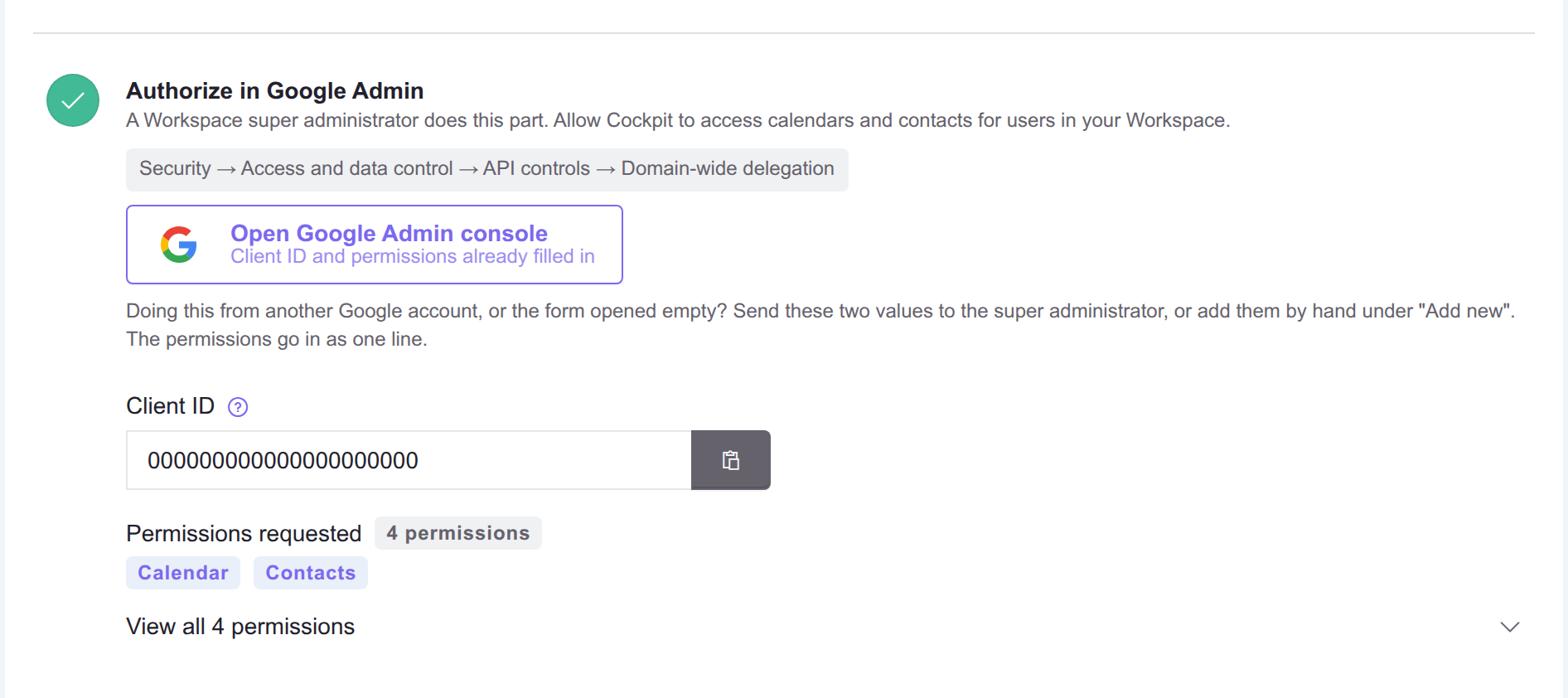
Whoever opens it has to be a super administrator. The link opens Google Admin as whichever Google account that browser is signed in to. If that is not a super administrator of this Workspace, the dialog will not let the grant through. Send the link, or the two values below it, to somebody who is.
The two values are there for the manual route. The client identifier has a copy button, and the permissions sit under Permissions requested, each named in plain words, with Copy all scopes inside View all permissions. They are exactly what the link carries, so a super administrator who prefers to add the entry by hand, or who never sees this form, needs these two and nothing else.
| Value | What it is |
|---|---|
| Client identifier | A long number identifying Voxbi's service account. It is the same for every Voxbi customer, which is why the domain list in step 1 is what separates them. |
| Permissions requested | Every permission the services you switched on in step 2 need, named in plain words, with the raw list behind Copy all scopes. The Calendar and Contacts tabs each show their own share under Google permissions, for reference. |
What the permissions allow:
Calendars. List the calendars a user has, read the start and end of the events on them, and create, update or delete events. Voxbi only ever edits or deletes an event it created itself, and it never stores the title of a meeting marked private, personal or confidential.
Contacts. Read a user's own Google contacts, and create, update or delete contacts in their account. Voxbi only touches the ones it created, which is what the label in step 8 is for.
Shared contacts, only if you enable that import. Read the contacts an administrator has shared with the whole Workspace. Read only: Voxbi never writes to the shared address book.
One grant covers both services. Every link that opens the Admin console carries the complete list for every service that is switched on, so re-authorizing one service can never drop the other.
Step 4: authorize Voxbi in the Google Admin console
This is the part a Google Workspace super administrator does, and the only part that happens outside Voxbi. Google calls it domain-wide delegation: one administrator authorizes Voxbi once, for the whole Workspace, with no consent redirect and no per-user sign-in.
Sign in to admin.google.com as a super administrator, then open Security, Access and data control, API controls, Domain-wide delegation. The Open Google Admin console button goes straight there, with both values already in the dialog.
Check the dialog. The client identifier and the OAuth scopes should both already be filled in.
Choose Authorize.
If the dialog opens empty, choose Add new and add the two values from step 3 by hand: the client identifier in its field, the permission list in the OAuth scopes field. It is already comma separated, which is the format that field expects.
Authorizing a client identifier that is already listed replaces its permission list rather than adding a second entry, so re-authorizing later is the same click and never leaves two grants behind.
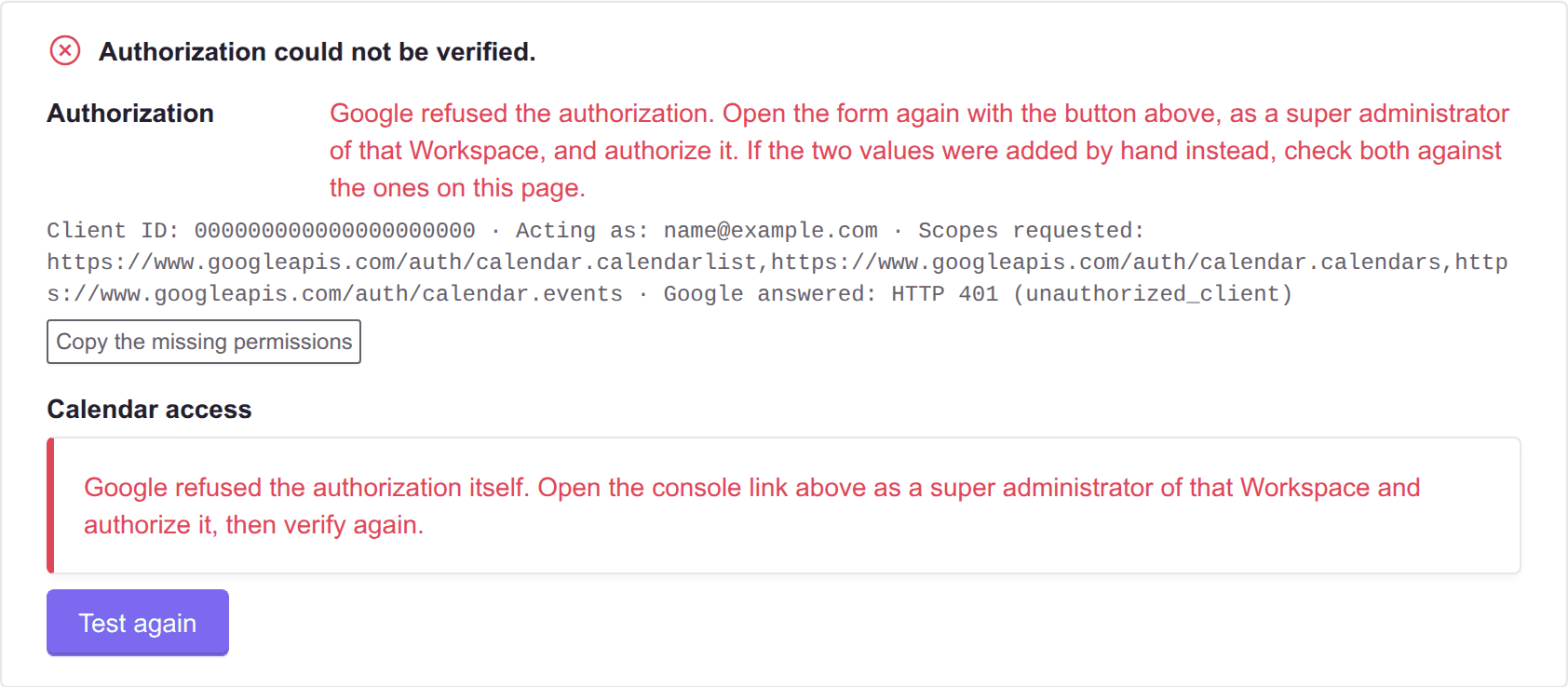
Google's grant is all or nothing. If one permission is missing, the whole authorization fails, and the error does not say which one. That is why Voxbi fills the form in for you rather than leaving the list to be retyped. Google also needs a few minutes: if the test in step 5 fails right after you authorize, wait and run it again before changing anything.
Step 5: test the connection
Back on the General tab, choose Verify connection. Voxbi signs in as the test user from step 1 and reads one calendar. It writes nothing to anybody's calendar.
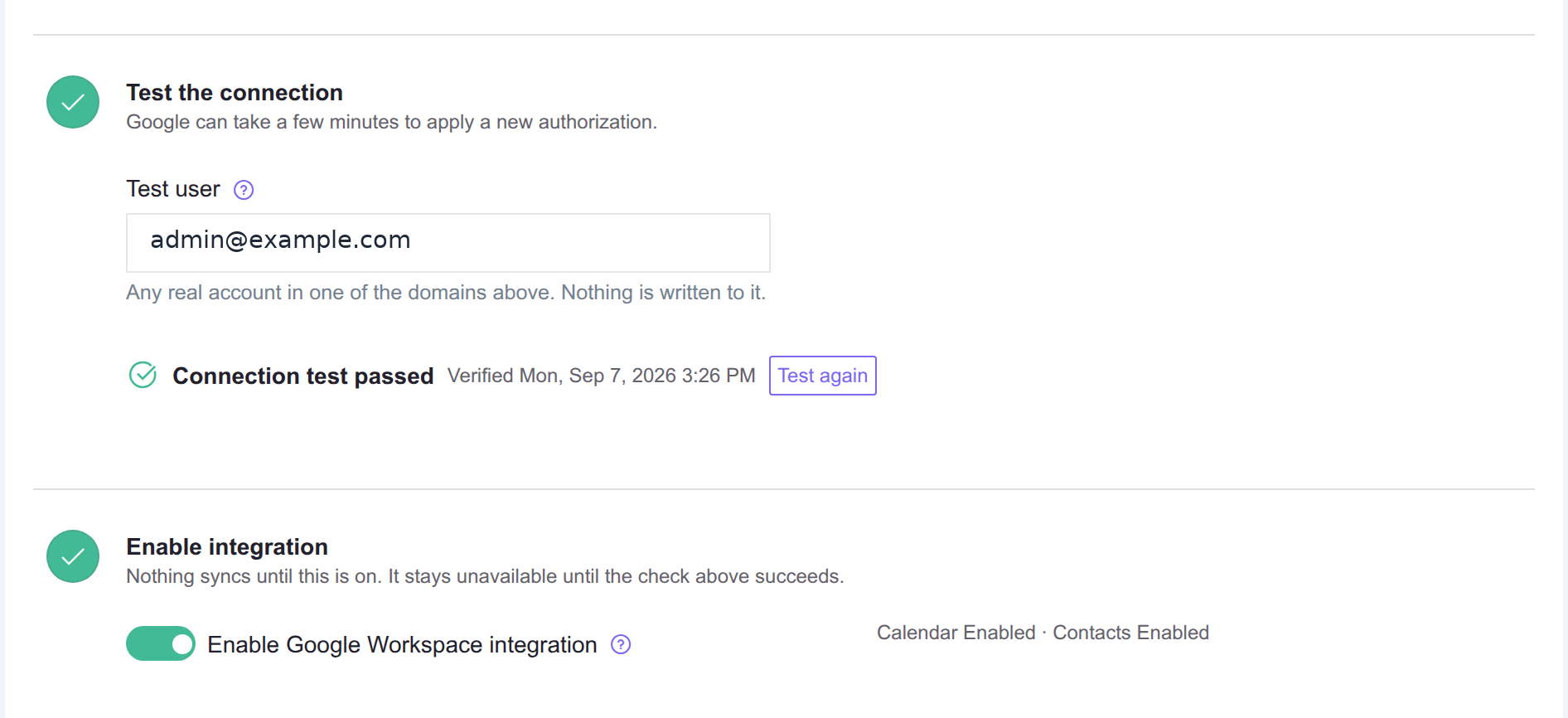
A successful test reports each stage separately, and the status card at the top of the form reads Ready to enable. Until the test succeeds, the Enable Google Workspace integration switch stays unavailable.
Step 6: enable the integration
Turn Enable Google Workspace integration on and save. Nothing syncs until this is on. The form refuses to enable an integration whose authorization has not been verified, which is why this is the last step rather than the first. The status card then reads Connected.
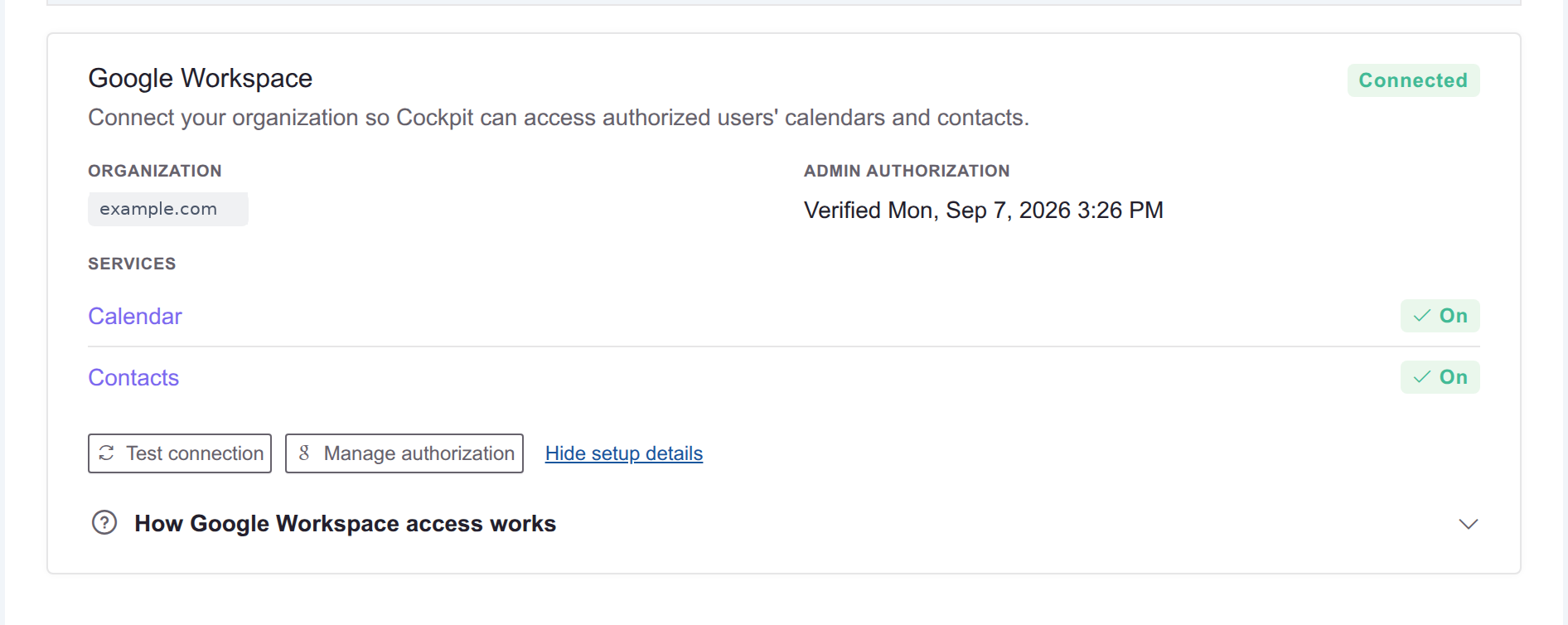
At this point Voxbi is authorized for the whole Workspace and the integration is live. It is still syncing nobody, because no user is connected yet. Steps 7 and 8 shape what the sync does, and step 9 is what starts it.
Step 7: set up the calendar service
On the Calendar tab, one choice matters more than the rest: where Voxbi creates absence events.
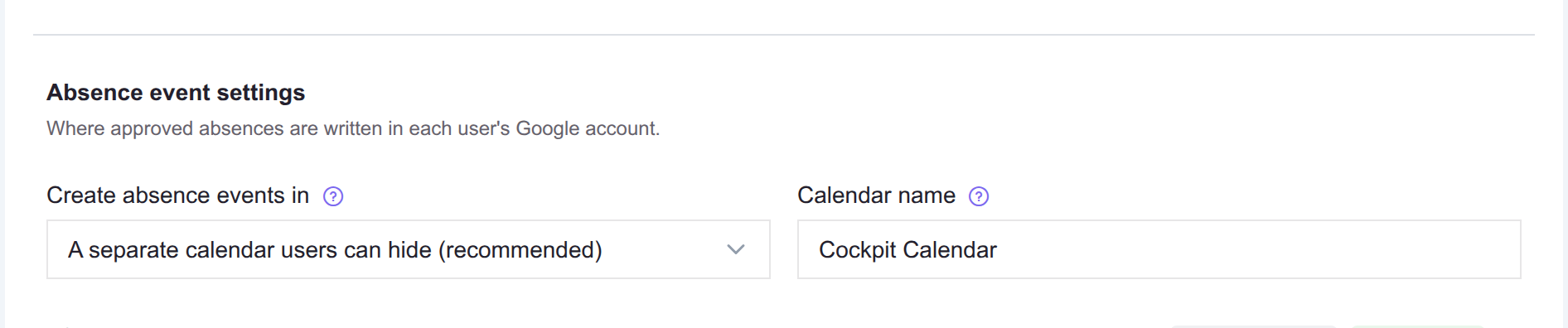
A separate calendar the user can hide (recommended). Voxbi creates a calendar inside the user's own Google account and writes only there. They can hide it with one click, and nothing Voxbi writes touches their personal calendar. The trade-off: these appear as ordinary busy entries. Google reserves real out-of-office behaviour for the main calendar, so there is no out-of-office badge, invitations are not declined automatically, and colleagues checking availability will not see the absence.
Directly on the user's main calendar (more visible). Real out-of-office behaviour: the badge, automatic declining of invitations, and visibility to colleagues checking whether someone is free. The trade-off: the user cannot hide these, because they sit among their own events.
The calendar name applies to calendars created from then on. Changing it does not rename calendars that already exist, and a user is free to rename their own copy. It cannot be left empty, and on the main calendar it does not apply and disappears.
Which calendars are read. The user's primary calendar always, and nothing else by default. A meeting on a secondary calendar they own, or on a shared team calendar, does not change their status unless that calendar is added to their record. The Google Workspace tab on a user has an Extra calendars picker, up to five, read on every sweep alongside the primary one. It appears once the user is connected, because it lists what their own account holds, and the calendar links list then says "Also reads" for them.
Voxbi does not mistake its own writes for meetings: events it created are recorded at the moment of creation and excluded from the status logic.
What lands on the calendar, and what it says. An absence event is titled after the kind of absence and the days it covers, for example Sick Leave (Sep 8, 2026) or Legal Holiday (Sep 8, 2026 - Sep 12, 2026). A whole day off is an all-day event, a part day carries its clock times, and the absence's note in Voxbi becomes the body.
A published Tempus shift lands on the same calendar, titled Shift with the schedule's name. It belongs to neither service on this form and has no per-user switch: any connected user can receive one when a schedule is published or pushed from Tempus.
If the meeting status card says it is not configured, the missing piece lives in Tempus settings: which status counts as being in a meeting, and which statuses may be converted into it. The card links to the right screen. Absence events need nothing beyond a connected user.
Step 8: set up the contacts service
Skip this step if you are not using contacts. On the Contacts tab, choose one or both directions.
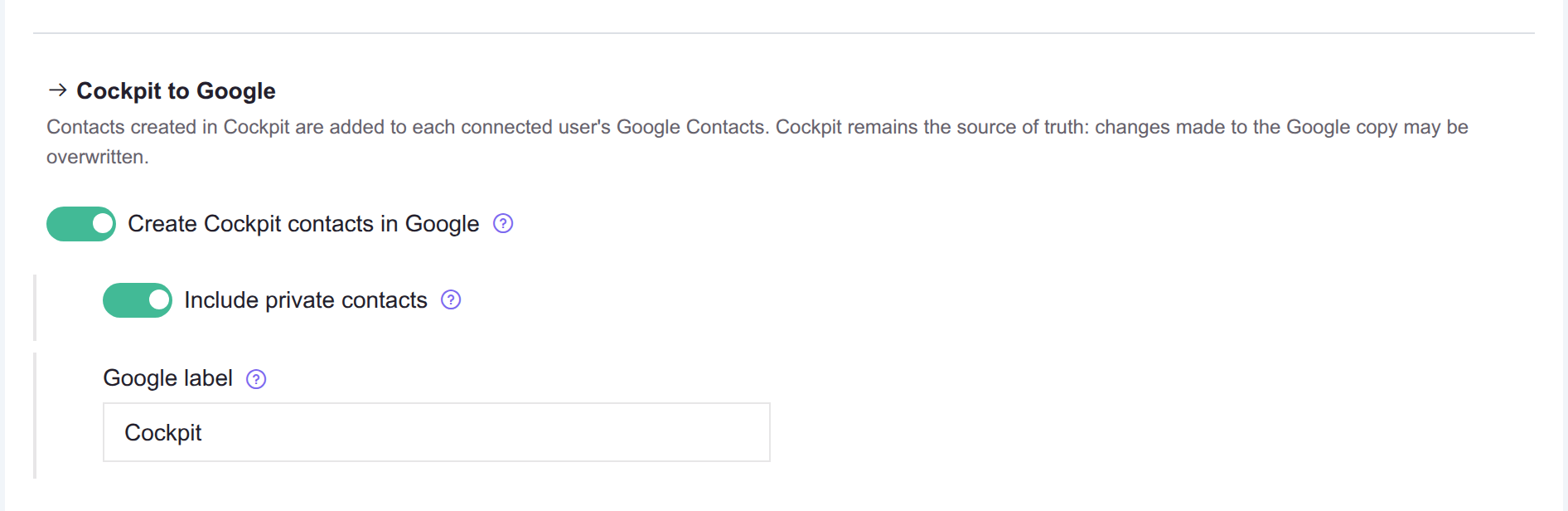
Voxbi to Google. Create Cockpit contacts in Google adds contacts created in Voxbi to each connected user's Google Contacts. They only ever receive contacts they can already see in Voxbi. Include private contacts also adds contacts visible only to their owner, to that user's own Google Contacts and nobody else's. The Google label is where the contacts Voxbi creates are filed, so users can tell them apart from their own and hide them if they want. Renaming it renames the existing label in each account and leaves the contacts in it untouched. It is required while this direction is on, and Google's own limit is 120 characters.
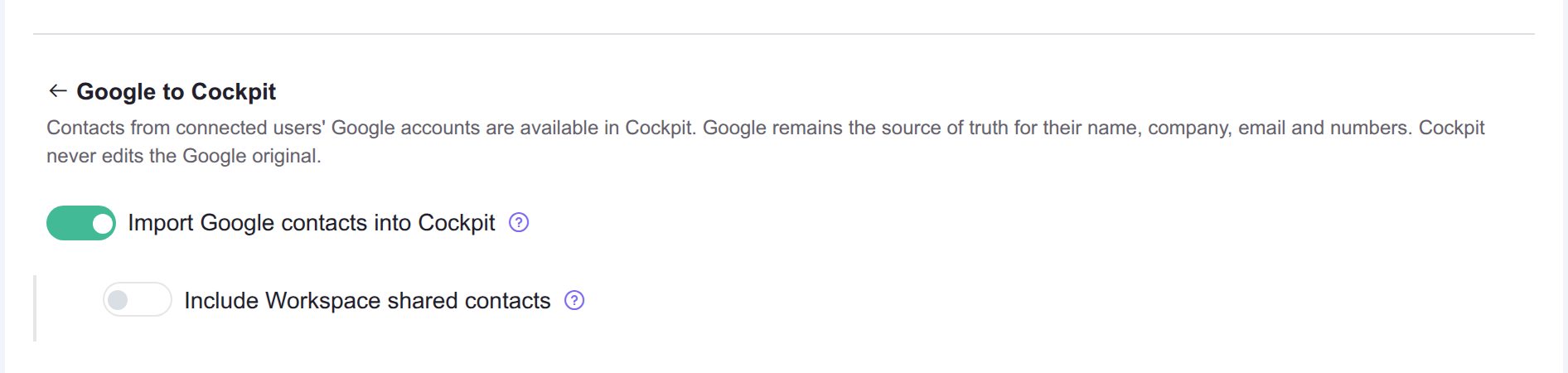
Google to Voxbi. Import Google contacts into Cockpit makes each connected user's own Google contacts available in Voxbi as private contacts, visible only to them. Voxbi does not change them. Include Workspace shared contacts turns the contacts an administrator shares with the whole Workspace into contacts everyone in Voxbi can see. That is the one option that needs the extra read-only directory permission.
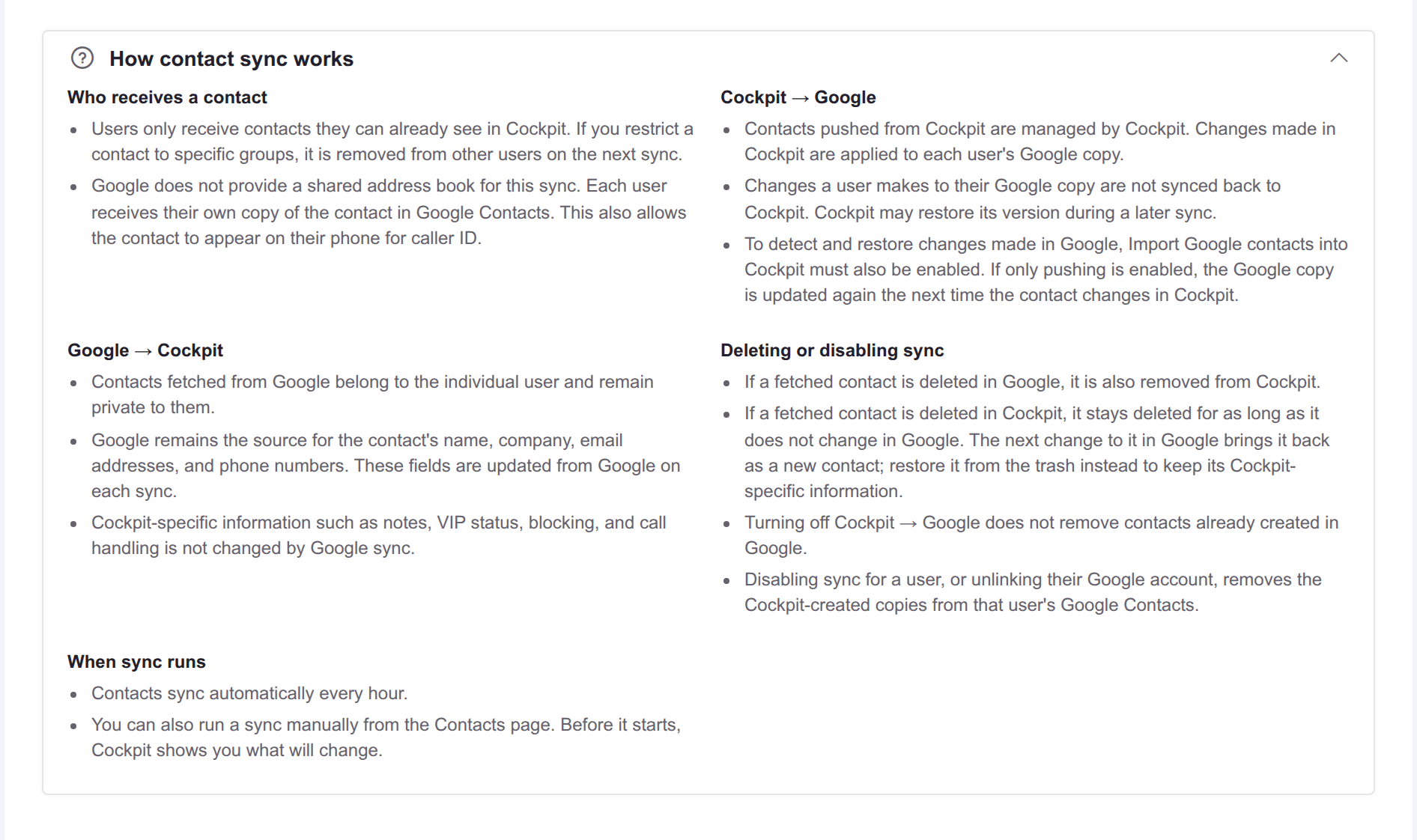
How the sync behaves:
| Direction | Source of truth | Edits | Deletion |
|---|---|---|---|
| Voxbi to Google | Voxbi | Changes made in Voxbi reach every user's copy. Changes a user makes to their Google copy are not read back and may be overwritten on a later sync. | Turning the direction off leaves the copies already in Google. Switching one user off, or unlinking them, removes the copies Voxbi wrote for them. |
| Google to Voxbi | Name, company, email and numbers follow Google on every sync. Notes, VIP, blocking and call handling are Voxbi's and are never touched. | A contact deleted in Google disappears from Voxbi. One deleted in Voxbi stays deleted until it changes in Google, then comes back as a new contact. |
The same answers are on the form itself, under How contact sync works.
Step 9: connect users to their Google accounts
This is the step that starts the sync. Authorizing covers the whole Workspace; Voxbi syncs a user only once their Voxbi user is linked to their Google address. The General tab reports how many users are connected and warns while some are not.
Go to Tempus, Attendance, Calendar links, or choose Manage connections on the integration. Either way you land on the same page.
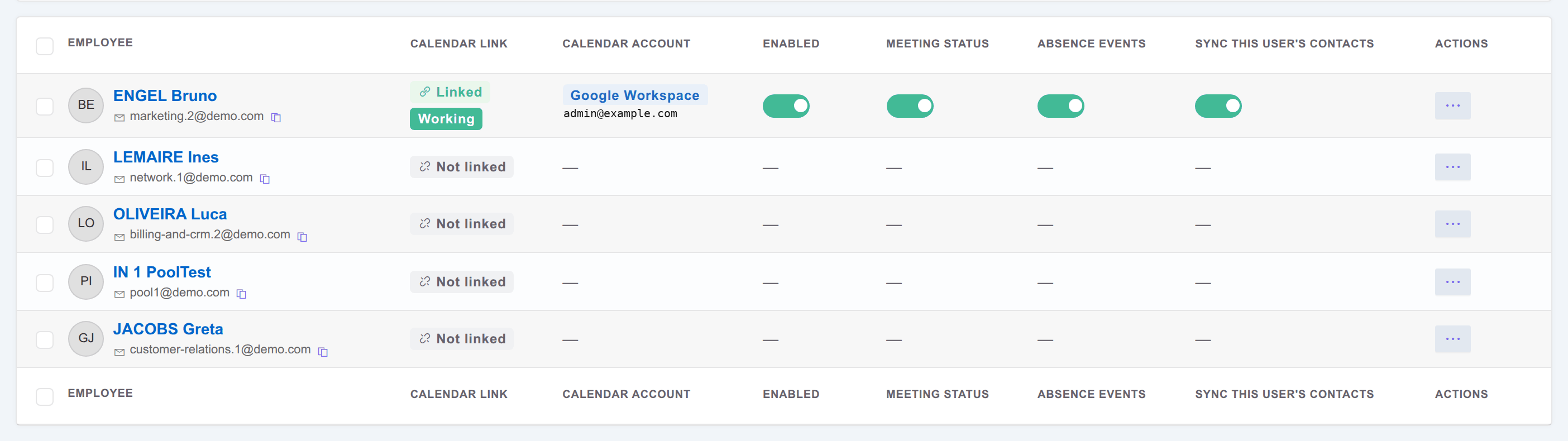
Choose Match calendar accounts to connect everybody at once. Voxbi matches users to their Google address by email and proves each match by reading that account's own calendar, so a link is verified rather than assumed. You see what it will do before it does it.
Anyone whose Voxbi email differs from their Workspace address is listed as not linked and can be linked by hand. The address is checked against Google before it is saved. The same settings are on the user's own record, under the Google Workspace tab.
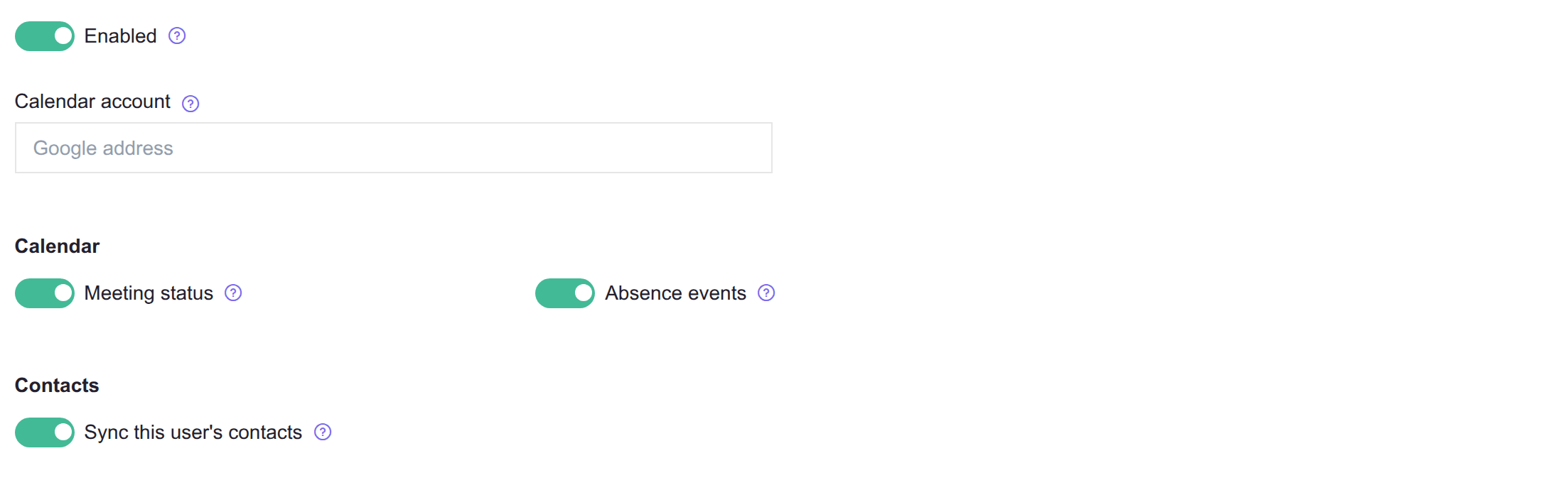
Setup is complete when
The status card on the General tab reads Connected.
The services you want read On, and their features Available.
The connection test has passed.
The users who should sync are connected, with the features switched on for them.
Connected users start syncing on the next run. Absence events are written when an absence is approved. The meeting status is applied every minute from calendar data refreshed every five minutes during the working day. Contacts sync every hour.
If the connection test fails
The test reports each stage separately and names what it tried, so a failure points at one cause rather than at the whole setup.
| Message | What to do |
|---|---|
| Google refused the authorization | The grant was authorized in a different Workspace, or Google has not applied the change yet. Open the button again as a super administrator of this Workspace, then try again in a few minutes. If the two values were added by hand instead, check both against the form. This is by far the most common cause. |
| Google does not recognize that address in this Workspace | The test mailbox does not exist in this Workspace, or it has no Calendar license. Try a different real address. |
| That address is not in one of the allowed domains | Add the domain to the list and save. This is the usual case for a user on a secondary domain. |
| Google refused access for that mailbox | The grant is usually missing the permissions listed under the message. Add them to the client identifier in the Admin console, then test again. |
| That mailbox has no primary calendar | The account exists but has no calendar. Use a different test user. |
| Could not reach Google | A network problem rather than a configuration one. Try again. |
| The save is refused because a domain is already in use | That domain is already part of another customer's Google Workspace integration, and a domain can only belong to one. If it is yours, contact support. |
| Voxbi's connection to Google is not configured on this server | Nothing on the form can fix this, and the fields stay read only until it is resolved. Contact support. |
| Google rejected our service account, or the Calendar API is not enabled on our side | The problem is on Voxbi's side of the connection, not in your Workspace. Contact support. |
| Google returned an unexpected error | Nothing the test could classify. Try again. If it repeats, send support the message under the failed stage. |
One user is failing while the rest are fine
The calendar links list has a Status column per user, and a failing row names its own cause: No such account after somebody left, Domain no longer allowed after their domain came off the list in step 1, Calendar was deleted, Access refused, Rate limited, or the operation that failed. These are one account's problems, not the grant's. The rest of the roster keeps syncing, and the row clears itself on the next run once the cause is gone.
Disconnecting the integration
Switching Enable Google Workspace integration off, or deleting the integration, stops every sync at once and leaves everything already written where it is. Nothing is cleaned up afterwards, so the order matters.
To get the contact copies back out, unlink the users, or switch their contacts off, while the integration is still on.
Events on a calendar always stay. A user can delete them or hide the calendar.
Have the super administrator remove Voxbi's client identifier from Security, Access and data control, API controls, Domain-wide delegation. Switching the integration off in Voxbi does not withdraw the Google grant.
What Voxbi reads, and what it does not
Worth reading before you present this to your team, because it answers the questions they ask.
| Area | What happens |
|---|---|
| Calendars read | The user's primary calendar, and only the start and end of events on it. A secondary or shared calendar is read only where an administrator has added it to that user's record, up to five, on the Google Workspace tab. |
| Meeting titles | The title of a meeting marked private, personal or confidential is never stored. |
| Calendars written | Absence events, and published Tempus shifts, both only where you chose in step 7. Voxbi only ever edits or deletes an event it created itself. An absence event's title names the kind of absence, and its note becomes the body. |
| Contacts read | Only if you switched on the fetch direction. Fetched contacts are the user's own and stay private to them in Voxbi. |
| Contacts written | Only if you switched on the push direction, only contacts the user can already see in Voxbi, and only under the label you chose. |
| The shared address book | Read only, and only if you switched on the shared import. Voxbi never writes to it. |
| User accounts | No sign-in, no consent screen, no change to how anyone logs in. |
| Turning it off | Switching a user off, or unlinking them, removes the contact copies Voxbi wrote for them. Switching a whole direction off, or the integration itself, leaves what is already in Google in place. Events already on a calendar always stay. |
How often things run
| What | How often |
|---|---|
| Meeting status applied and reverted | Every minute |
| Calendars re-read for new meetings | Every five minutes between 06:00 and 20:00, and a full pass every hour |
| Absence written to a calendar | When the absence is approved |
| Shift written to a calendar | When a schedule is published, or pushed from Tempus |
| Contacts synced, both directions | Every hour, and on demand from the Contacts page |
| Authorization re-checked | Weekly |
Frequently asked questions
Do users have to approve anything?
No. Google's domain-wide delegation is granted once by a super administrator for the whole Workspace. Users see no consent screen, get no prompt, and sign in exactly as before.
The integration was working and stopped. Why?
A super administrator can revoke domain-wide delegation at any time, and Google does not notify Voxbi. Voxbi re-checks every authorization weekly and deactivates an integration whose grant has gone, rather than letting it look healthy while syncing nothing. Re-authorize in the Admin console and run the test again.
A service now says reauthorization is required.
Switching on a service that was not part of the original grant adds permissions to the list. Have the super administrator open any of the console links again and authorize. The link always carries the complete list, and authorizing replaces the old grant rather than adding a second one.
Everything is authorized but nobody is syncing.
Check step 9. Authorizing covers the Workspace; connecting covers the person. The General tab shows the count of connected users.
Can I use this without the Tempus module?
Contacts work on their own. The meeting status and absence events are Tempus features and need it active.