
How to connect Google Workspace to Voxbi
Connect a Google Workspace to Voxbi so calendars set a meeting status, approved absences land on the right calendar, and contacts sync between the two systems.
Sep 9, 2026
Step-by-step guides to set up and get the most out of Voxbi: integrations, call routing, numbers, and more.
Connect a Google Workspace to Voxbi so calendars set a meeting status, approved absences land on the right calendar, and contacts sync between the two systems.
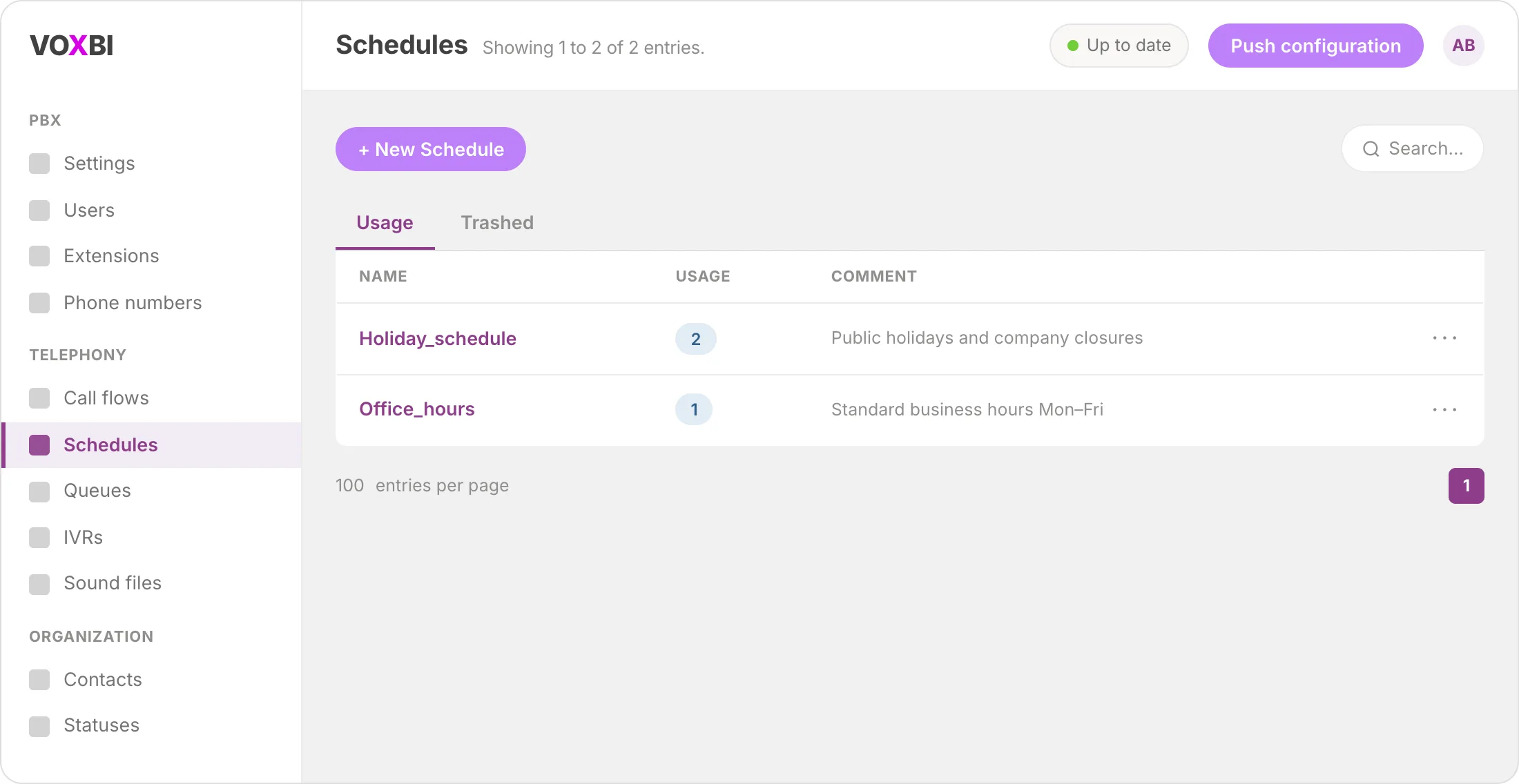
Set up time-based call routing in the Voxbi Cockpit so your phone system automatically handles open and closed hours on every incoming call.
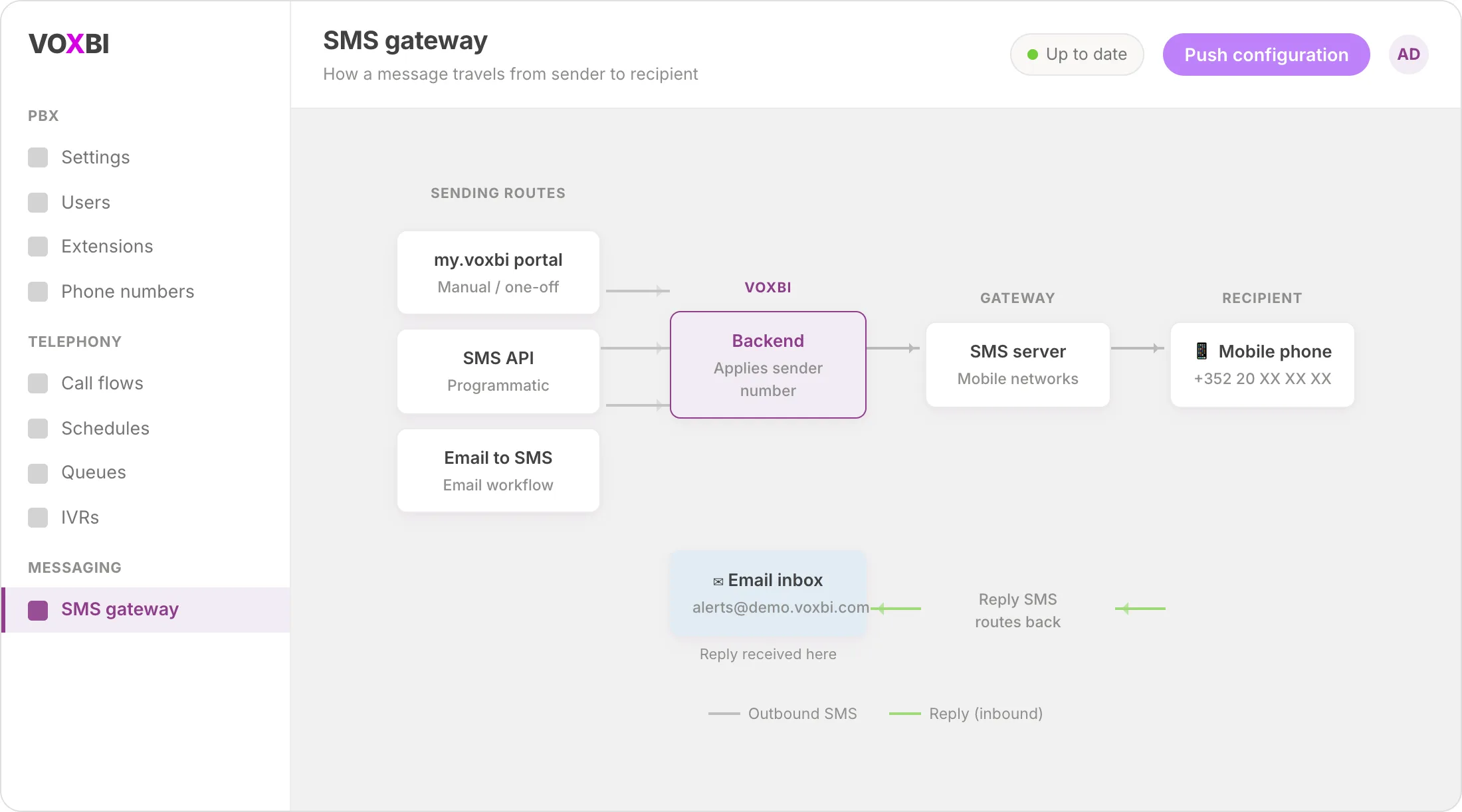
A complete walkthrough of the Voxbi business SMS gateway: what it does, the three sending routes, how a message travels, and how to get it set up.
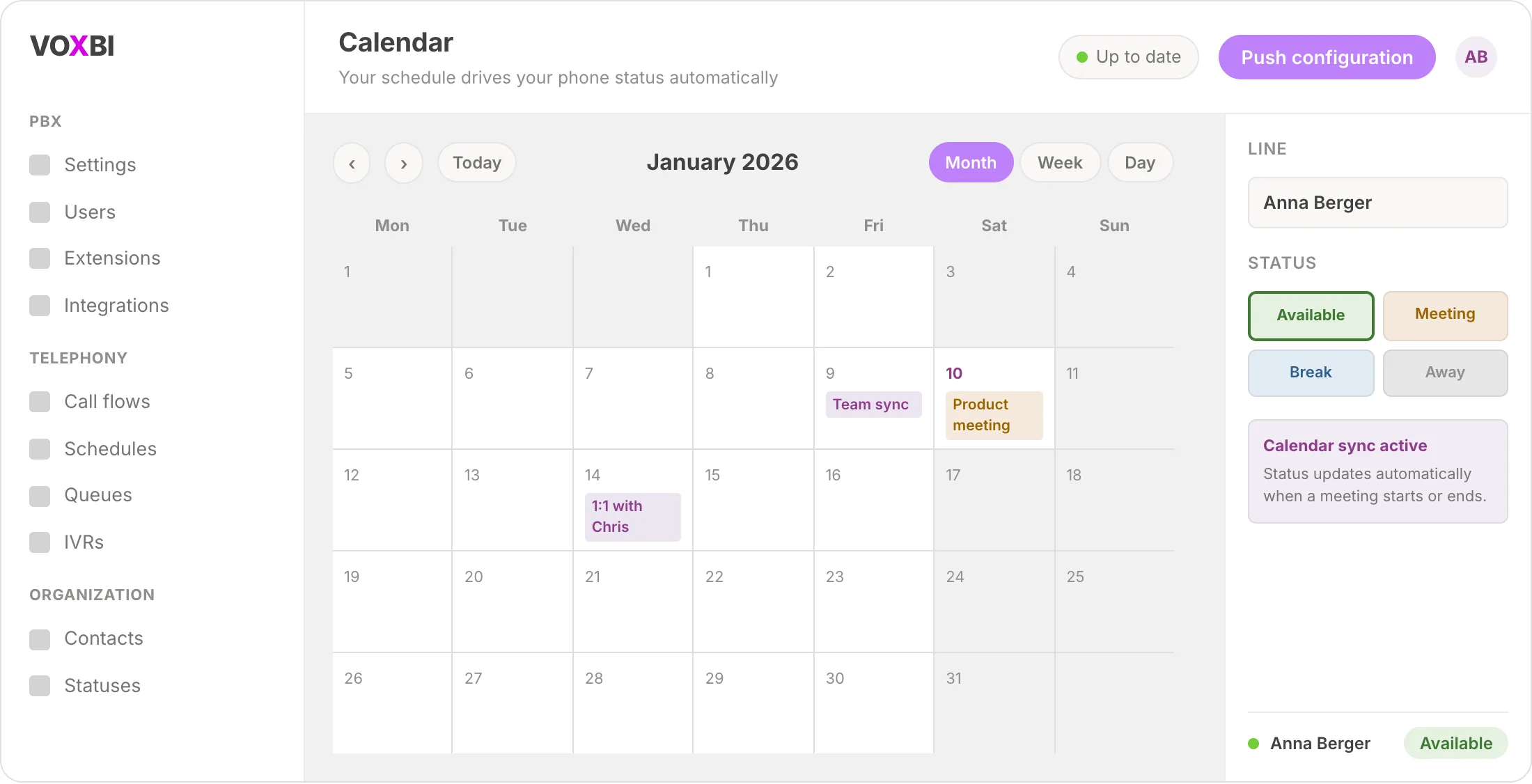
Connect your Microsoft 365 calendar to Voxbi and your phone status updates itself every time a meeting starts or ends. No manual toggling, always accurate.
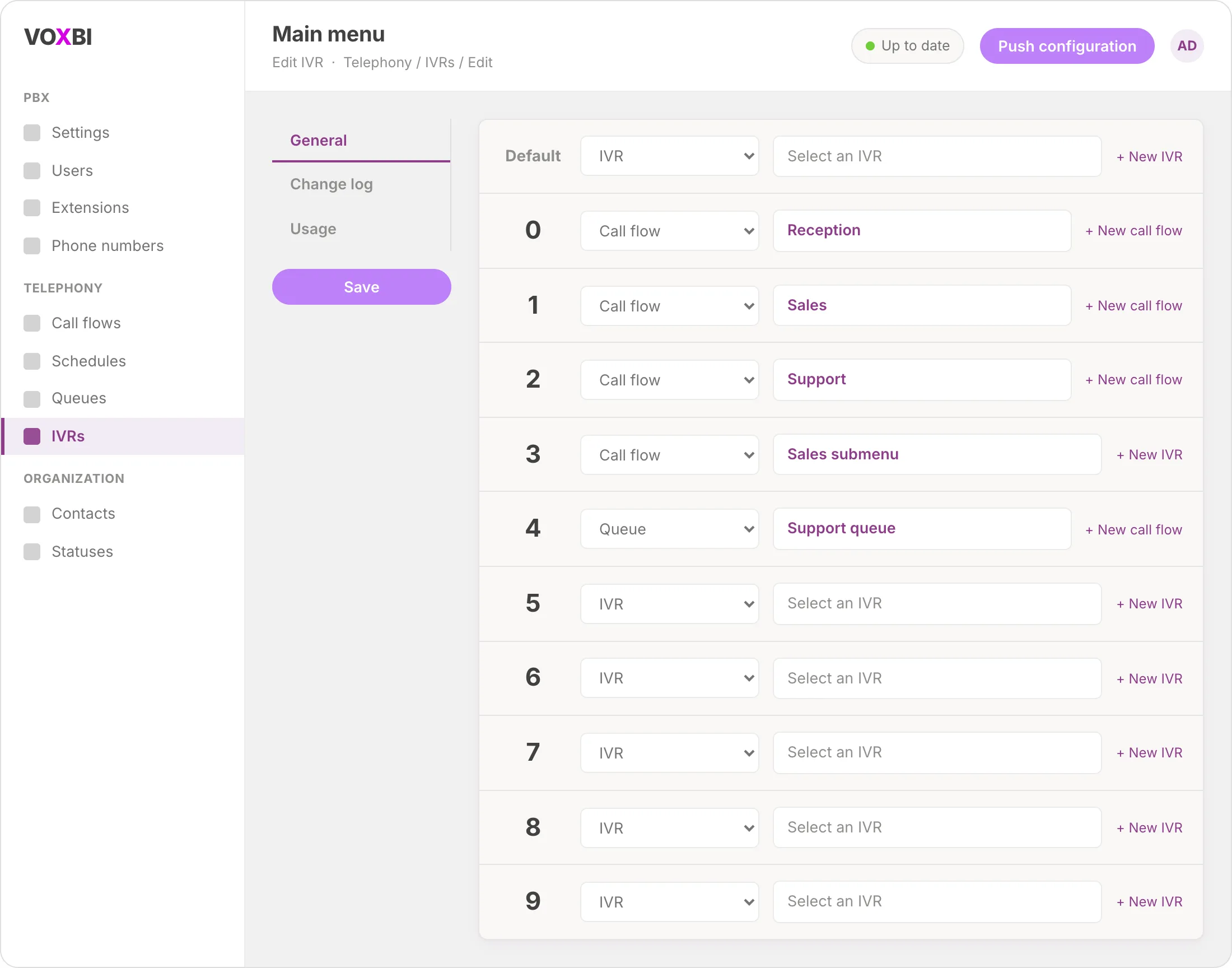
Set up a phone menu that routes every caller to the right team automatically, no receptionist needed.
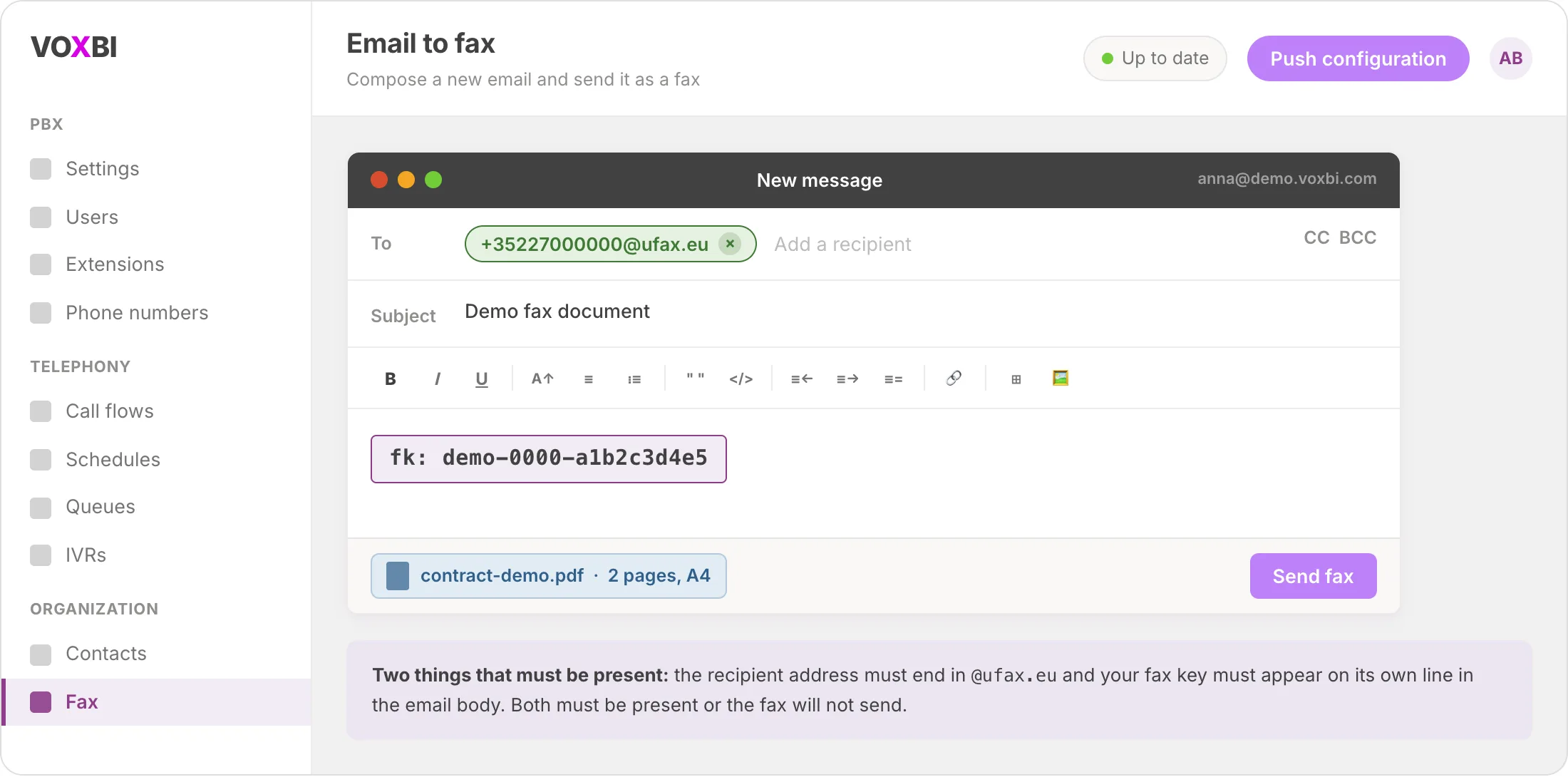
Fax to email turns your inbox into your fax machine. Here is how to set up both directions with Voxbi so your team can send and receive faxes from wherever they already work.
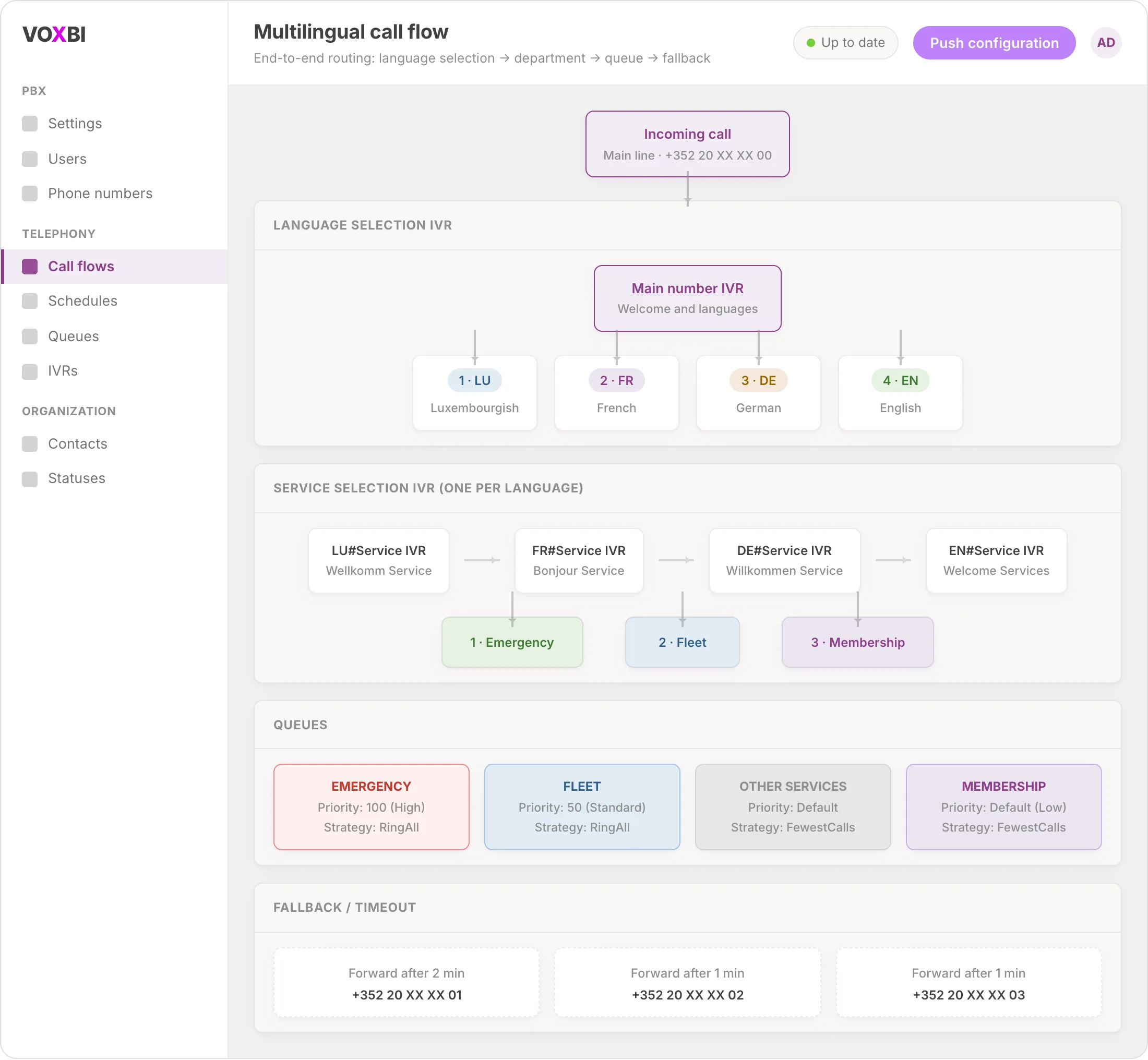
Set up a multilingual call center in Voxbi with language-selection IVR menus, per-language department queues, and timeout fallbacks so no call is ever dropped.
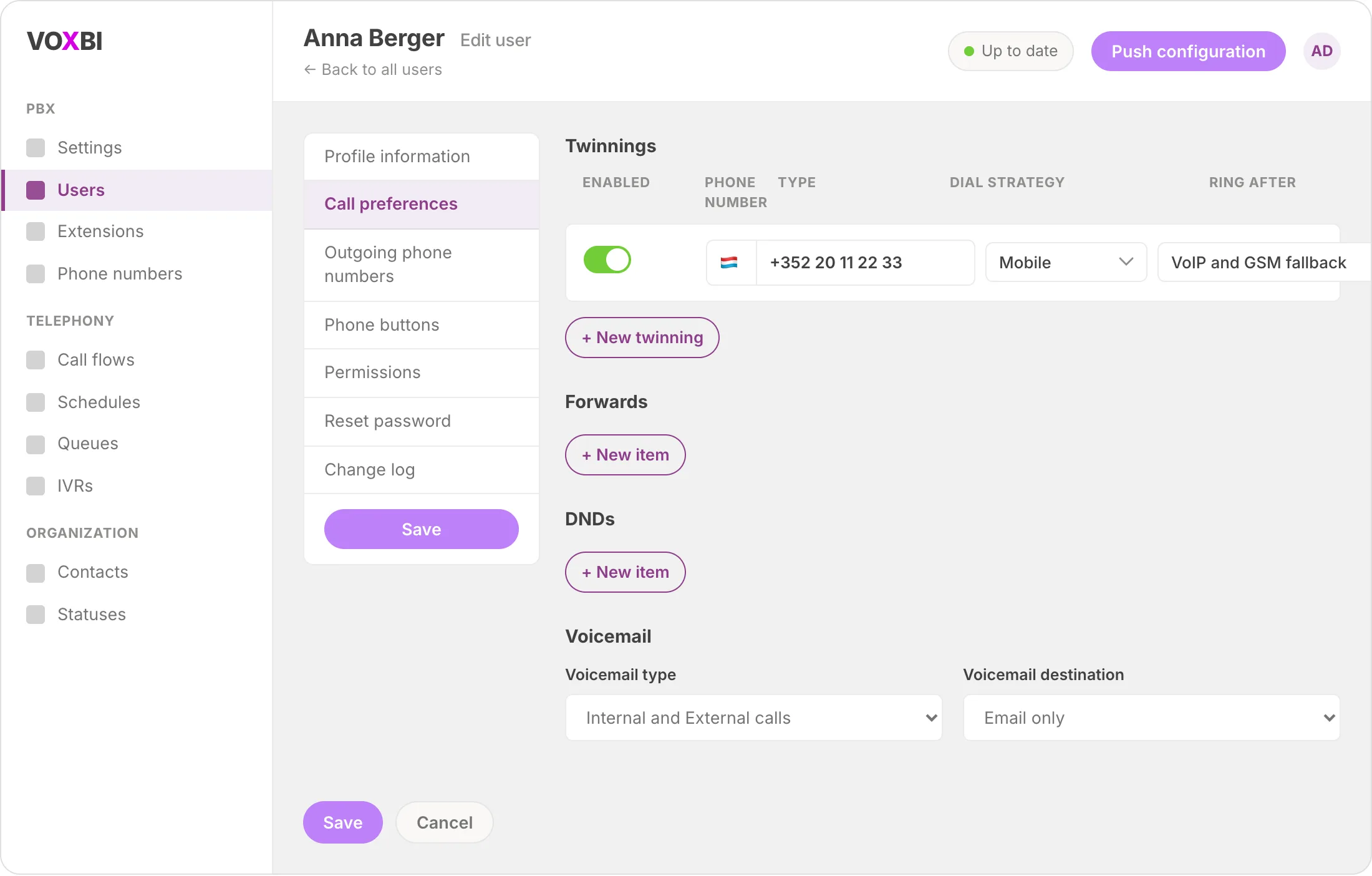
Link your mobile to your Voxbi extension and pick up office calls from anywhere, with no app required and your company caller ID always showing.
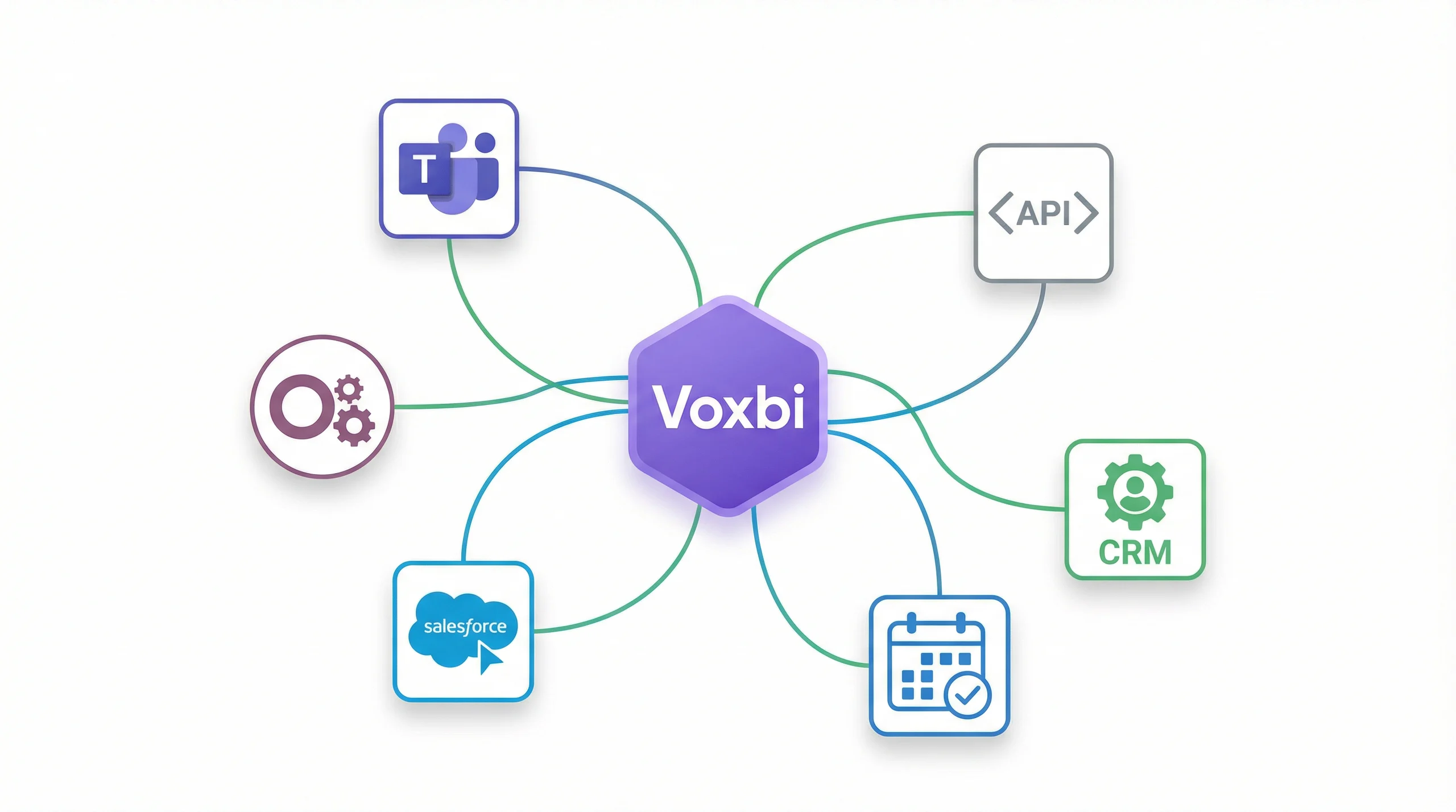
Generate a scoped API key from the Voxbi Cockpit in four steps, set its permissions and expiry, and use it as a Bearer token. Administrator access required.
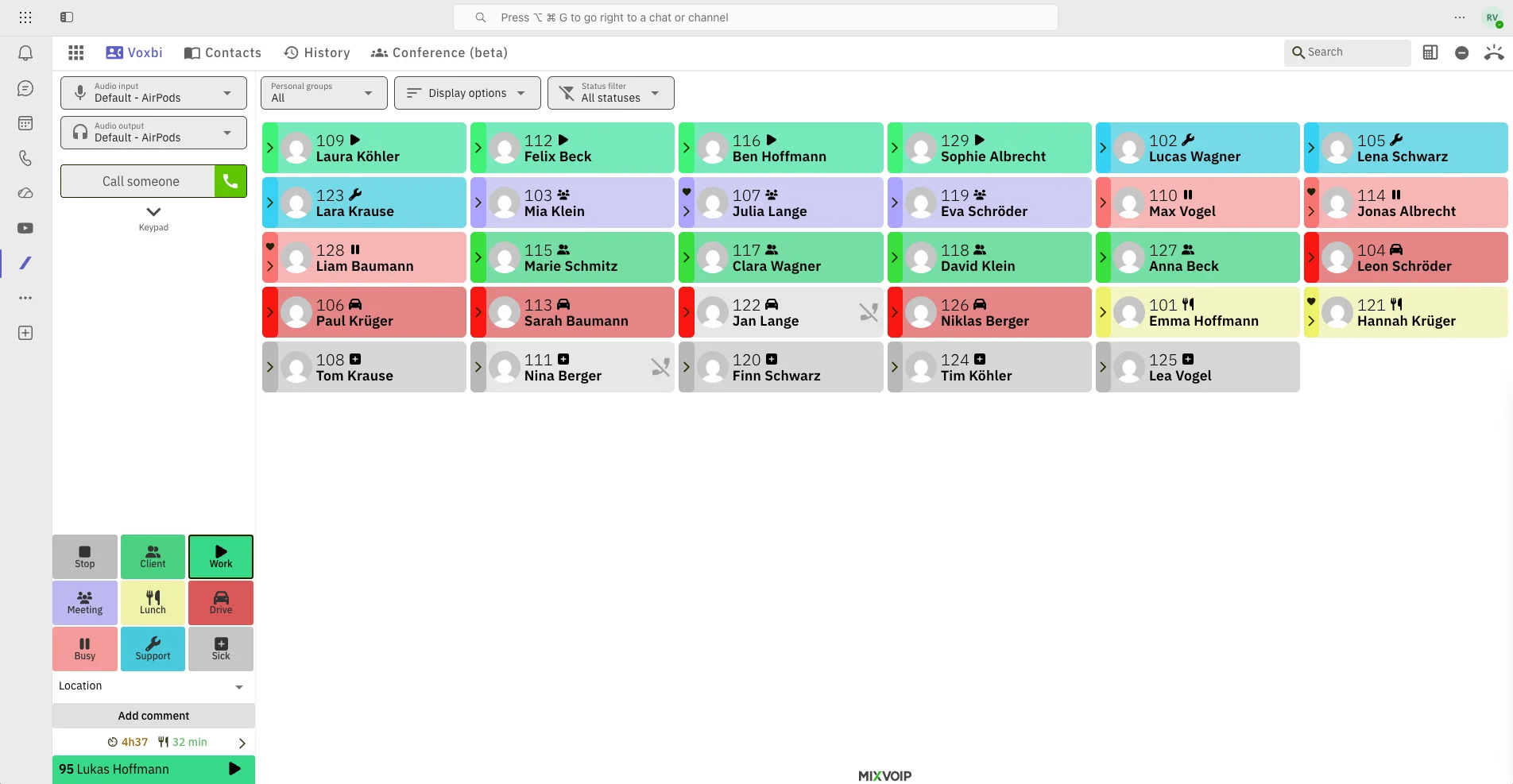
Two ways to run business calling inside Microsoft Teams with Voxbi: the Voxbi app for Teams, or Direct Routing. How each works, what it needs, and which to pick.
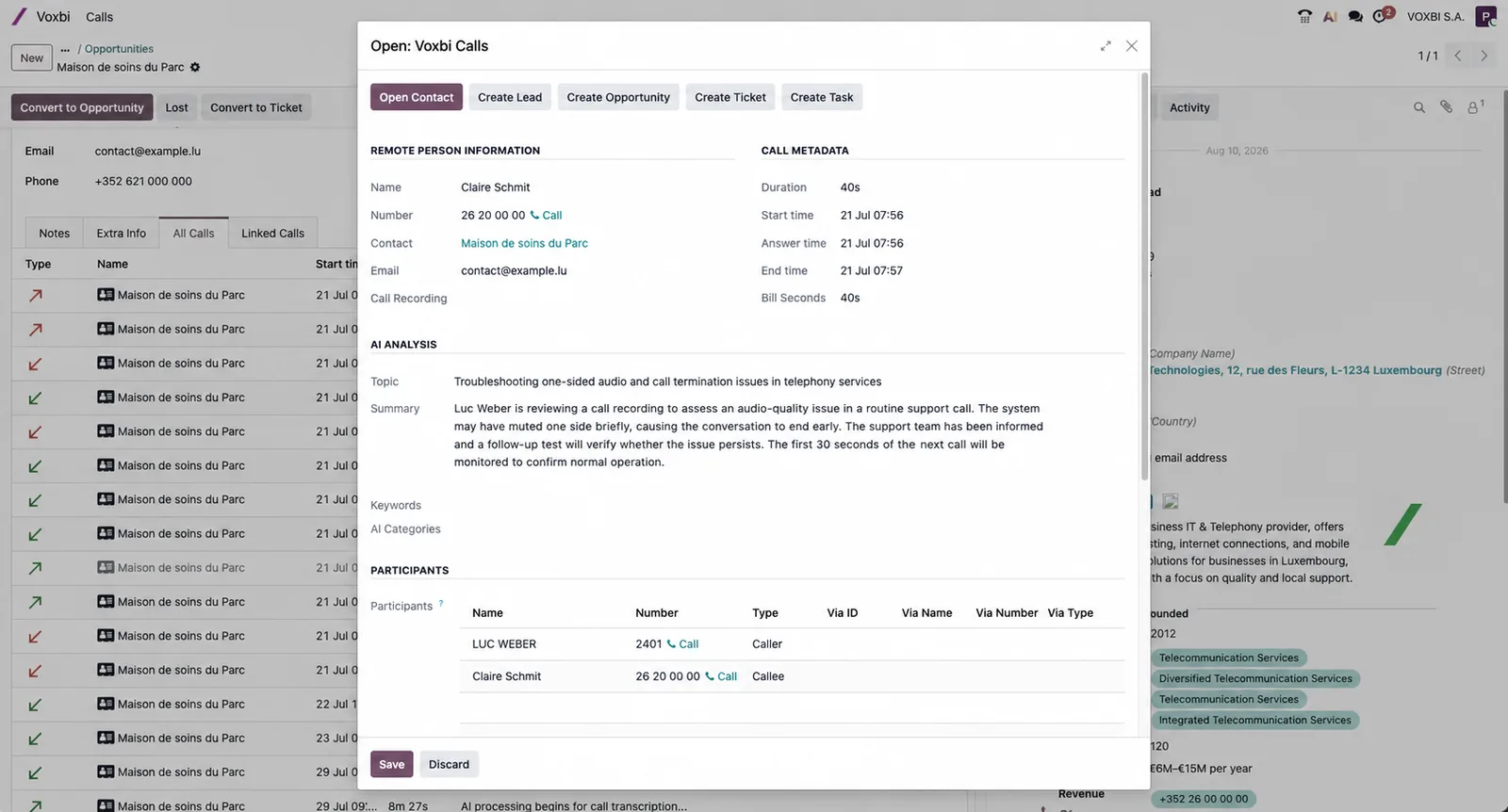
Once Voxbi connects to Odoo, every call logs itself on the right contact and deal, the AI writes the summary, and you can dial from any record. Here is what you get.
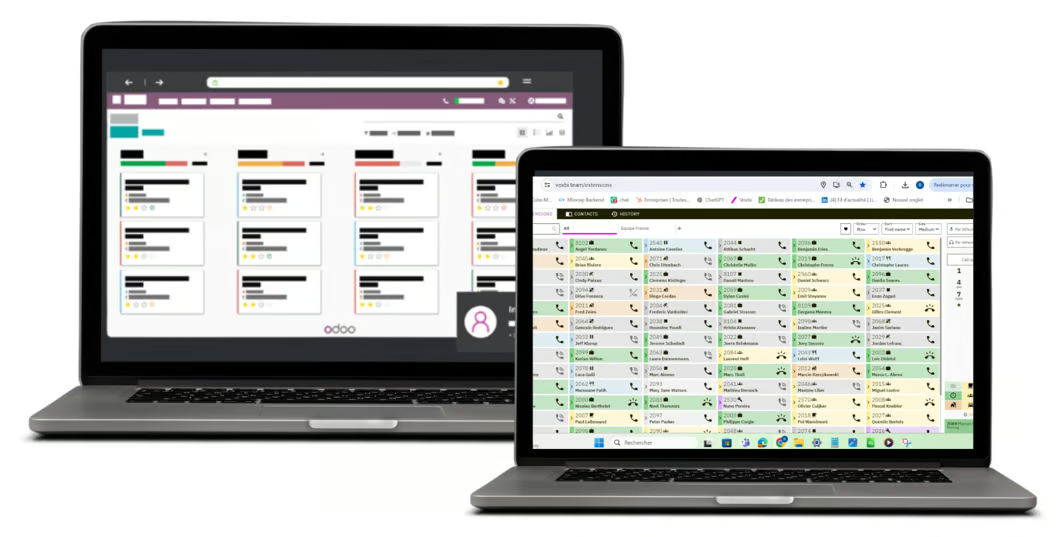
Gather four Odoo credentials, set the integration up in the Voxbi Cockpit, and verify call logging. A complete walkthrough for Odoo 16 to 19.
Start a free trial, or work with a certified Voxbi partner.