
How to install Voxbi on Odoo.sh: a step-by-step guide
Deploy the Voxbi app from the Odoo Apps Store to your Odoo.sh production branch, activate it in Odoo, and connect it to Voxbi Cockpit. For Odoo 16 to 20.

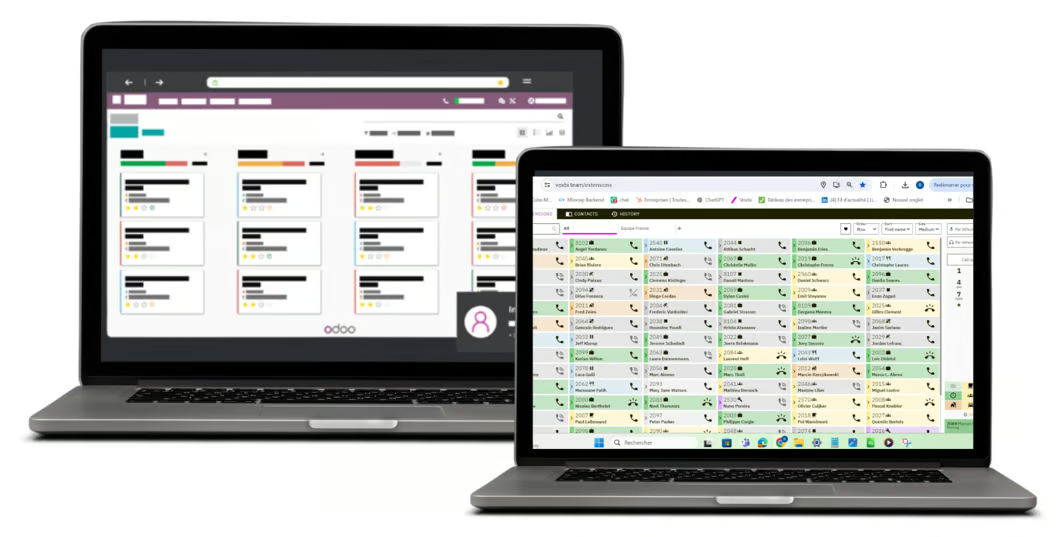
This guide is for Odoo.sh only. On Odoo.sh you install Voxbi from the Odoo Apps Store, merge it into your production branch, and then connect it to Voxbi Cockpit with one click. Running Odoo Online or your own server instead? Follow how to connect Odoo to Voxbi. For what the integration does once it runs, see the Odoo VoIP integration overview.
The setup has three parts. Part 1 deploys the app on Odoo.sh. Part 2 activates it inside Odoo. Part 3 connects it to Voxbi Cockpit, which installs the rest for you.
Part 1: deploy the app on Odoo.sh
The Odoo Apps Store can push an app straight into an Odoo.sh project. The app lands on a development branch first, and you merge it into production yourself.
Step 1: open Voxbi on the Odoo Apps Store
Search the Odoo Apps Store for Voxbi and open the listing. Check that the version badge next to the title matches your Odoo.sh project's version. The Versions row lets you switch. Then click Deploy on Odoo.sh.
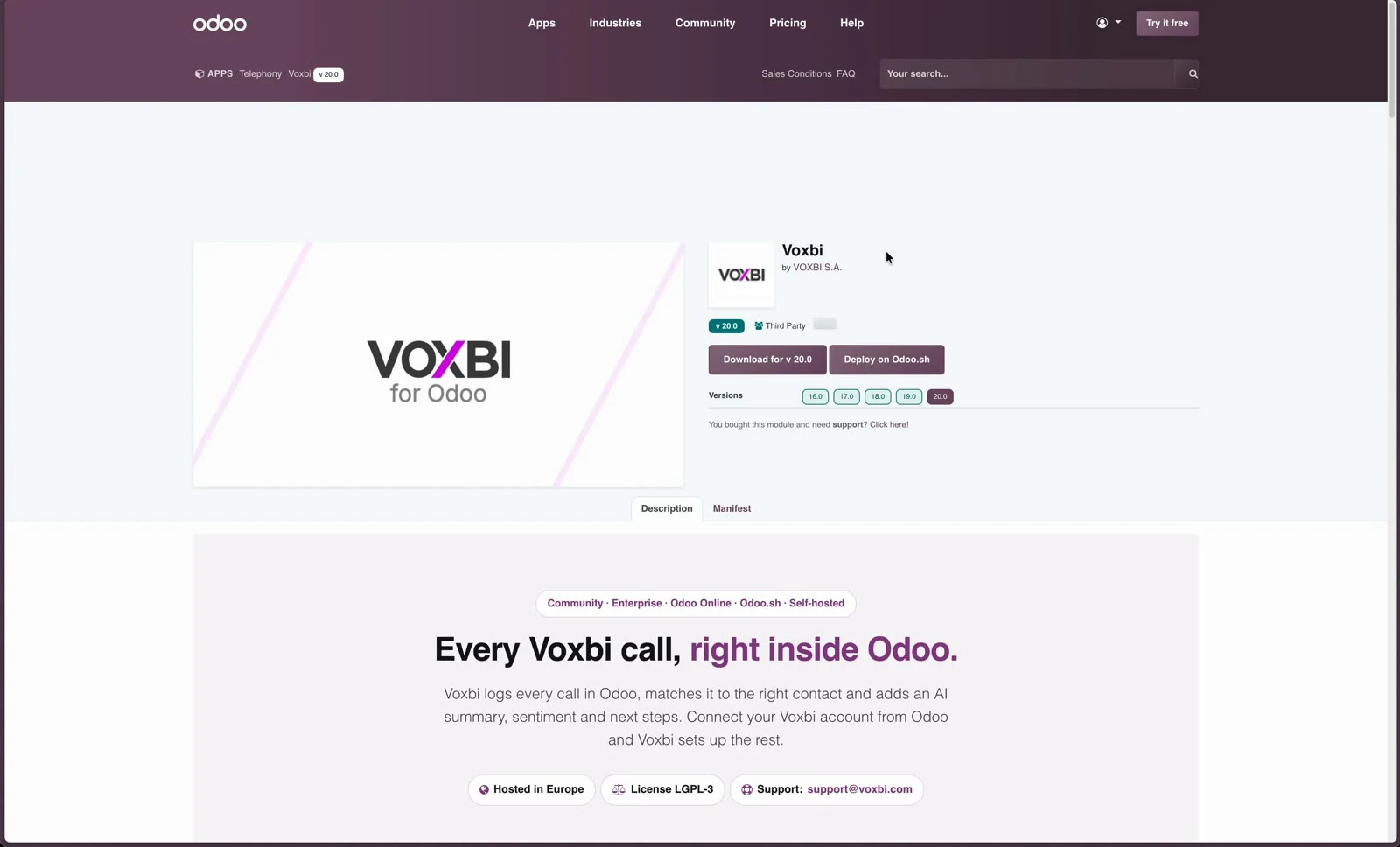
The Voxbi listing. Deploy on Odoo.sh sits next to the download button.
Step 2: choose the Odoo.sh project
Odoo.sh lists every project you have access to. Pick the one whose production database should get Voxbi and click Open. Make sure its Odoo version matches the store version you chose in step 1.
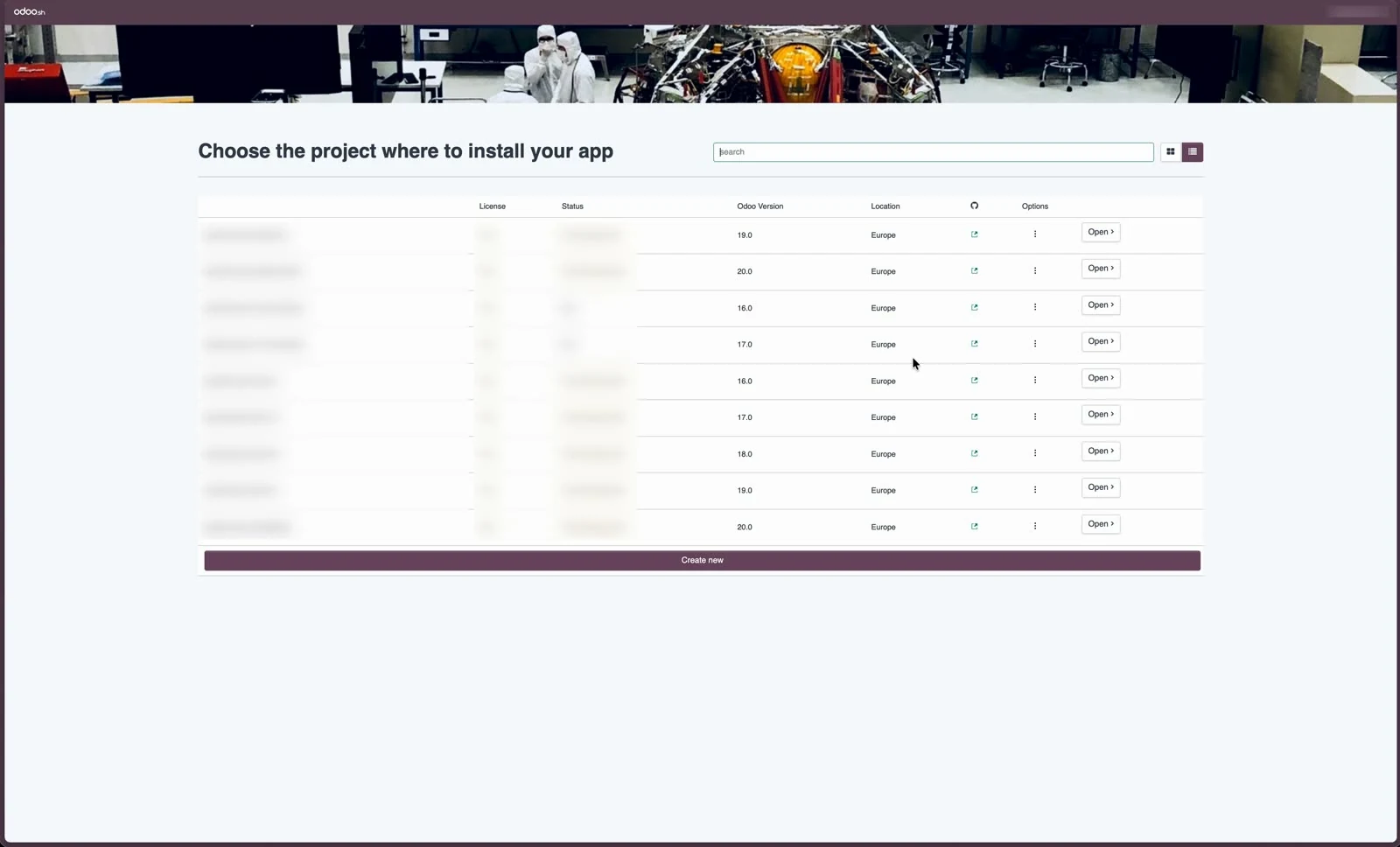
Each row shows the project's Odoo version, so you can confirm the match before you open it.
Step 3: confirm the Add app dialog
Odoo.sh explains that it will create a new branch based on your production branch and add the app to it. Click Continue.
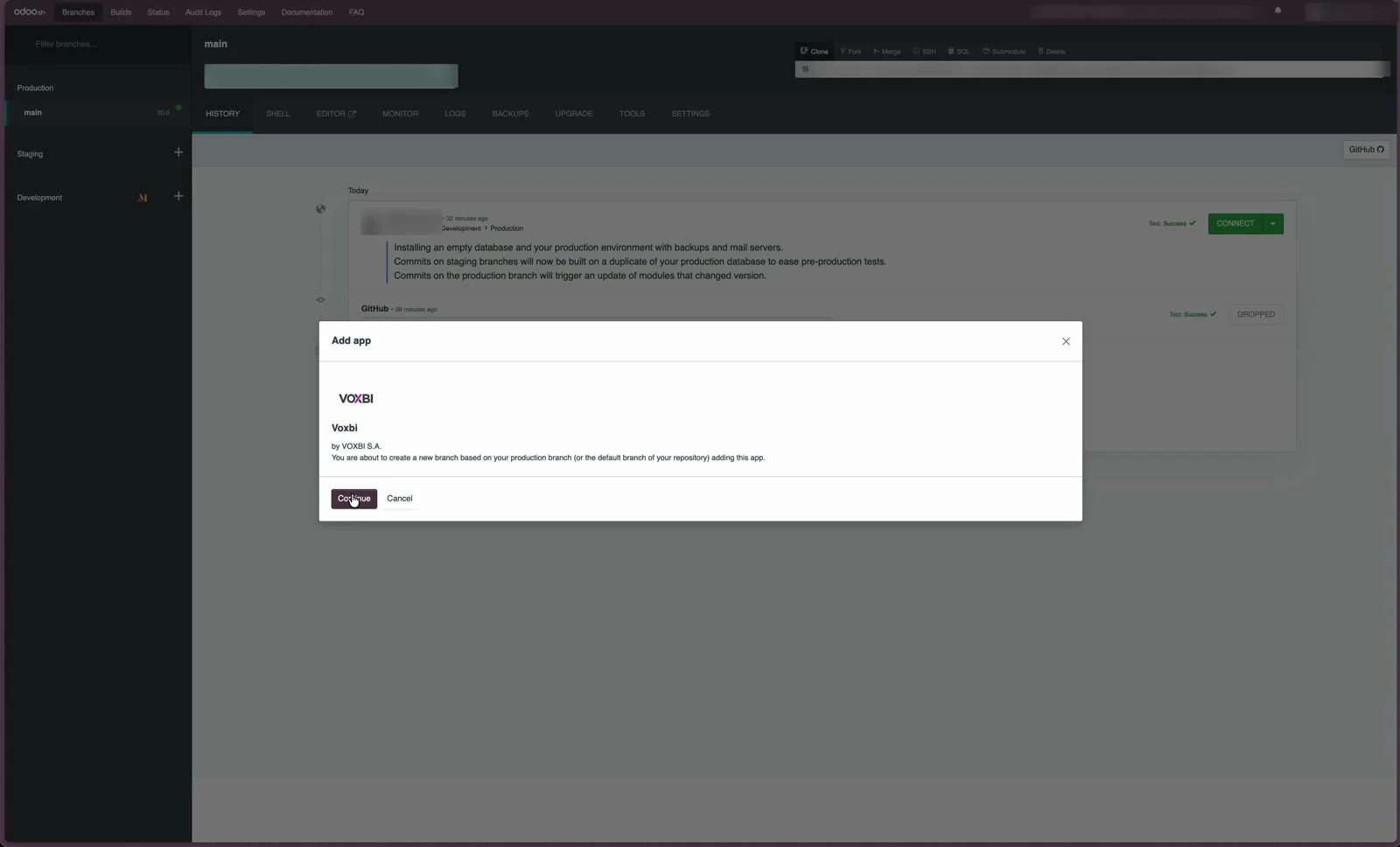
Nothing changes in production yet. Odoo.sh only creates a branch.
Step 4: wait for the development build
A development branch named app-voxbi_installer appears with one commit, [ADD] app voxbi_installer, and Odoo.sh queues a build. Wait until the build completes. You can keep the branch after the merge or delete it; it has no effect on production.
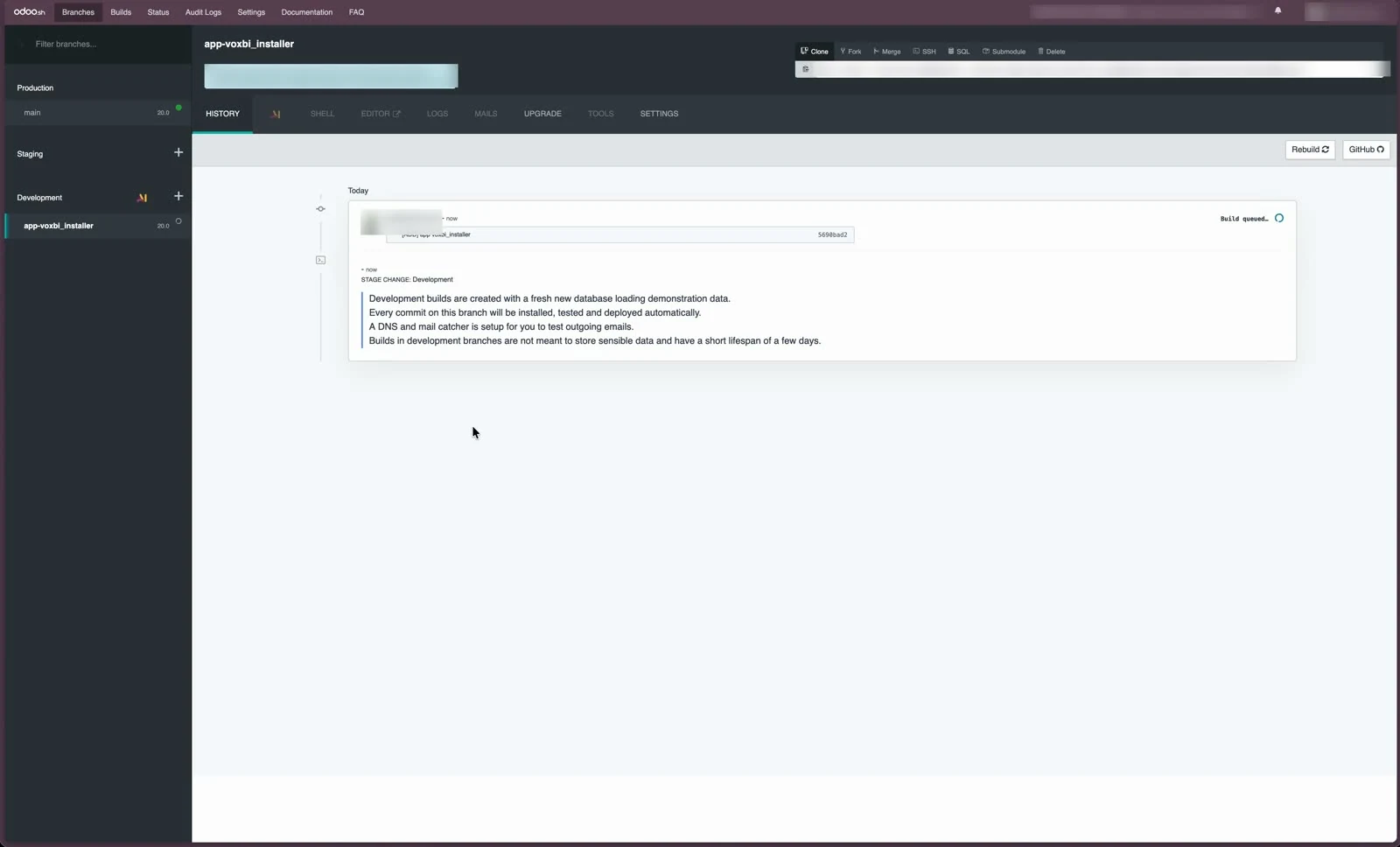
The development branch builds on a fresh database with demo data. It is a test, not your production install.
Step 5: merge the branch into production
With app-voxbi_installer selected, click Merge in the branch toolbar and target your production branch, usually main. In the dialog, Merge creates a merge commit and Rebase and Merge keeps a linear history. Both give you the same code, so either one works.
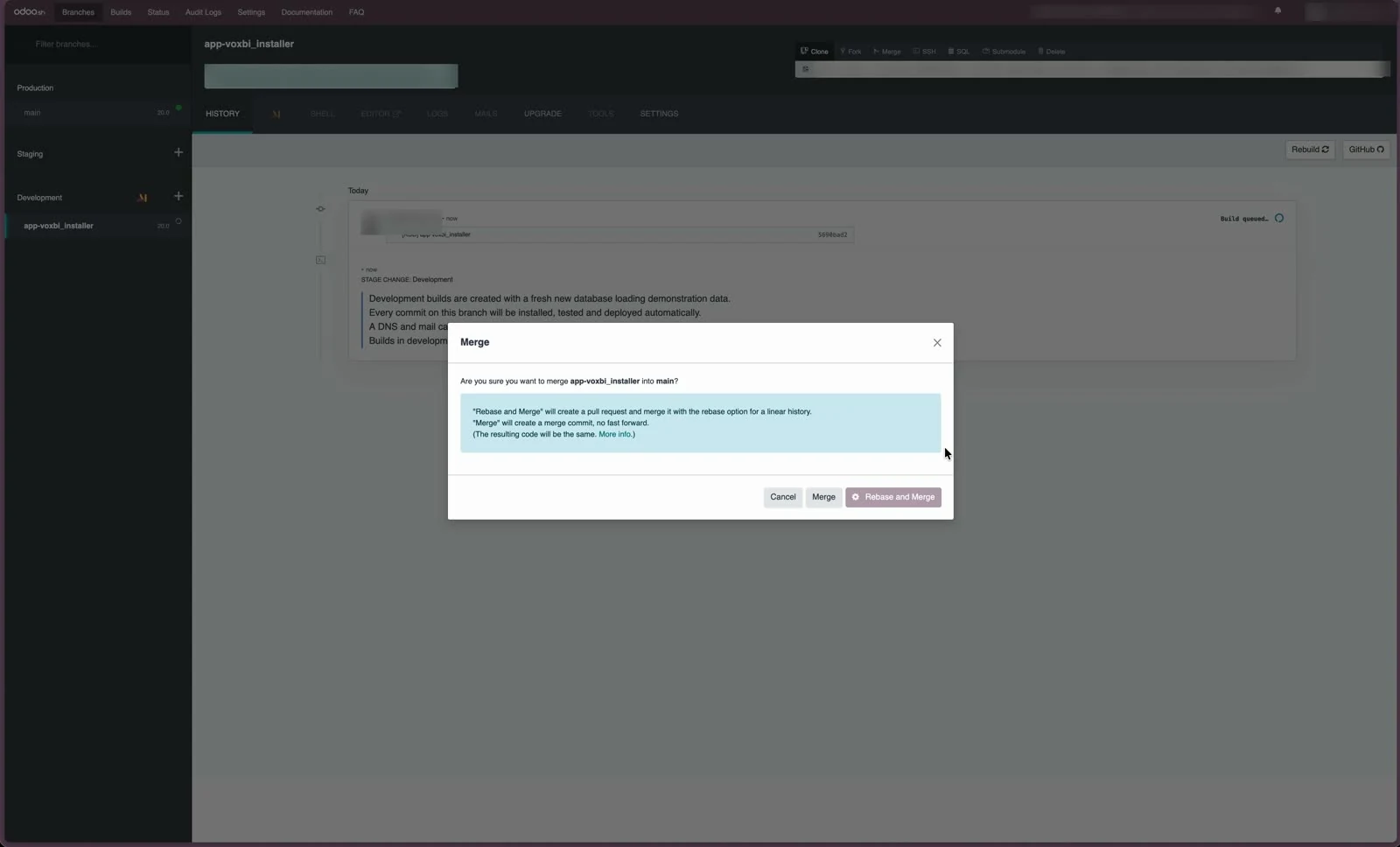
The merge starts a production build.
Step 6: wait for the production build, then open Odoo
The history of your production branch now shows the merge. When the build reports Test: Success, click Connect to open your production database.
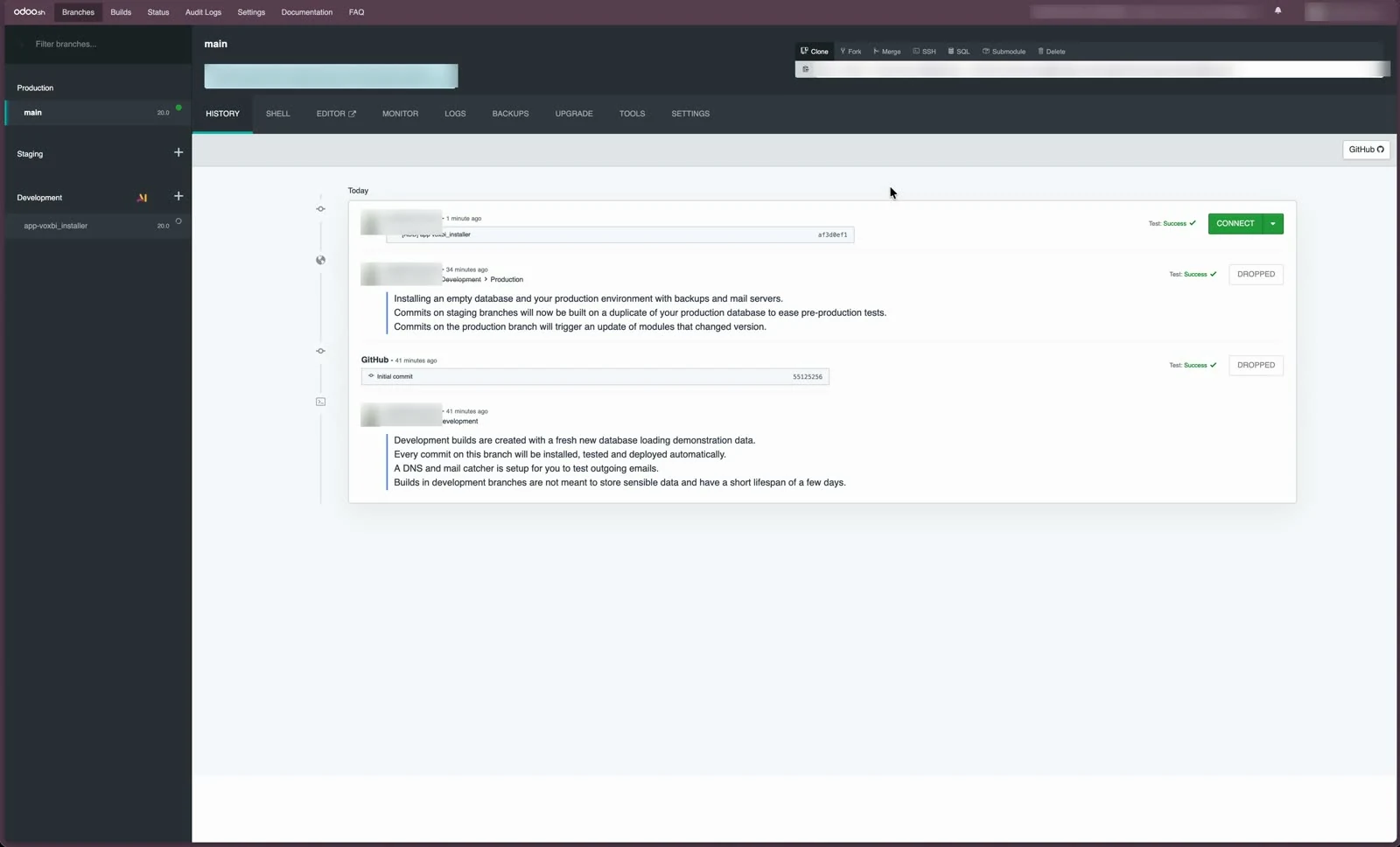
Connect opens the production database as the administrator.
Part 2: activate Voxbi in Odoo
Four short steps inside Odoo: switch on developer mode, refresh the apps list, find the module, activate it.
Step 7: turn on developer mode
Open Settings, scroll to the bottom of General Settings, and click Activate the developer mode under Developer Tools. The page reloads and the address ends in ?debug=1.
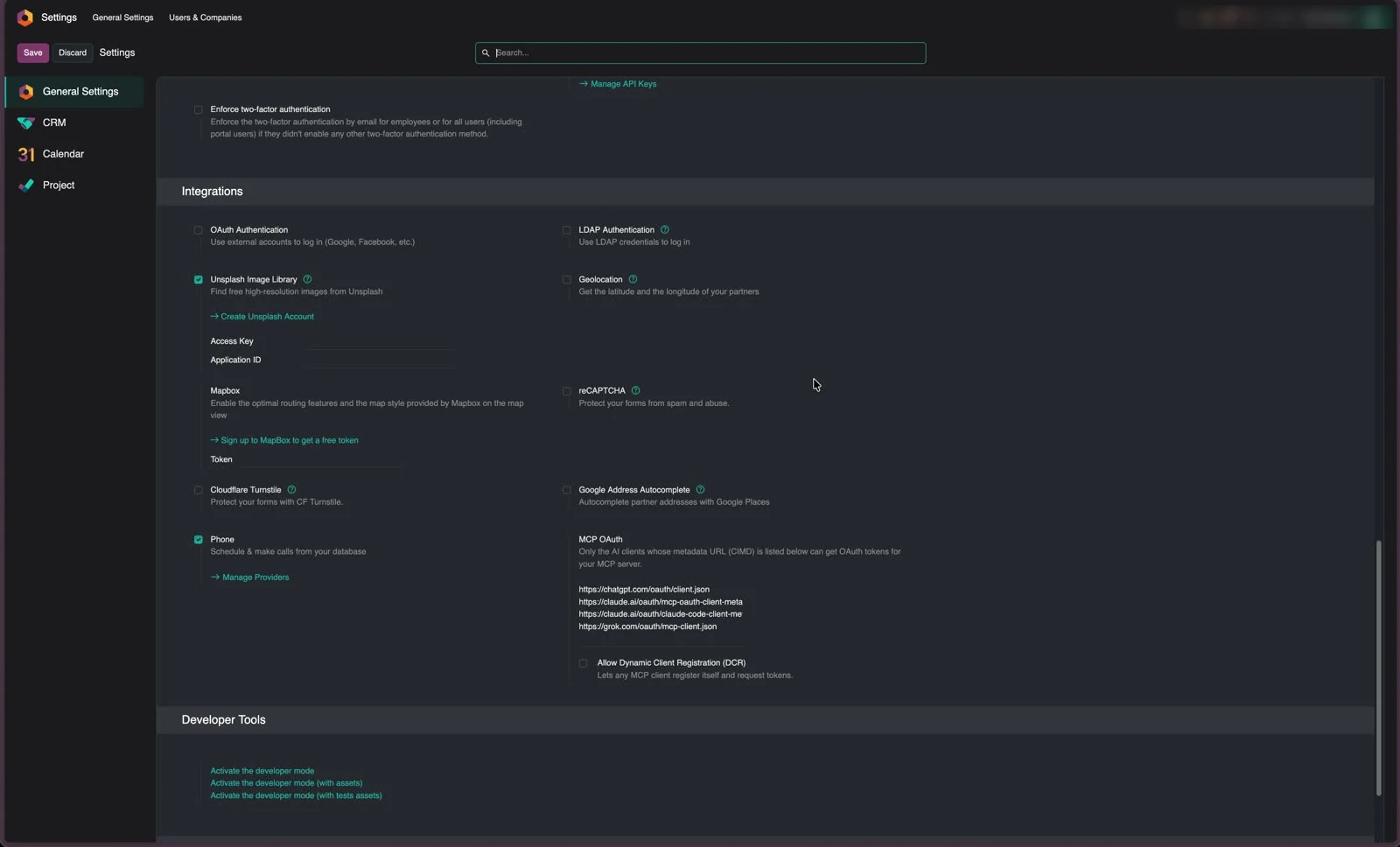
Developer mode unlocks the Update Apps List menu you need in the next step.
Step 8: open Update Apps List
Go to Apps. The top menu now shows Update Apps List. Click it.
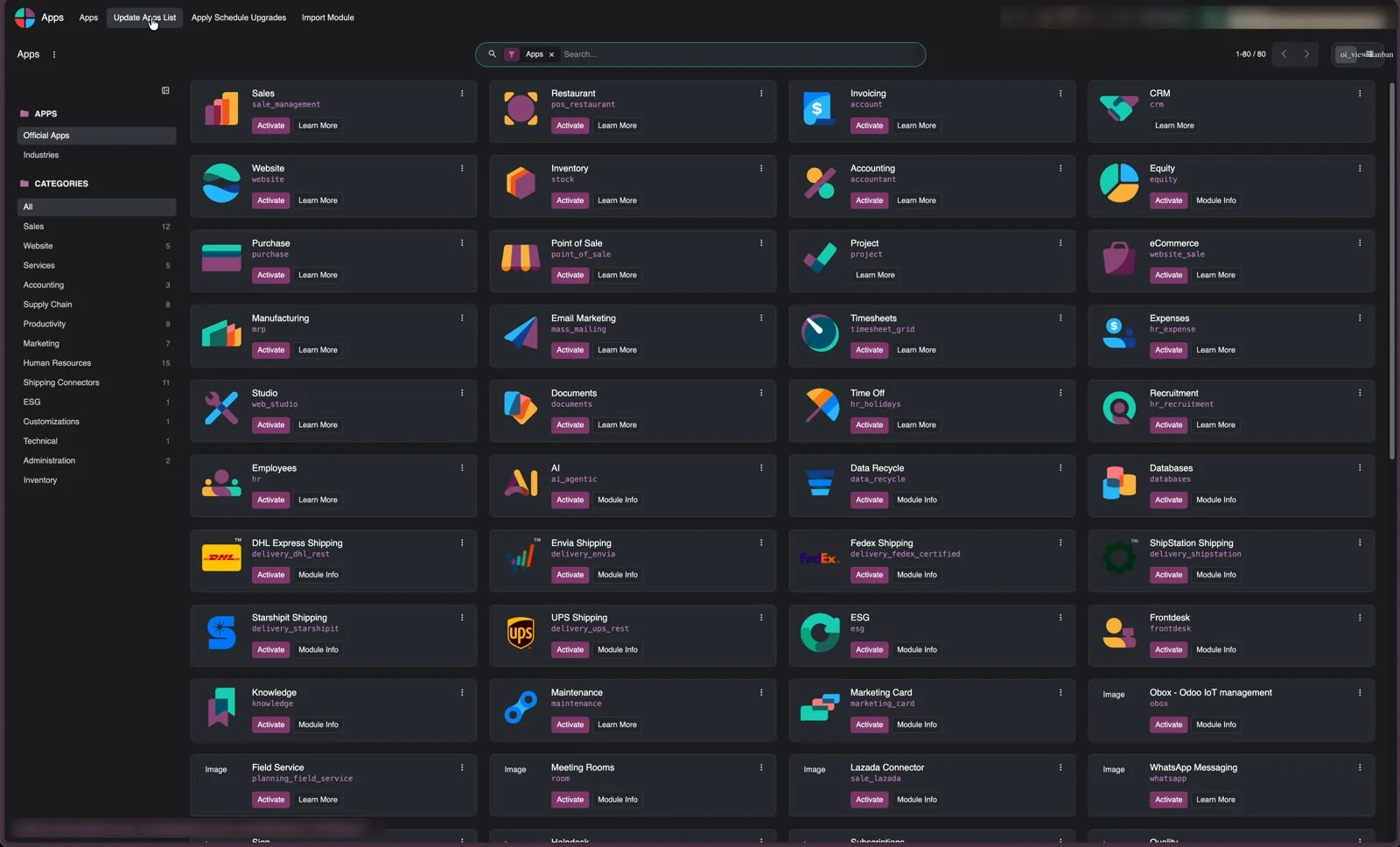
Update Apps List only appears in developer mode.
Step 9: confirm the update
In the Module Update dialog, click Update. Odoo rescans the add-ons on the server and registers voxbi_installer. This takes a few seconds.
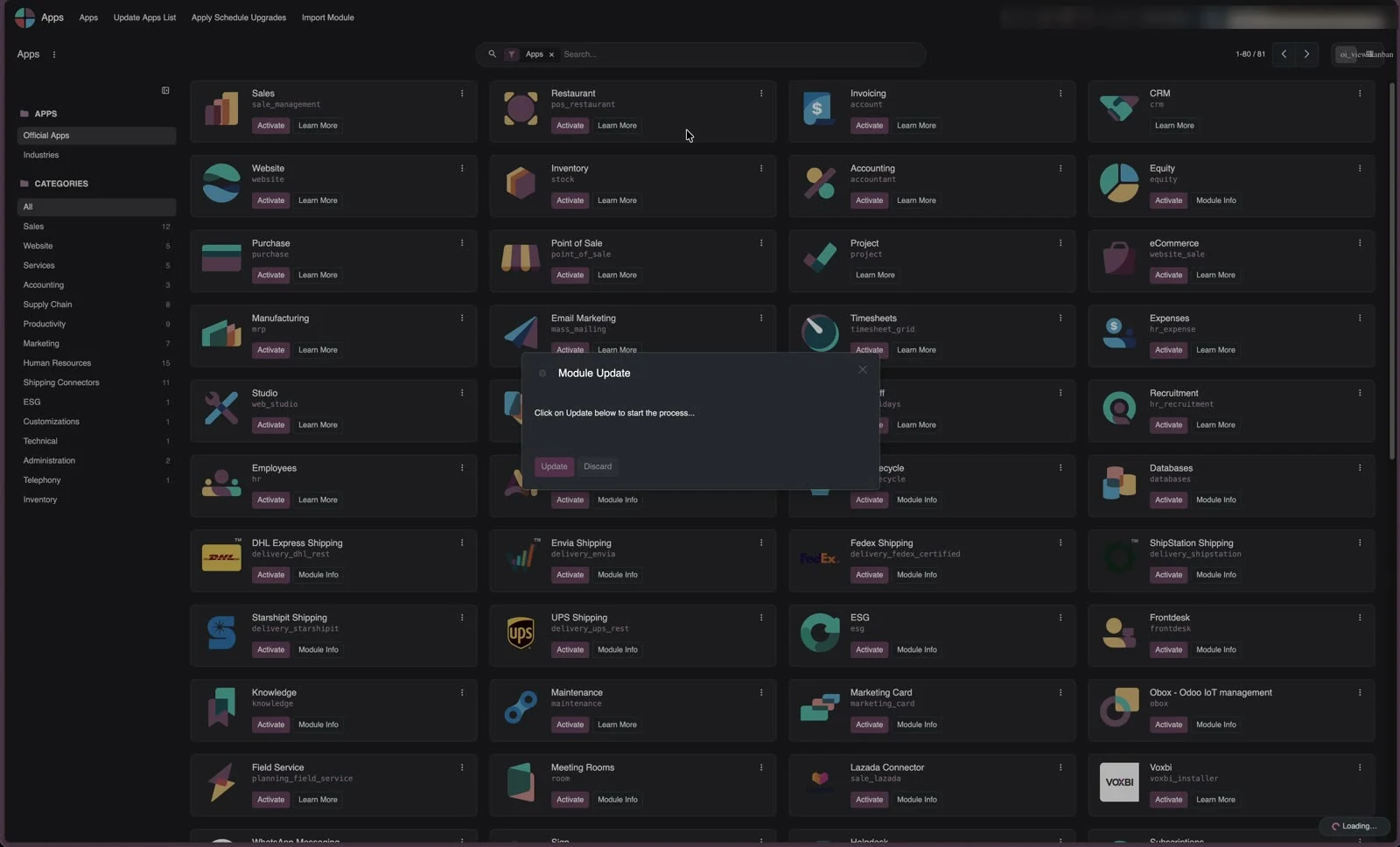
After the update the Apps view reloads. Voxbi is registered but the default filter still hides it.
Step 10: find Voxbi and activate it
In the search bar, remove the Apps filter by clicking its ×. Type Voxbi and pick Search Module for: Voxbi. The Voxbi card appears, labelled voxbi_installer. Click Activate.
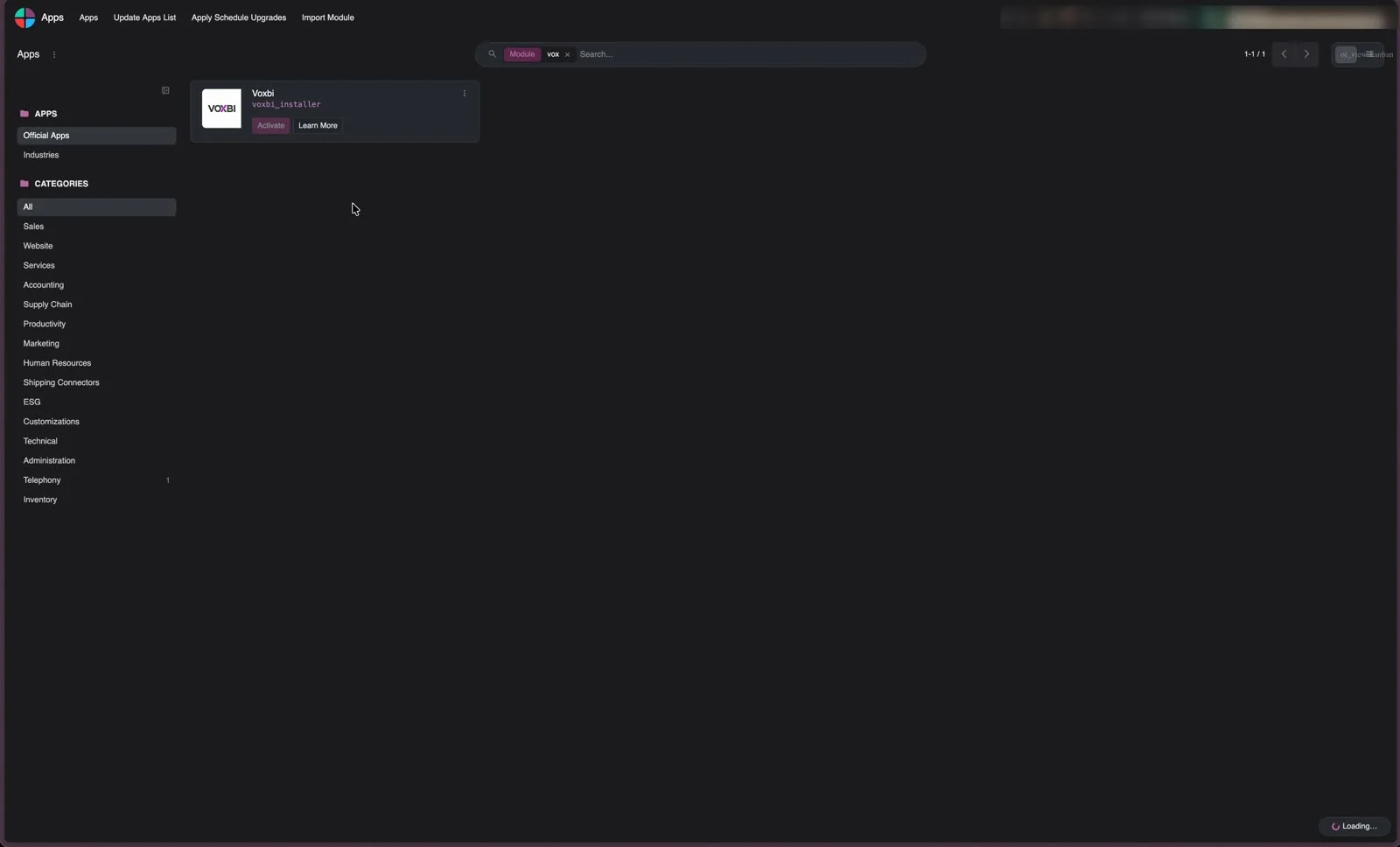
With the Apps filter gone the search covers every module, and Voxbi shows up with its Activate button.
Part 3: connect to Voxbi Cockpit
The module you just activated is a small installer. It hands your Odoo connection details to Voxbi Cockpit, and Cockpit then sets up call logging, click-to-call and caller details in this database.
Step 11: open Voxbi Setup and connect
After activation, Odoo opens Voxbi Setup with the status strip on Ready to install. If the database has no user yet other than administrators, click Create a Voxbi sync user first, so the ongoing sync never runs on an administrator's credentials. Then click Connect to Voxbi Cockpit.
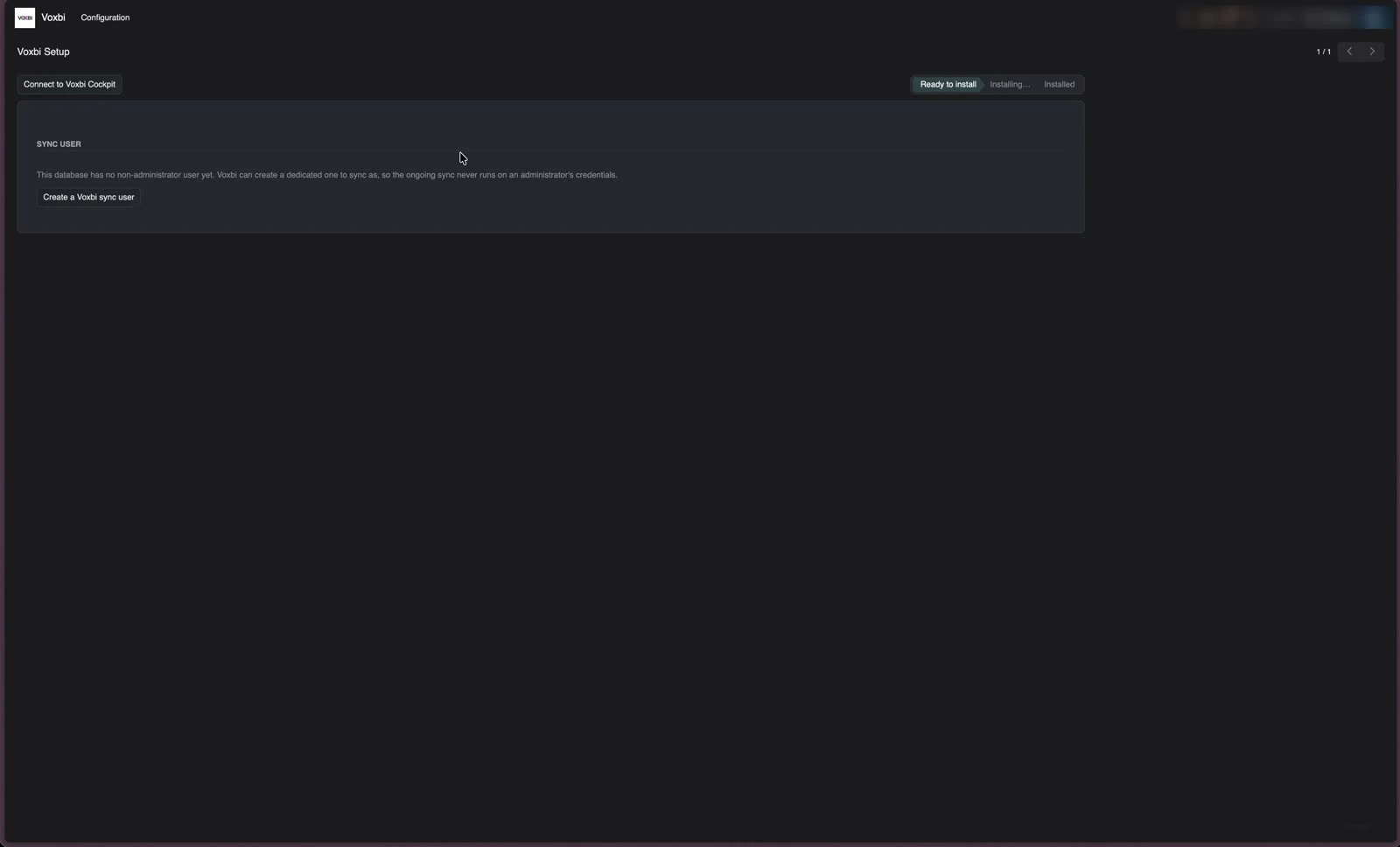
The status strip tracks the three stages: Ready to install, Installing, Installed.
Step 12: authorize the connection in Cockpit
Your browser goes to Voxbi Cockpit. Sign in with your Cockpit account if asked. The Connect Odoo to Voxbi Cockpit page names the Odoo instance and the PBX it will link. It also lists what Odoo sends to Voxbi, what Voxbi does with it, and how to stop it. Click Authorize and connect.
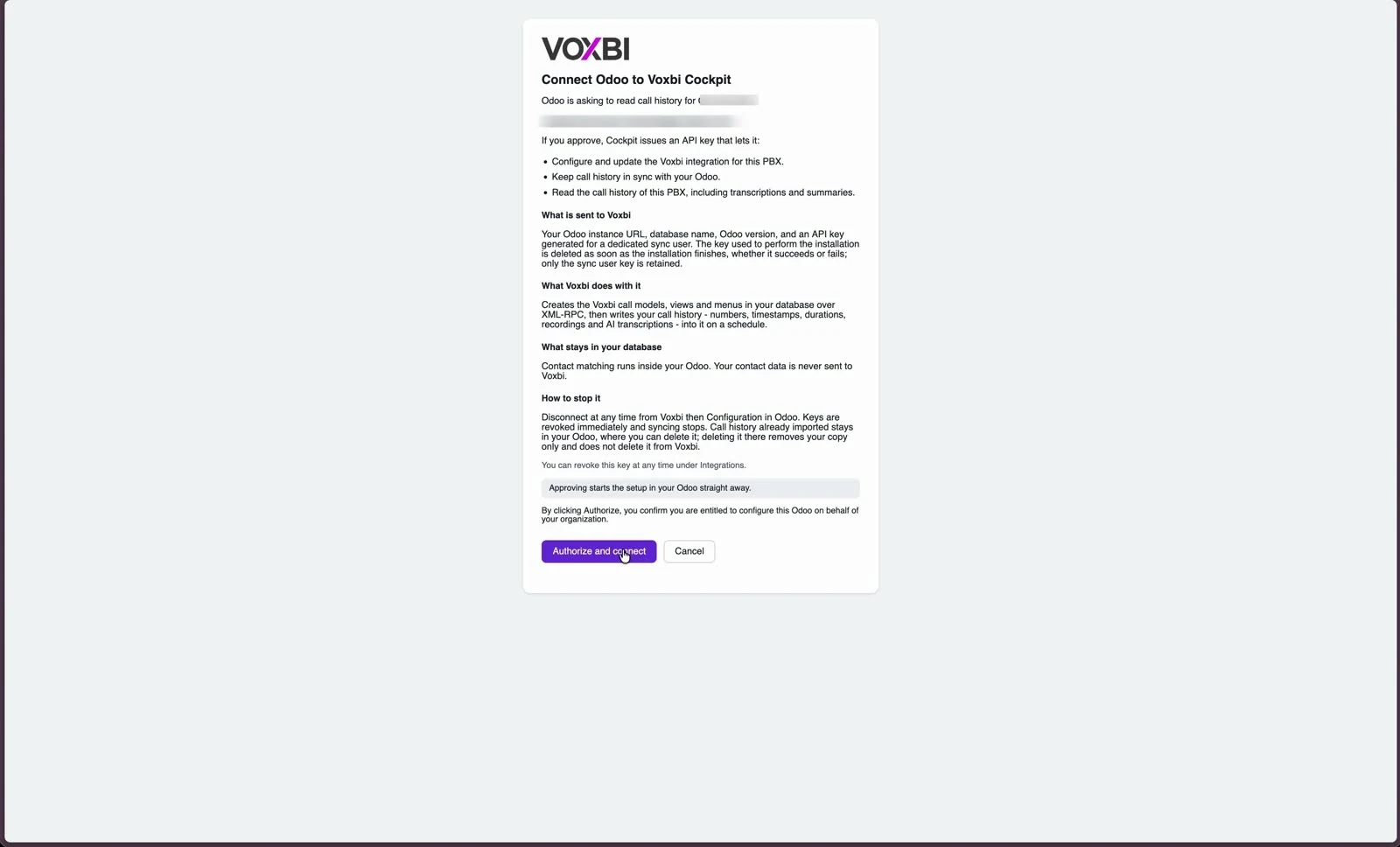
Approving starts the setup in your Odoo straight away. You can revoke the key at any time under Odoo integrations in Cockpit.
Step 13: let the installation run
Back in Odoo, Voxbi Setup shows the Cockpit address, the PBX, and the user it syncs as, with the message Voxbi module is installing. Cockpit now creates the Voxbi models, views and menus in your database. Leave the page open. It updates by itself, and the status strip moves from Installing to Installed when the work is done.
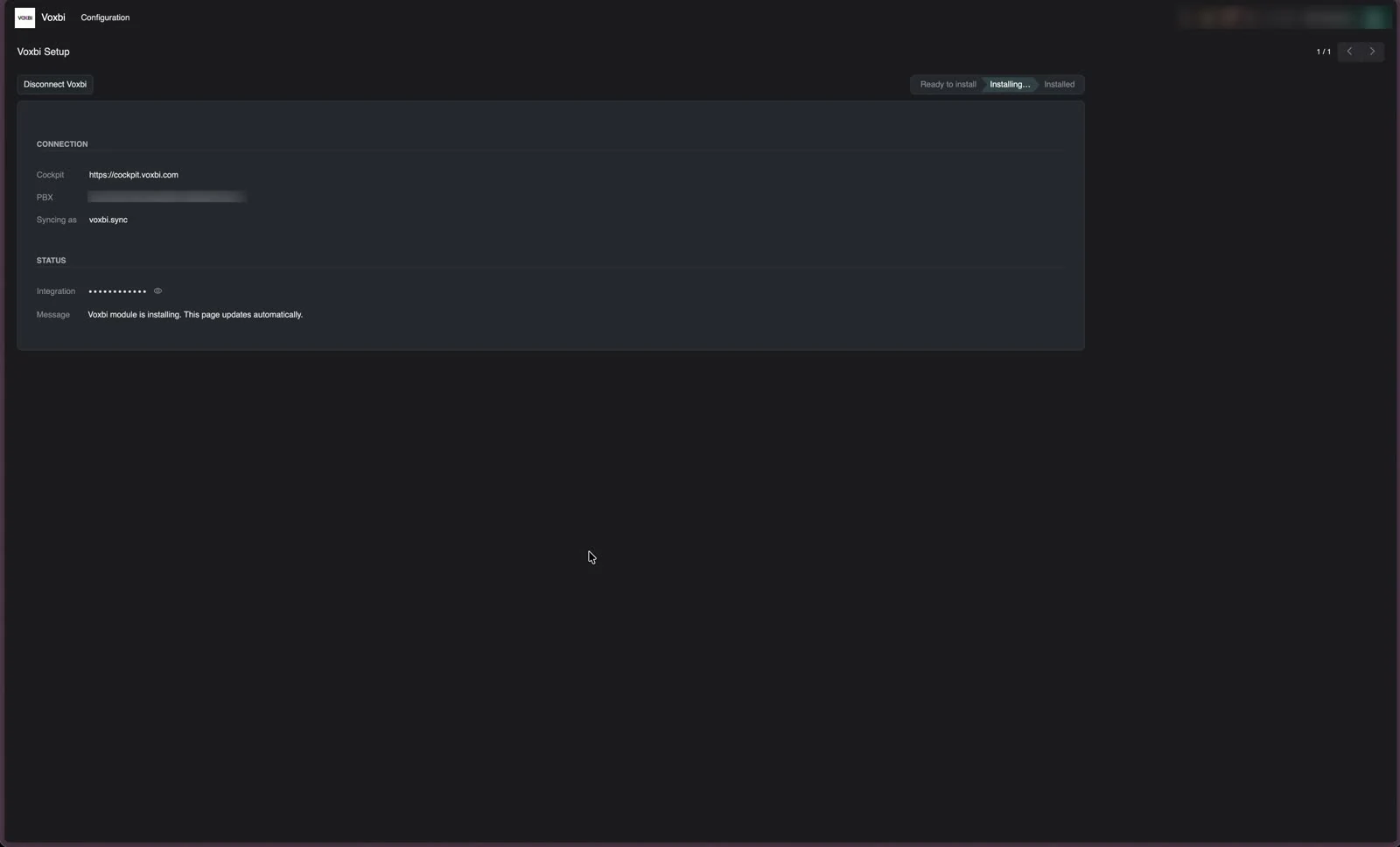
A Disconnect Voxbi button replaces Connect once the link exists. Use it to revoke the integration from the Odoo side.
When the status reads Installed, every Voxbi call lands in Odoo. The Voxbi menu gains a Calls view, and call history, click-to-call and caller details appear on contacts, leads and tasks. Calls start syncing from that moment.
Optional: make and receive calls inside Odoo
To let your team call from Odoo's own VoIP module, turn on Sync SIP connection configurations to Odoo for all users in the Odoo integration settings in Voxbi Cockpit. Step 5 of how to connect Odoo to Voxbi shows where the setting is.
Troubleshooting
| Symptom | Likely cause | Fix |
|---|---|---|
| Voxbi does not appear in Apps | The production build from step 6 has not finished, the apps list was not updated, or the Apps filter is still on | Check the three in that order: the build in step 6, steps 8 and 9, then the filter chip in step 10. |
| No Deploy on Odoo.sh button on the store | You are not signed in to an Odoo account that owns Odoo.sh projects | Sign in on apps.odoo.com and reload the listing. |
| The version badge does not match the project | The listing shows a different Odoo version | Use the Versions row on the listing to switch to your project's version before you click Deploy. Odoo.sh refuses apps built for another major version. |
| Voxbi Setup reports Install failed | The installation stopped partway | Click Disconnect Voxbi, then Connect to Voxbi Cockpit again. If it fails a second time, copy the text under Output on the setup page and send it to support@voxbi.com. |
| One person's calls do not sync | Their email differs between Voxbi and Odoo | Voxbi matches users by email address. Make the email identical in both systems. |
Need help?
If a step fails, email support@voxbi.com. Include a screenshot of the step and any text under Output on the Voxbi Setup page, so we can help you faster.